
Introduction to ABAP #
Essential Transaction Codes #
What is a Transaction Code? #
A Transaction Code (or T-Code) is a text shortcut that allows you to access a SAP feature directly without navigating through menus. It’s the equivalent of a shell command in a terminal.
Entering a Transaction Code #
To use a T-Code:
- Click in the command field (top left)
- Type the transaction code
- Press Enter
┌──────────────────────────────────┐
│ /nSE80                           │  ← Command field
└──────────────────────────────────┘
Advanced Syntax #
| Syntax | Action |
|---|---|
SE80 |
Opens SE80 in current session |
/nSE80 |
Opens SE80 closing current screen |
/oSE80 |
Opens SE80 in new session |
/nex |
Quit current transaction |
/n |
Return to SAP Easy Access screen |
Transaction Codes for Development #
Here are the must-know T-Codes for starting in ABAP:
| Transaction Code | Full Name | Usage |
|---|---|---|
| SE10 | Transport Organizer | Creation and viewing of transport orders |
| SE80 | Object Navigator | Main development environment (creation of packages, programs, classes) |
| ST22 | ABAP Runtime Error | View list of dumps (runtime errors) |
Keyboard Shortcuts #
Why Master Shortcuts? #
Keyboard shortcuts can multiply your development speed by 3. Instead of navigating menus with the mouse, you keep your hands on the keyboard and stay focused on the code.
Essential Shortcuts #
| Shortcut | Context | Action | Usage Example |
|---|---|---|---|
| ALT + Click | In a program | Vertical selection (column) | Indent multiple lines at once |
| CTRL + Y | In a transaction | Multiple selection | Select multiple lines in a list |
| CTRL + D | In a program | Duplicate selected line | Quickly copy a line of code |
Transport Order (TO) and Creation – SE10 #
Objectives #
- Understand the role of a
TRANSPORT ORDERin SAP - Know how to create a
TOfrom transactionSE10 - Identify the structure of a
TRANSPORT ORDER(TASKS, OBJECTS) - Remember best practices for using
TO
The goal is to master
TOto transport, organize and track your developments between SAP environments.
Definition #
A
TRANSPORT ORDER(TO) is a container that groups development or configuration objects in SAP.It allows you to transport these objects from one ENVIRONMENT to another.
Visual Schema
DEV (Development) ──> QUAL (Testing/Validation) ──> PROD (Production)
You put your objects (programs, tables…) in a box (
TO), then transport it from one house (DEV) to another (QUAL/PROD). The icon to transport aTOis a truck.
A released
TOis final and cannot be modified anymore.
Why Create a TO? #
Creating a TO allows you to:
- Track your developments
- Save your modifications
- Transport your creations to other SAP systems
| Environment | Role | Example |
|---|---|---|
| DEV | Development | Code creation and testing |
| QUAL | Testing / Validation | Functional testing by business |
| PROD | Production | Real program execution |
Think of the
TOas a box containing your objects: everything in that box follows the same path.
Types of Transport Orders #
| Type | Usage | Object Examples |
|---|---|---|
| Workbench Request | Development objects (ABAP, DDIC) | Programs, tables, structures |
| Customizing Request | Configuration parameters | Customizing tables |
| Transport of Copies | Temporary copy of development | Internal tests |
Workbench = code → DEV
Customizing = configuration → business parameters.
Creating a TO from Transaction SE10 #
Steps:
-
Enter
/nSE10then validate -
Click on
Create(F6) -
Choose the type of
TO→ Workbench or Customizing → Validate -
Give a Brief Description and Save
-
View the
TOand the task automatically created for the current user
Simplified schema of the
TOand its task:
TO (S4HK905579)
  └─ User Task (S4HK905580)
       └─ Objects: Programs, Tables, Includes
A task corresponds to what you modify or create. Each user has their own task in a global
TO. In other words, multiple developers can record modifications/creations in the sameTO.
Structure of a TO #
- Transport Request: groups multiple tasks under the same ID
- Task / Work Order: contains objects created/modified by a user
Visualization
Global TO (ID)
├─ Task 1 (User A) → Objects
├─ Task 2 (User B) → Objects
Never mix objects from different projects in the same
TO.
Searching for a TO #
- By ID: filter in
SE10 - By Author: filter to see
TOcreated by a user - Multiple search: combine criteria to find specific
TO
These filters allow you to quickly locate your developments and understand their history.
Best Practices #
| Best Practice | Note |
|---|---|
Clear name of the TO |
Ex.: ZAELION_TRI_2025 |
| Group objects from same project | Avoid confusion and omissions |
Release TO only after complete testing |
Released TO = final |
| Verify consistency with project manager | Before any transport to QAS/PRD |
The name and structure of the
TOare essential for tracking and maintenance.
Practical Exercise #
- Create a Workbench
TO“ZAELION_TRI_2025” (TRI will be replaced by your trigram (1st letter of first name and 2 letters of last name)) - View the
TOstructure and verify the task ID
The release of the
TOwill be the subject of its own module
Summary #
- A
TOis a container for your SAP objects- Allows you to transport your developments between environments
- Created via
SE10and links your programs and objects- Structure: global
TO→ user tasks → objects- Follow best practices to avoid errors and confusion
Each
TOis a box containing your creations, transported from house to house (DEV → QUAL → PROD) in a secure and traceable way.
Creating a PACKAGE via SE80 or SE21 #
Objectives #
- Understand the role of a
PACKAGEin organizing SAP developments - Know how to create a
PACKAGEviaSE80orSE21 - Understand the difference between local and transportable
PACKAGE - Organize your objects to facilitate maintenance and transport
The objectives aim to master the structuring of ABAP objects to simplify transport, maintenance and collaboration.
Definition #
A
PACKAGE(formerlyDEVELOPMENT CLASS) is a logical container that groups ABAP development objects.
The
PACKAGEis like a filing cabinet with drawers: each program, table or Include is organized in an identified drawer.
Visualization PACKAGE: ZAELION_TRI_2025 ├─ Program ZTRI_AELION_01 ├─ Include ZTRI_AELION_01_TOP └─ Table ZT_AELION_2025
A
PACKAGEfacilitates grouping by project or functional module and is essential for transporting objects.
Why Create a PACKAGE? #
Creating a PACKAGE allows you to:
- Organize developments by theme or project
- Avoid conflicts between similar objects
- Simplify transports via a coherent TO
Type of PACKAGE |
Description | Example |
|---|---|---|
Local ($TMP) |
Non-transportable, for local testing | $TMP |
| Transportable | Linked to a TO, transportable between systems | ZSD, ZMM, ZFI |
An object created in
$TMPcannot be transported.
Z/Y = client → transportable;
$TMP= test → local only.
Creating a PACKAGE with SE80 #
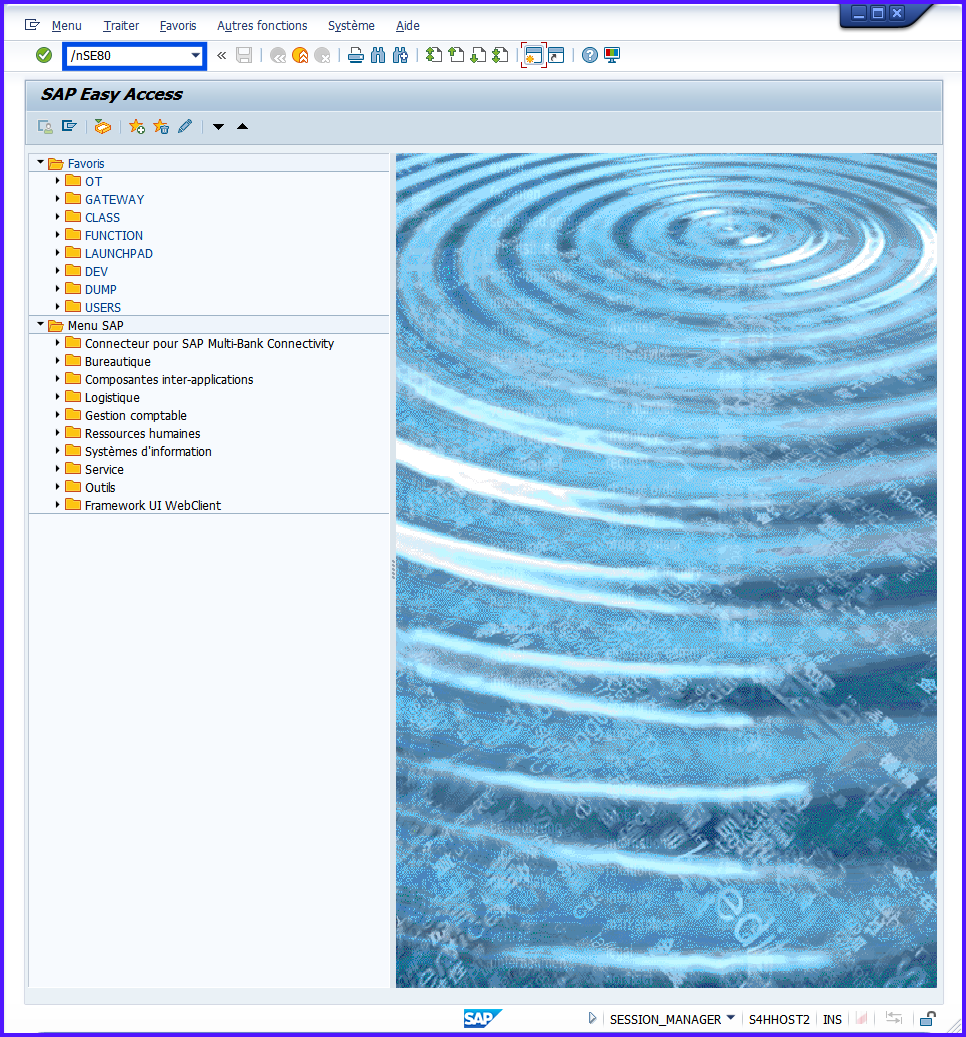
- Enter
/nSE80
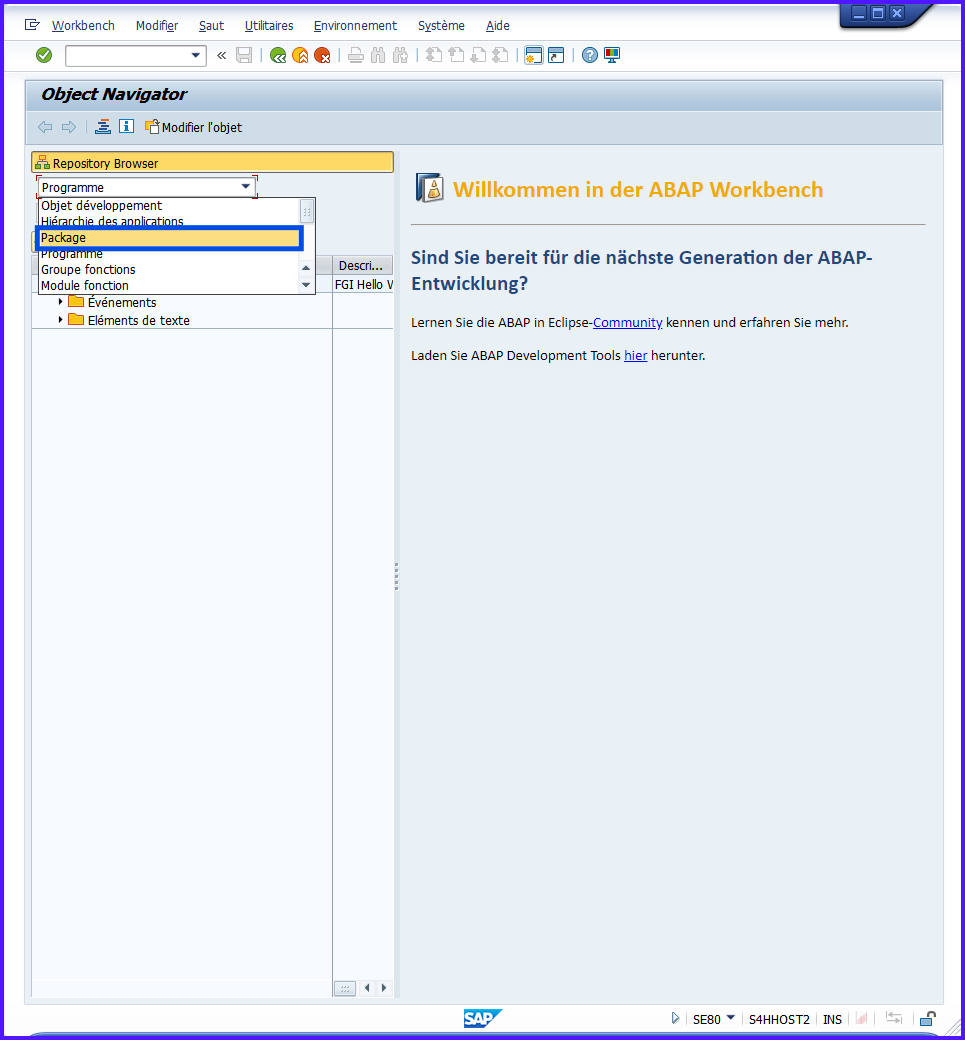
- In the dropdown list, choose
PACKAGE
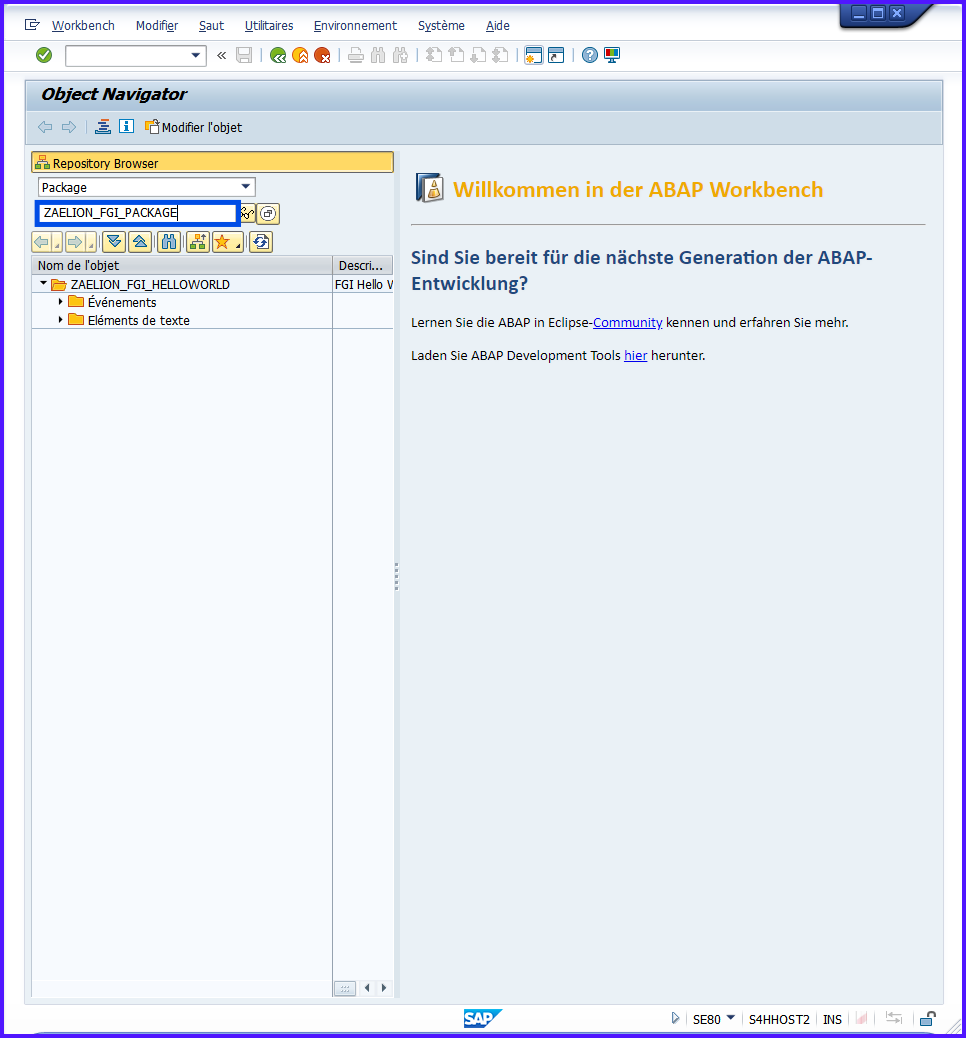
- Enter the
PACKAGEname (ex.ZAELION_TRI_PACKAGE) → Enter
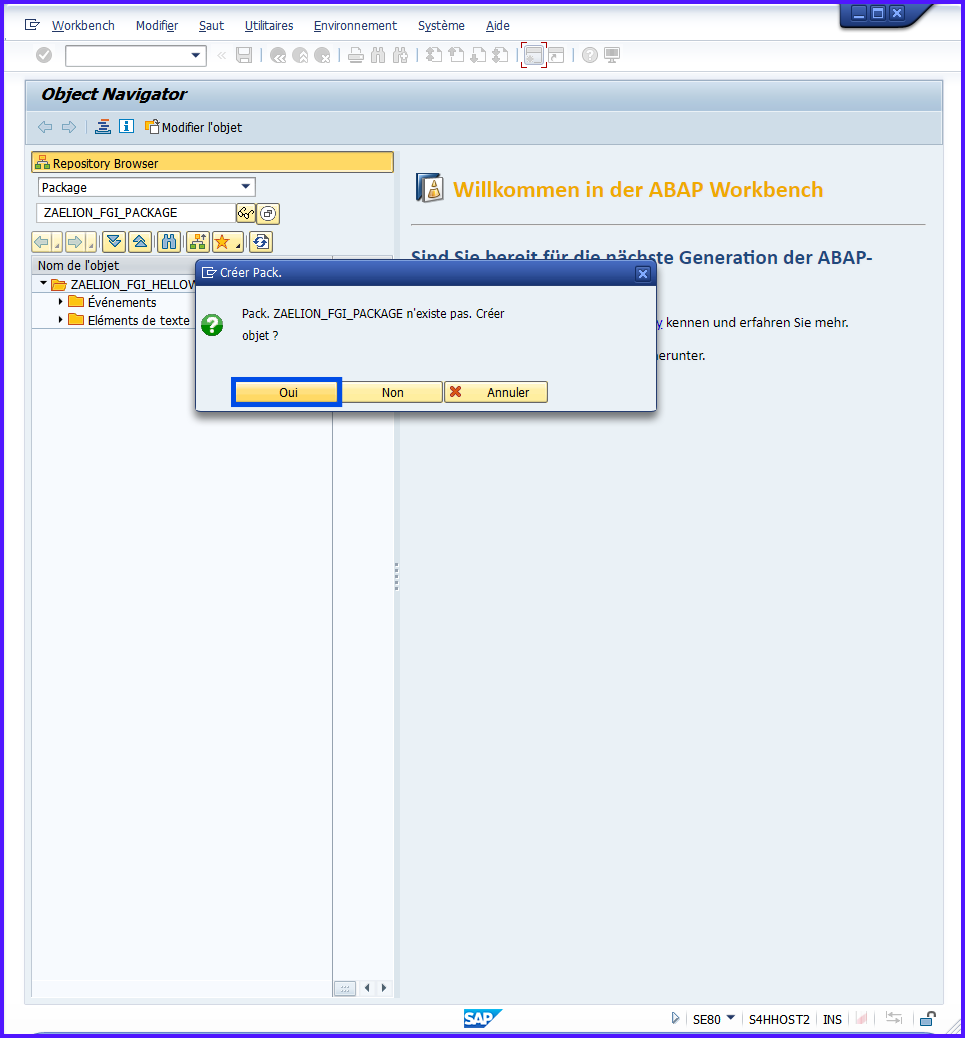
-
Confirm creation via popup
-
Fill in Brief Description and validate
TRI - PACKAGE SPECIFIC AELION 2025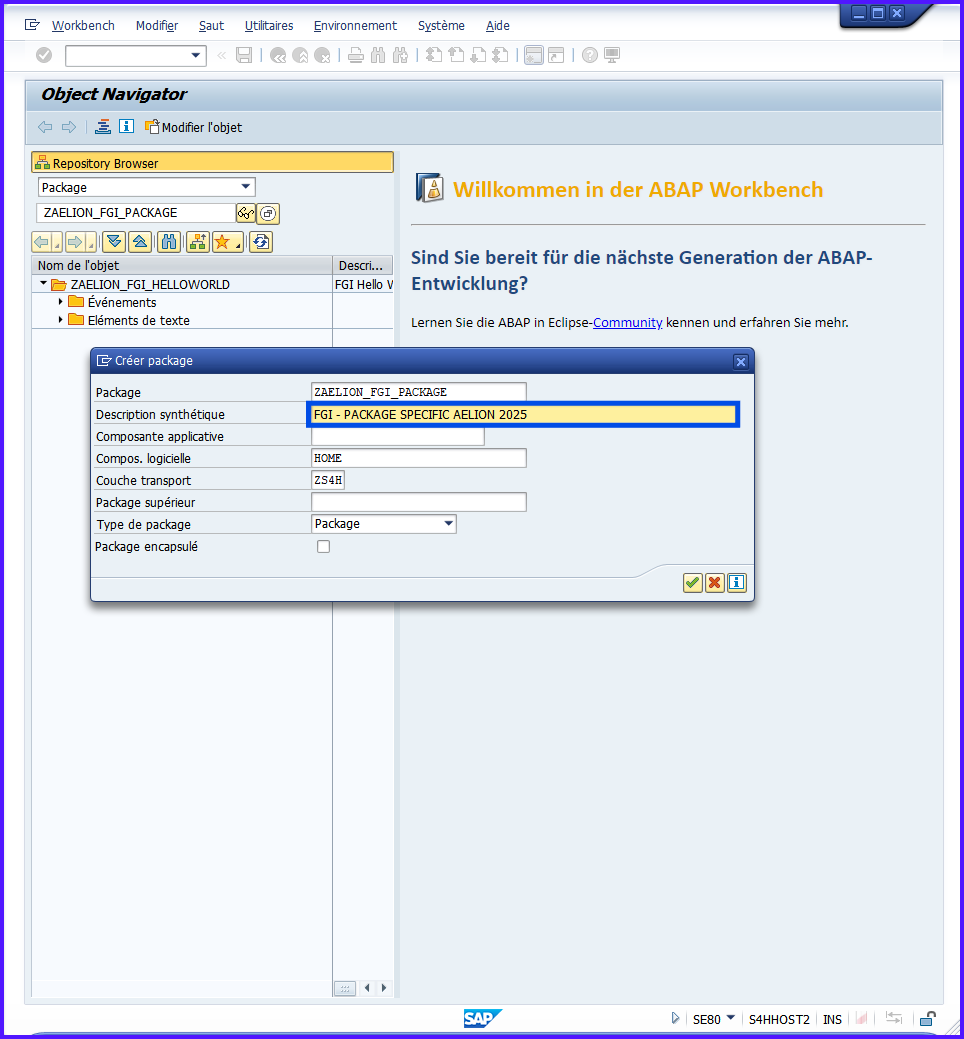
-
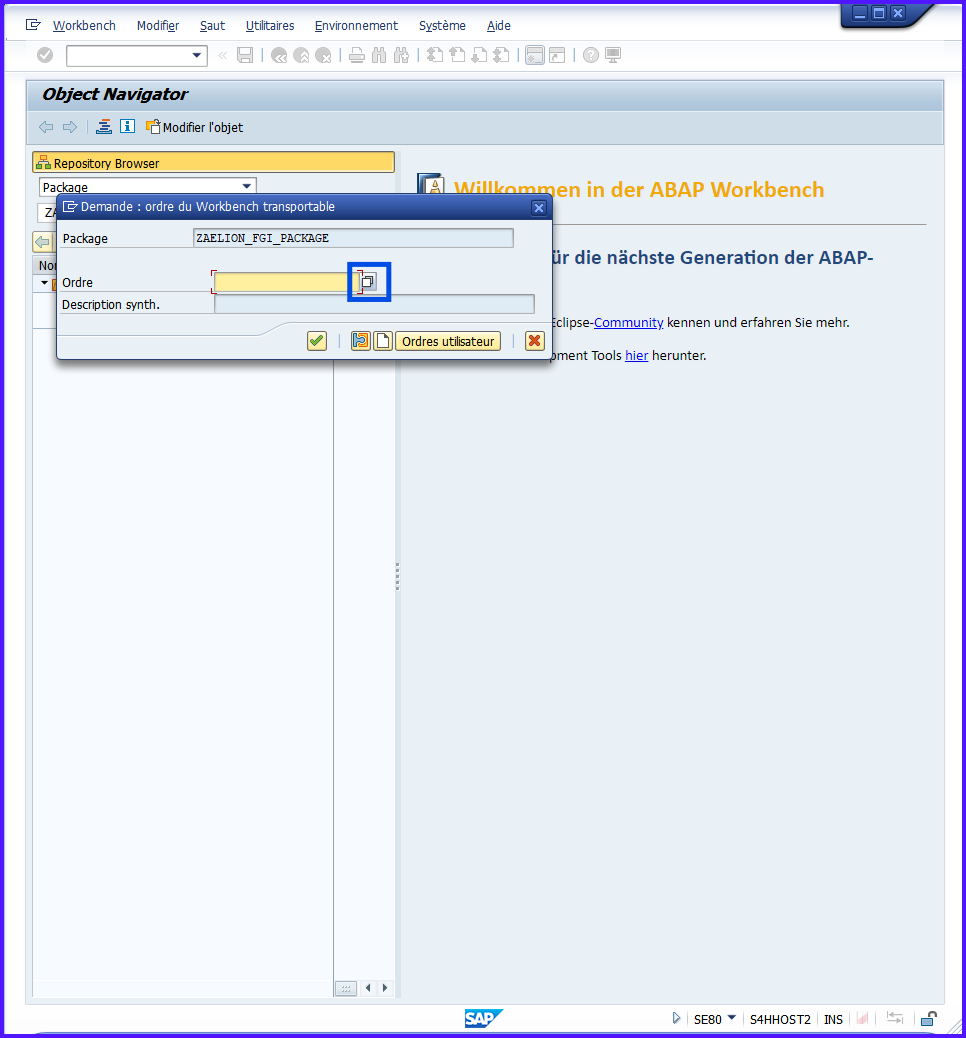
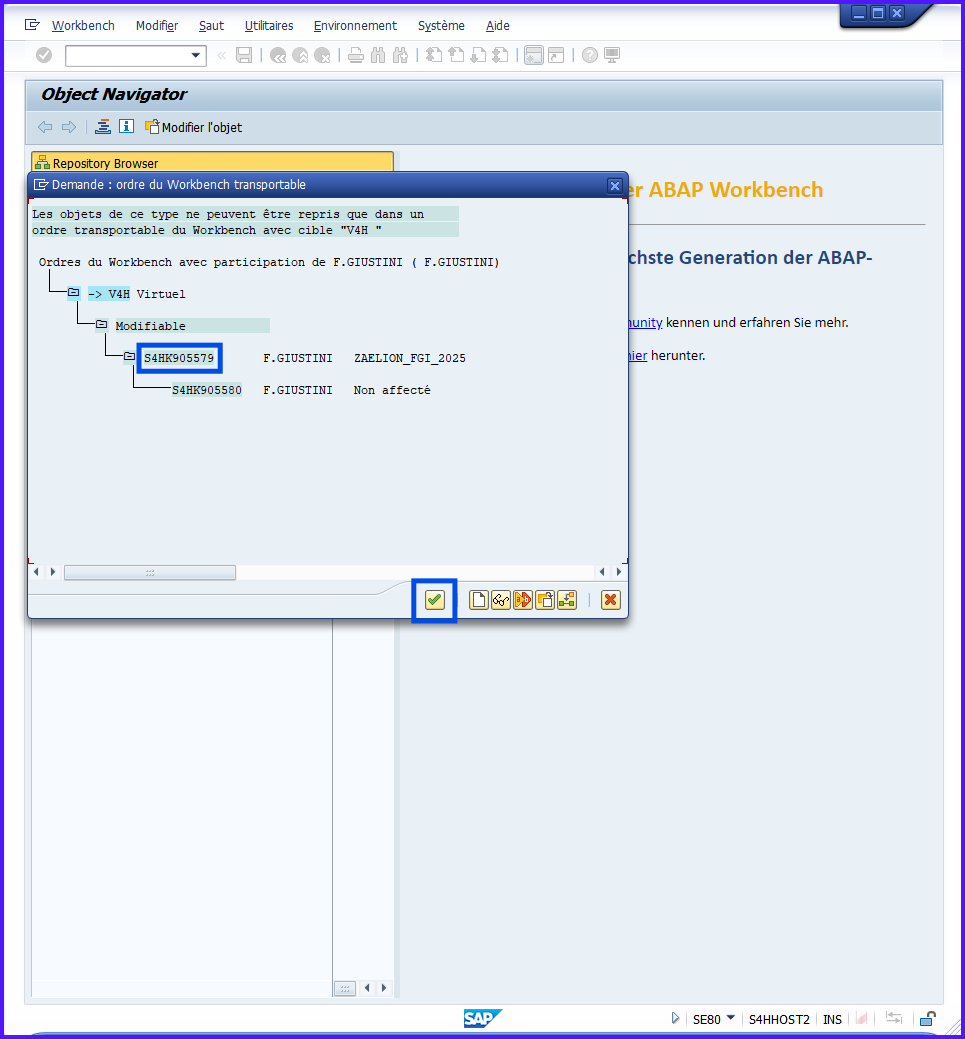
Associate your TO
-
Validate
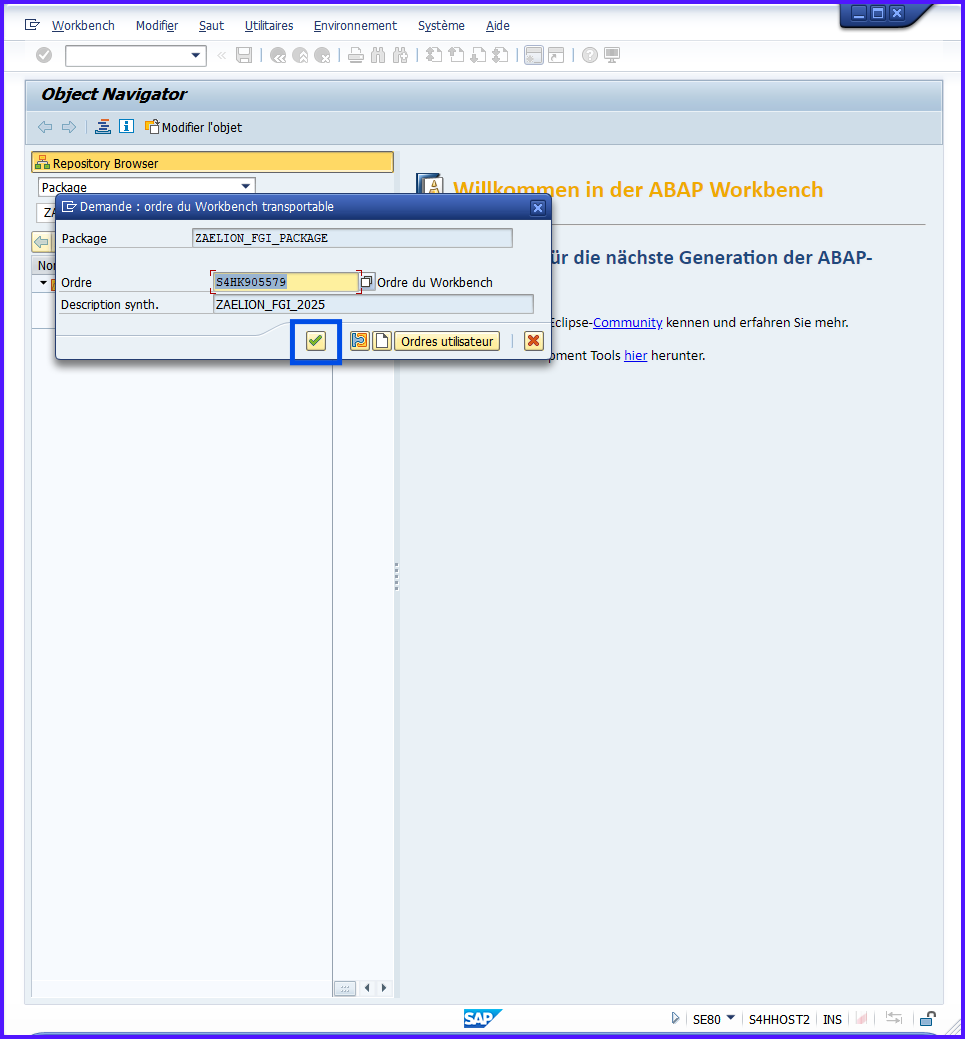
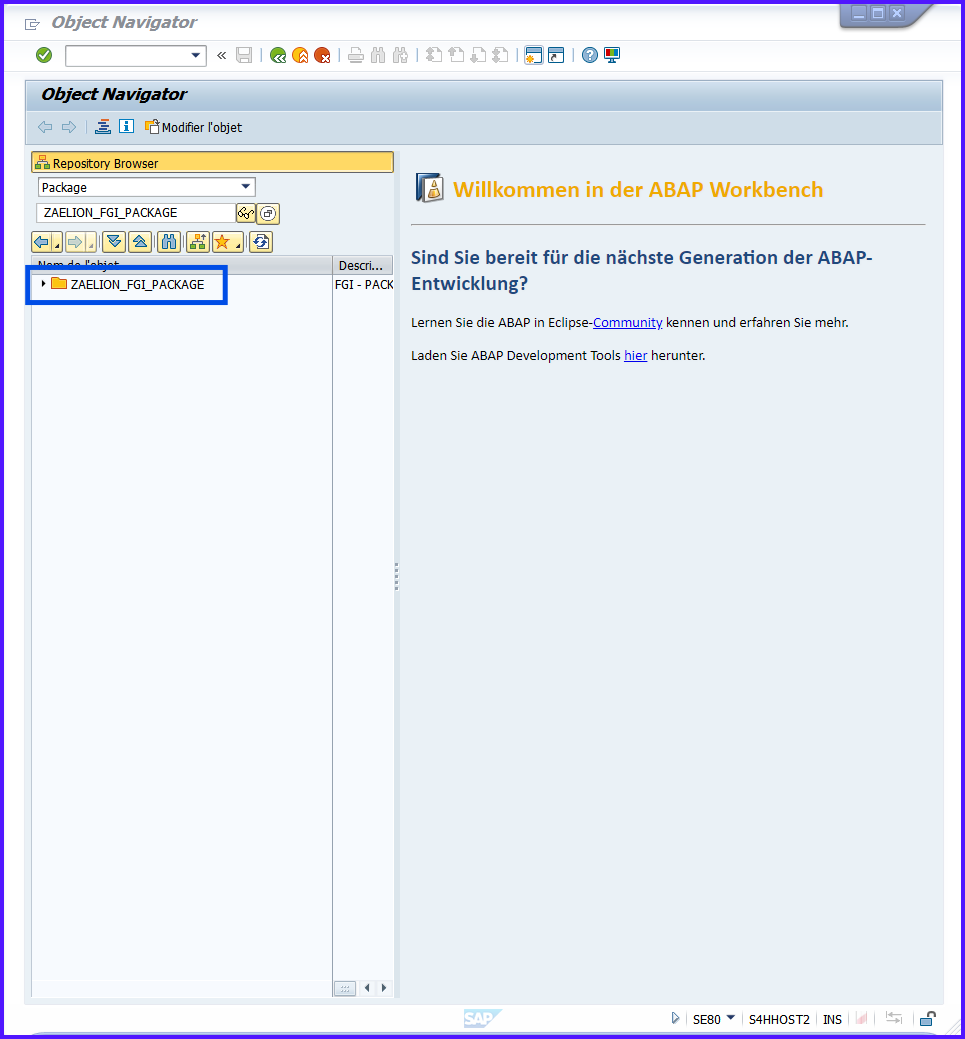
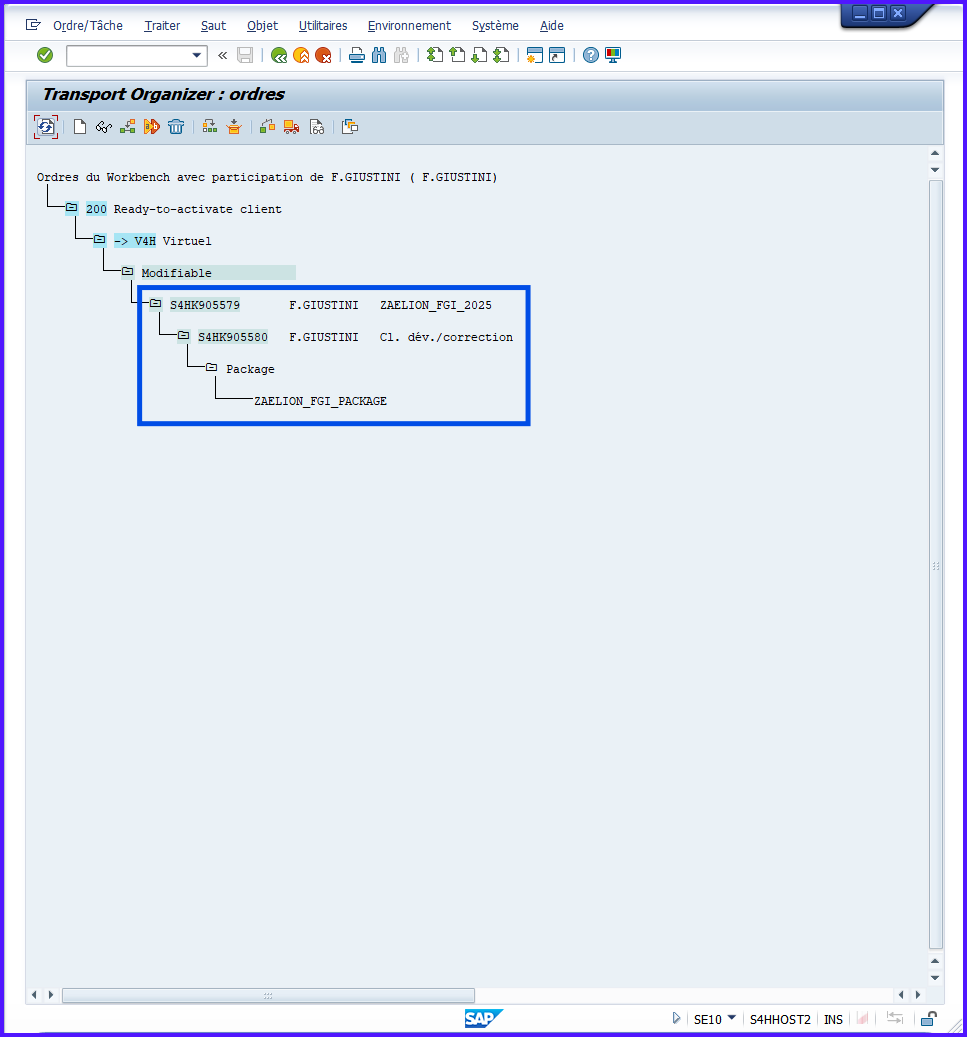
PACKAGE ZAELION_TRI_PACKAGE └─ Associated TO (ex. S4HK905579) └─ Tasks (ex. S4HK905580) └─ Objects
Creating a PACKAGE with SE21 #
- Enter
/nSE21 - Enter the
PACKAGEname → Enter - Fill in Title and parent
PACKAGEif applicable - Save and associate a TO if transportable
SE21is more direct,SE80allows you to view the complete object hierarchy.
Best Practices #
| Best Practice | Explanation |
|---|---|
| Always start with Z or Y | SAP convention for client objects |
| Explicit and structured name | Example: ZSD_TRAINING_2025 |
| Group objects by theme | Facilitates maintenance and transport |
Link PACKAGE to coherent TO |
All related objects depart together |
A well-structured
PACKAGEreduces errors, facilitates collaboration and maintains clear history.
Practical Exercise #
- Create a transportable
PACKAGEZAELION_TRI_PACKAGE - Associate your
TO - Check in
SE80thePACKAGEhierarchy
Summary #
- The
PACKAGEis a logical filing cabinet for grouping ABAP objects- Allows organizing, maintaining and transporting objects
- Created via
SE80orSE21- Types: local (
$TMP) or transportable (Z/Y)- Always associate a TO for secure transport
Each
PACKAGEis a filing cabinet where each drawer contains your programs and Includes, organized to be easily transported and retrieved.
Creating a Program – SE38 / SE80 #
Objectives #
- Understand what an ABAP
PROGRAMis and its role in SAP - Create a
PROGRAMviaSE38orSE80 - Know the types of
PROGRAMSavailable - Launch, save and transport an ABAP
PROGRAM
The goal is to understand how to structure, create and execute an ABAP
PROGRAMin SAP, while respecting organization by PACKAGE and TO.
Definition #
An ABAP
PROGRAMis a set of executable instructions by SAP. It serves to process data, display results or automate actions.
A
PROGRAMis like a recipe: each line of code is an instruction to obtain a final result. The PACKAGE is your recipe filing cabinet, and the TO is the box to transport recipes.
- Read a customer table
- Calculate totals, process character strings
- Display a report on screen
Types of Programs #
| Program Type | Description | Example |
|---|---|---|
| Executable (Type 1) | Main PROGRAM executed by user |
Report, processing, customer list |
| Module pool (Type M) | PROGRAM with custom screens (dynpros) |
Internal entry application |
| Include (Type I) | Reusable block of code included in another PROGRAM |
Common variable declaration |
| Function group (F) | Contains reusable functions | Standard SAP functions |
| Class pool (K) | Definition of object-oriented ABAP class | Utility class, log management |
The type determines the usage and interface of the
PROGRAM.
Creating a Program with SE80 #
-
Enter
/nSE80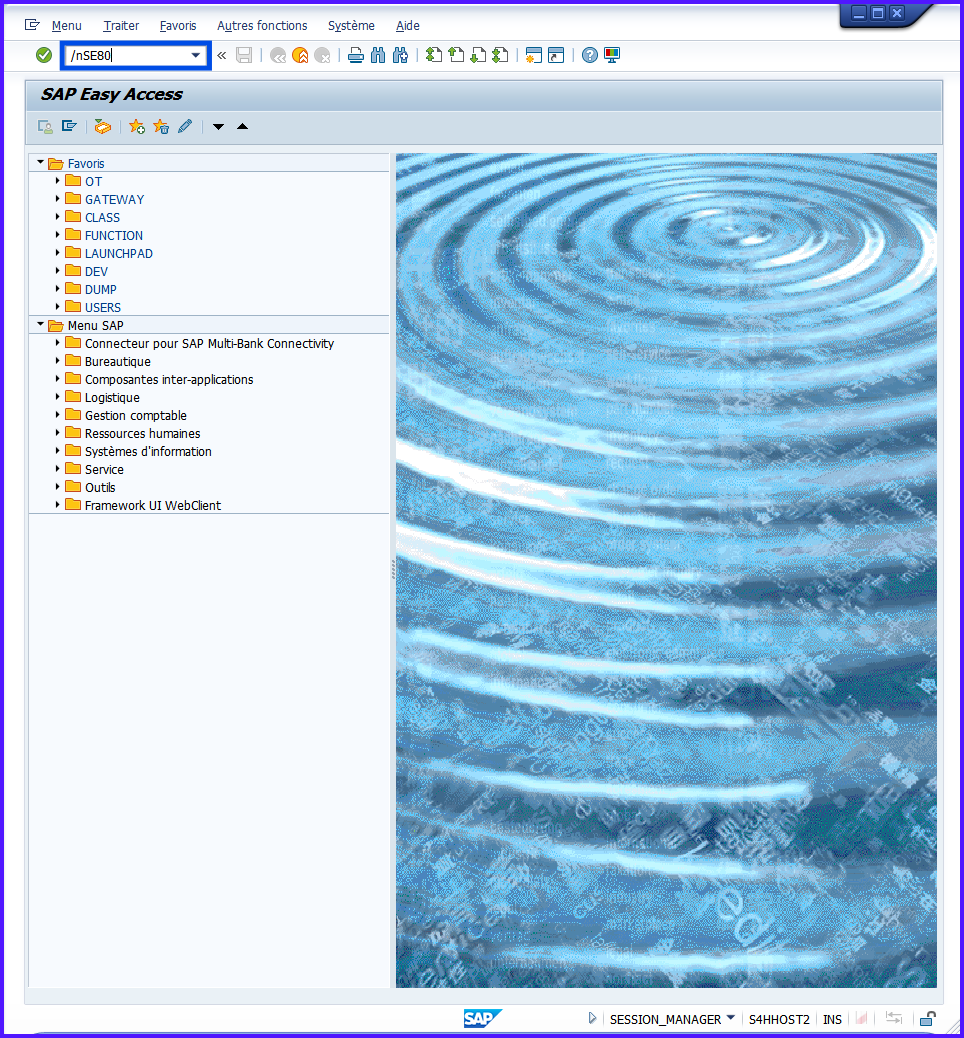
-
Choose
Program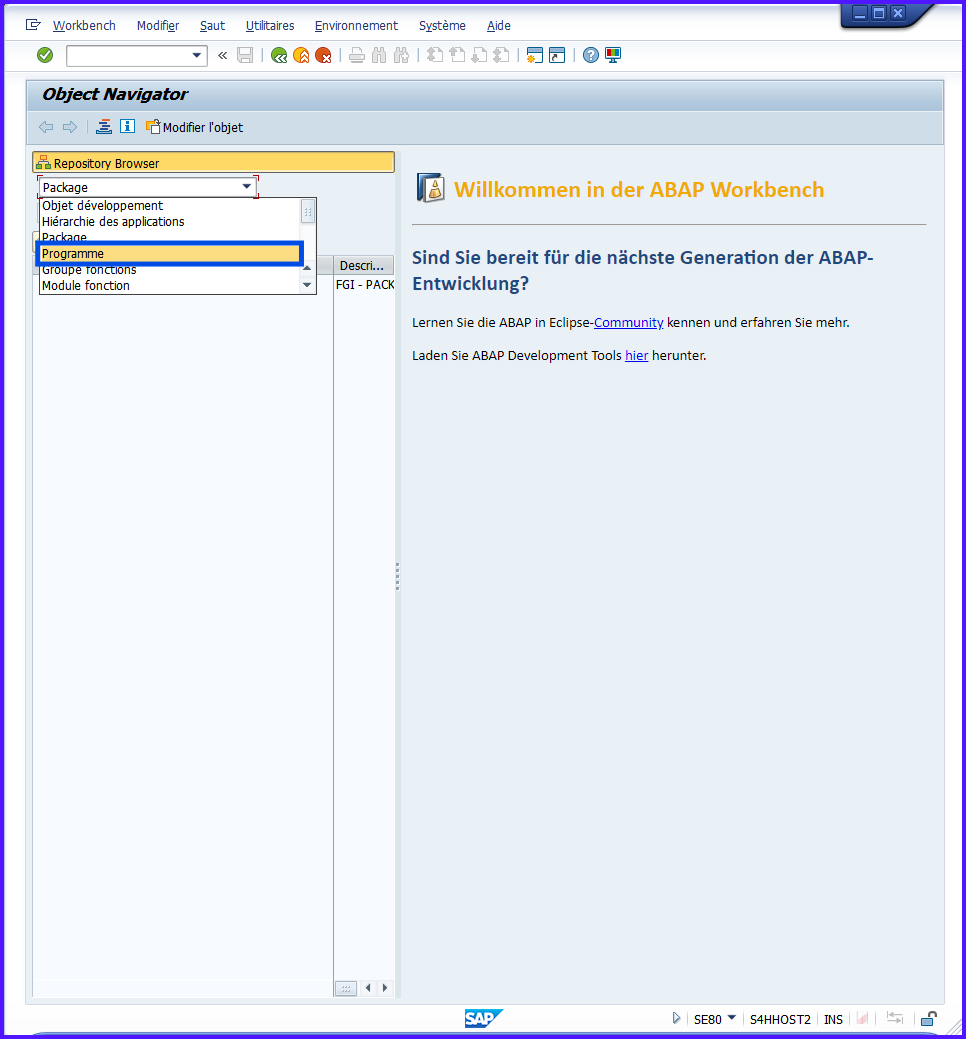
-
Enter the name of the
PROGRAM→ EnterZAELION_FGI_HELLOWORLD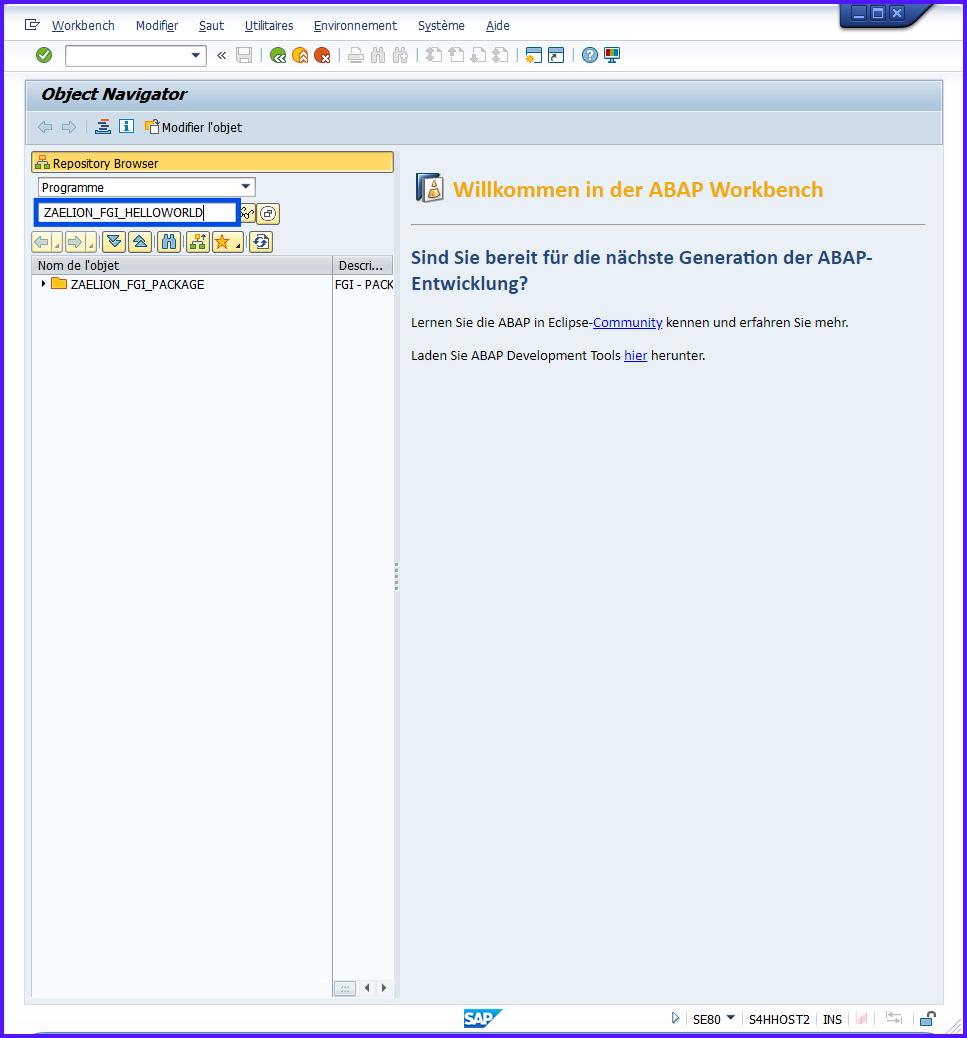
-
Confirm creation via popups
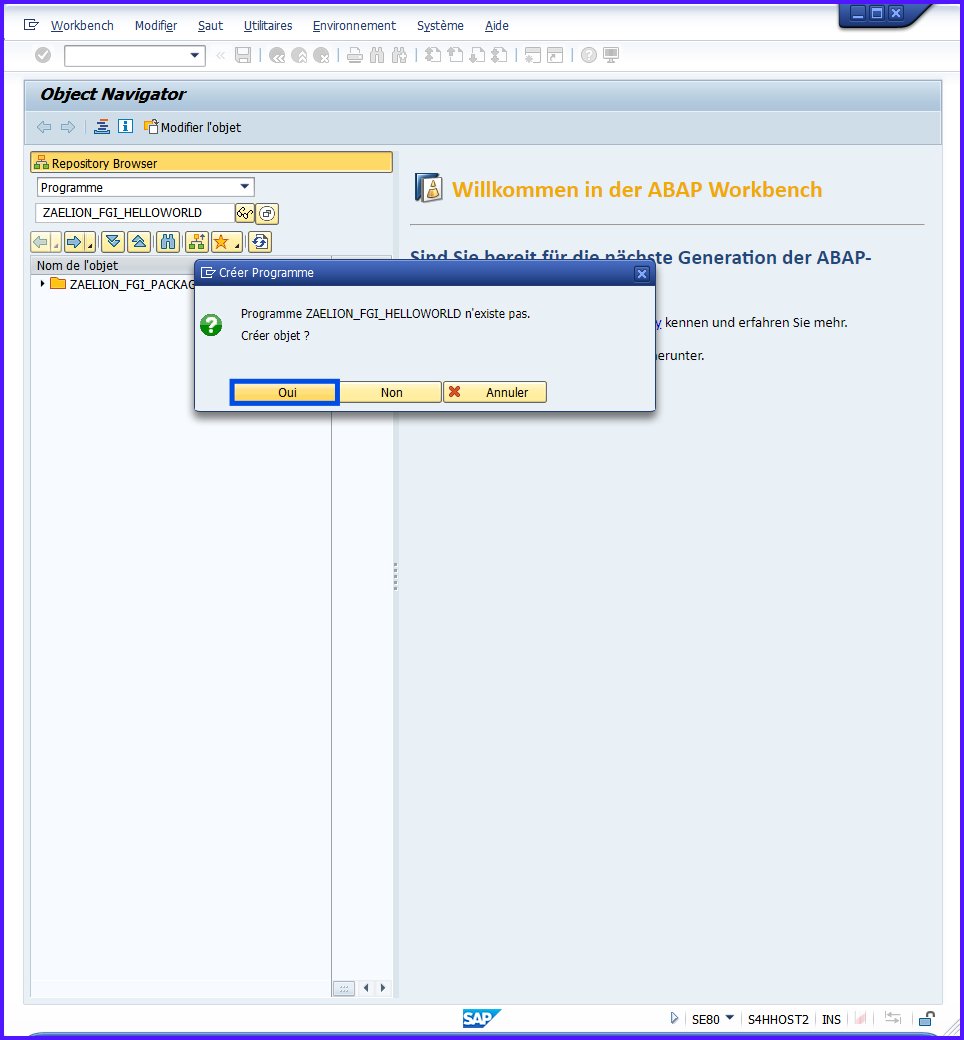
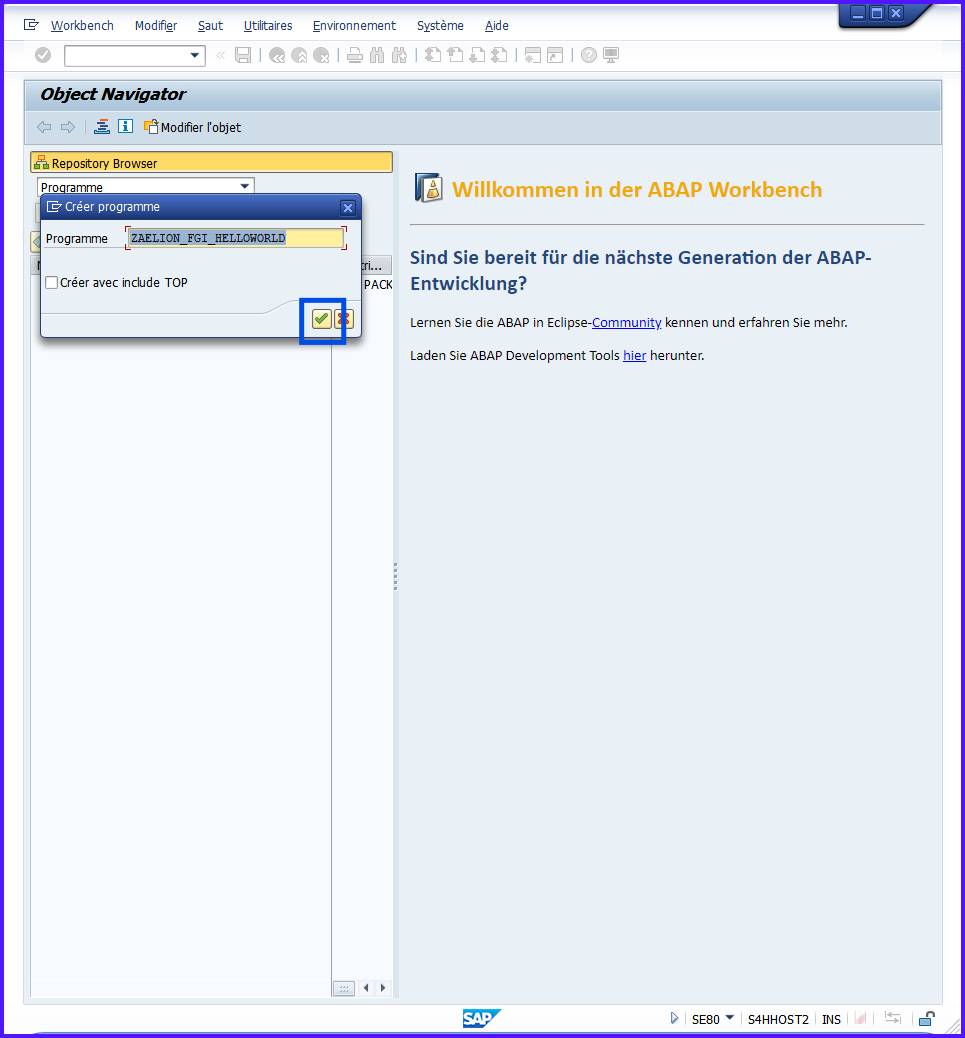
-
Verify Title and Type
Executable Programand Save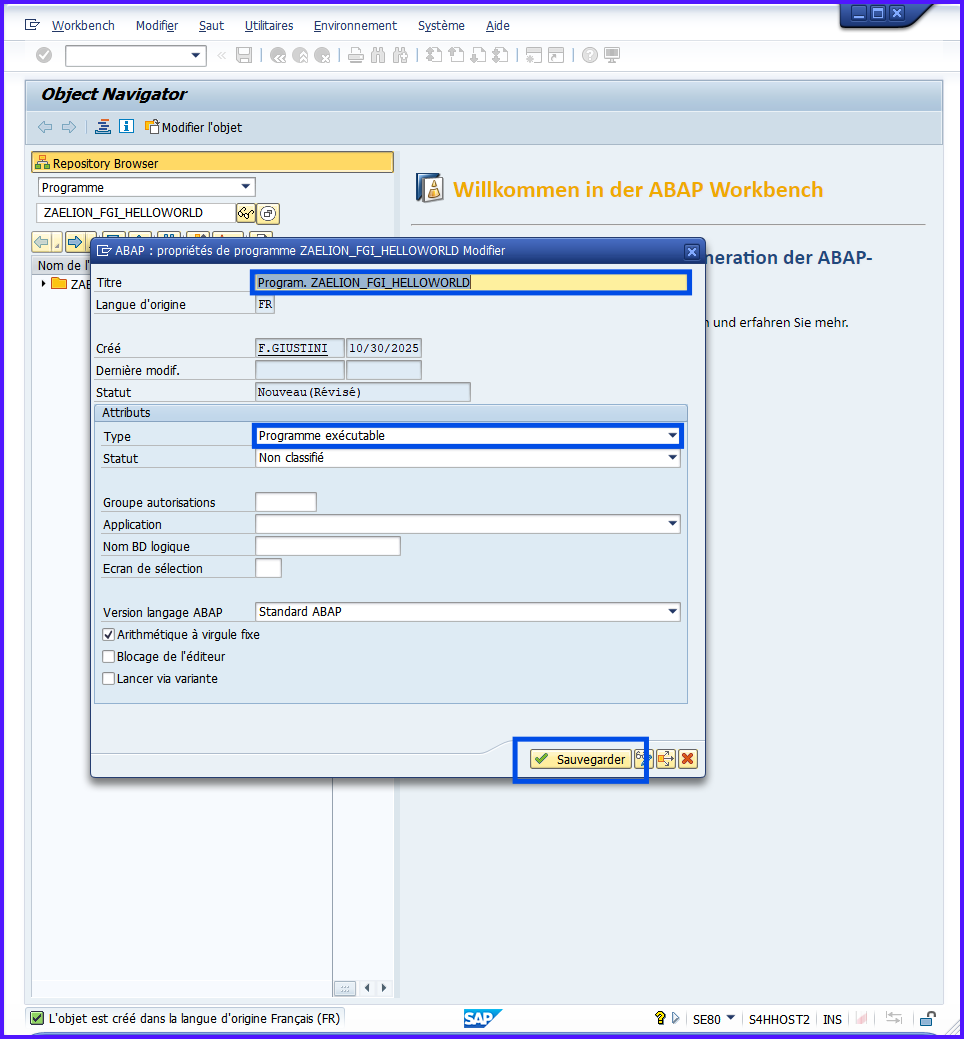
-
Associate PACKAGE and TO
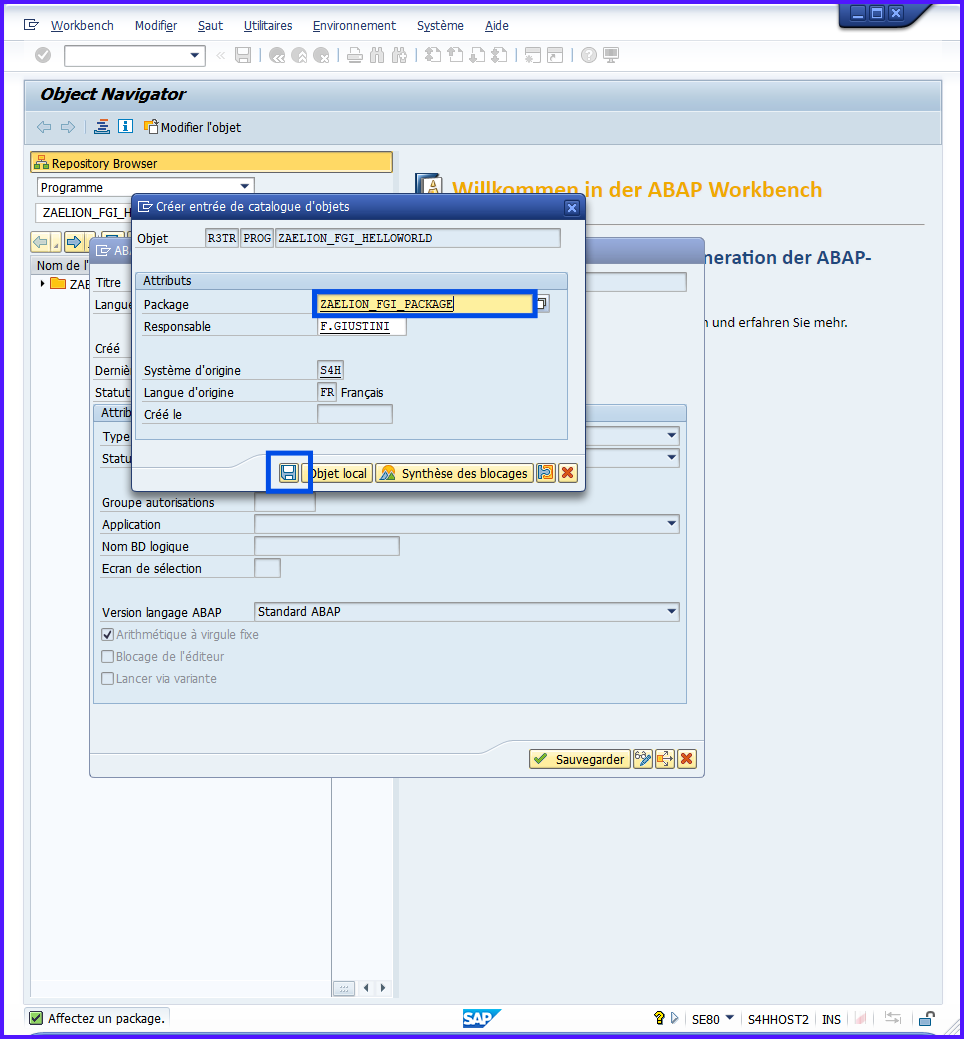
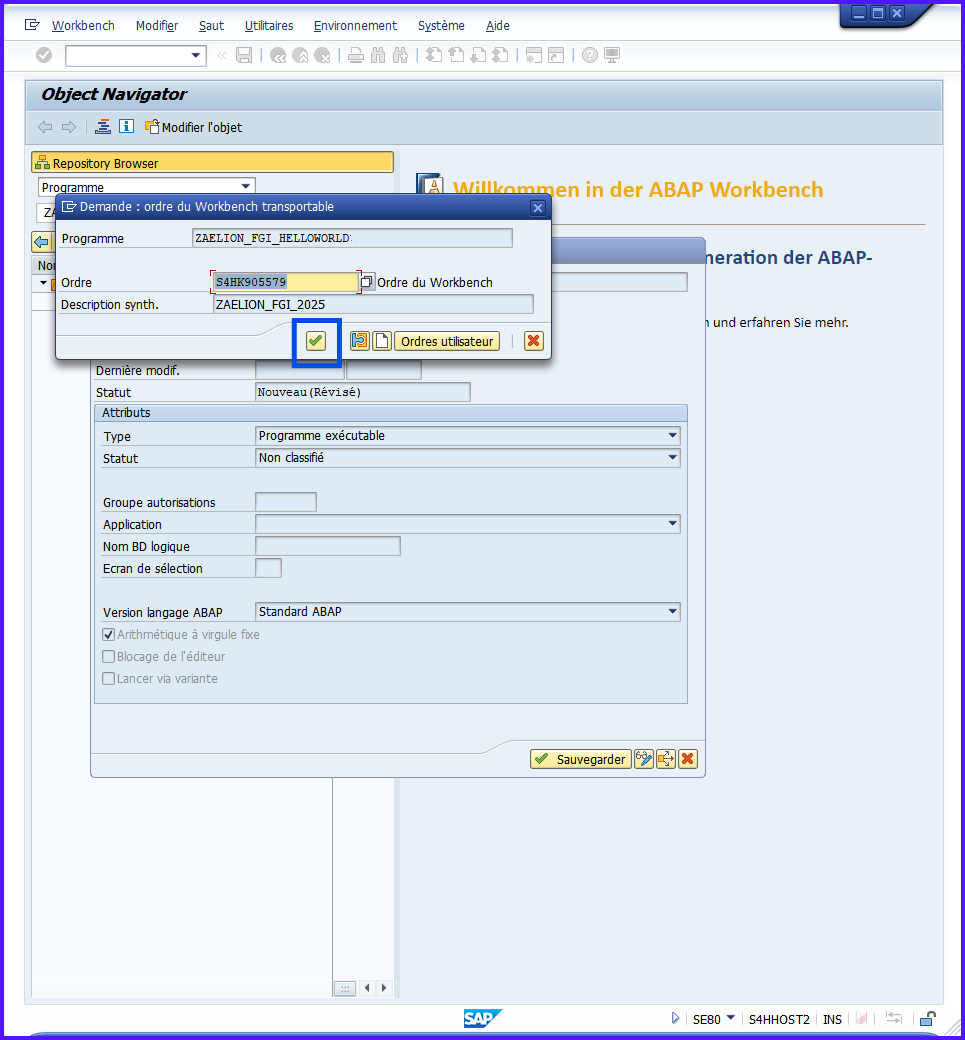
-
Validate
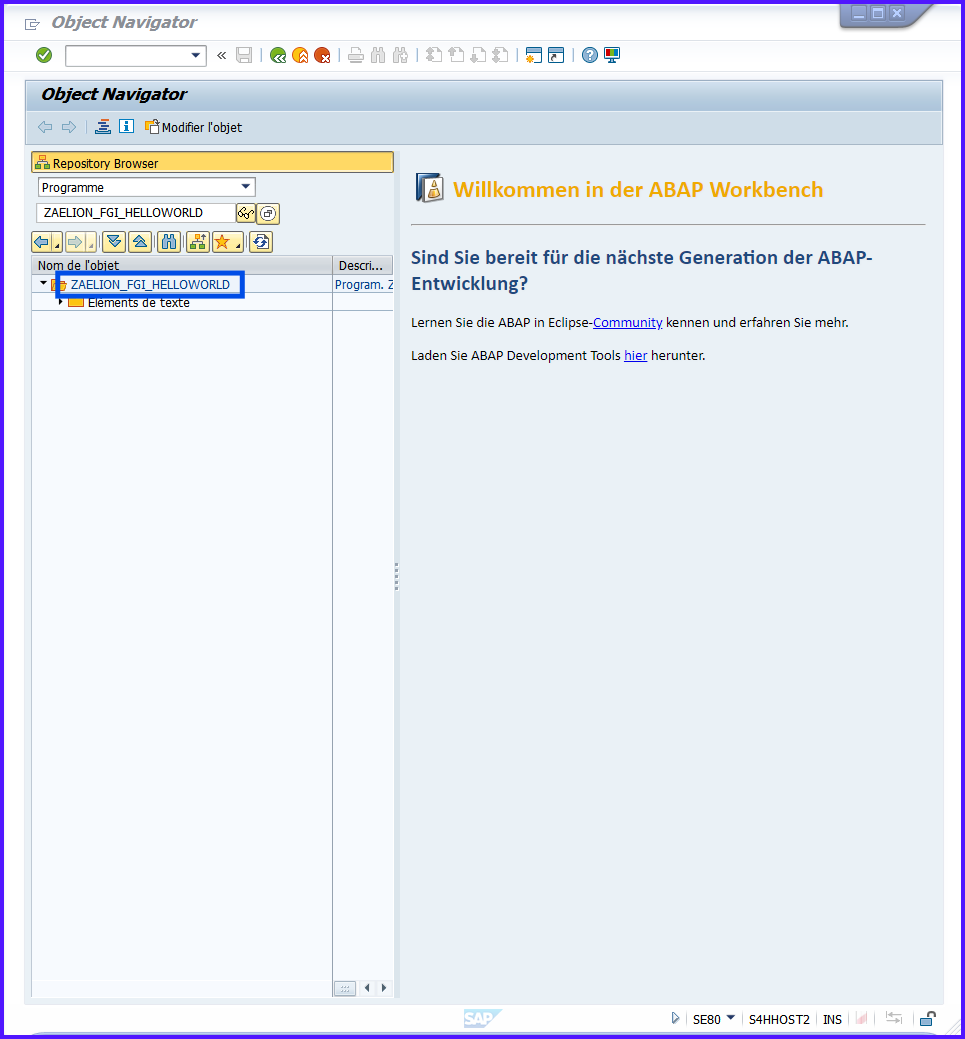
-
Open the
PROGRAM(double click)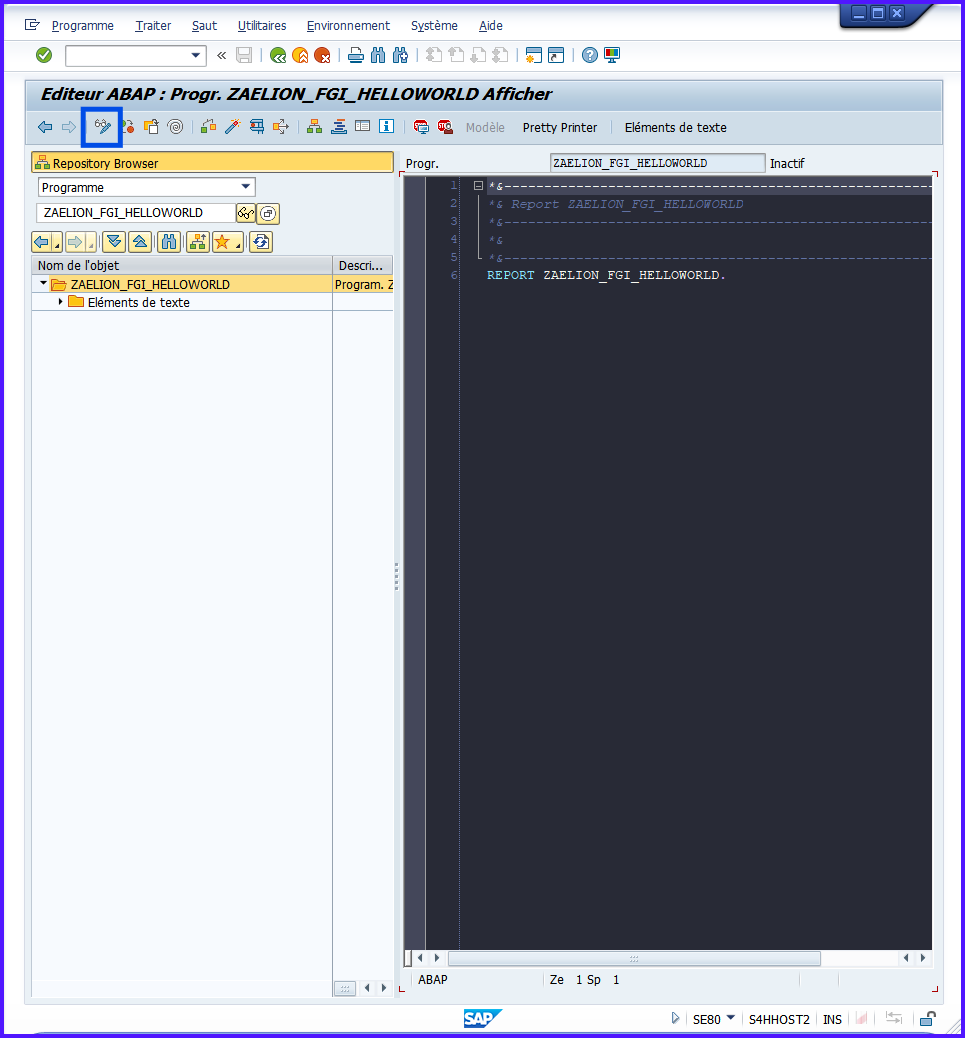
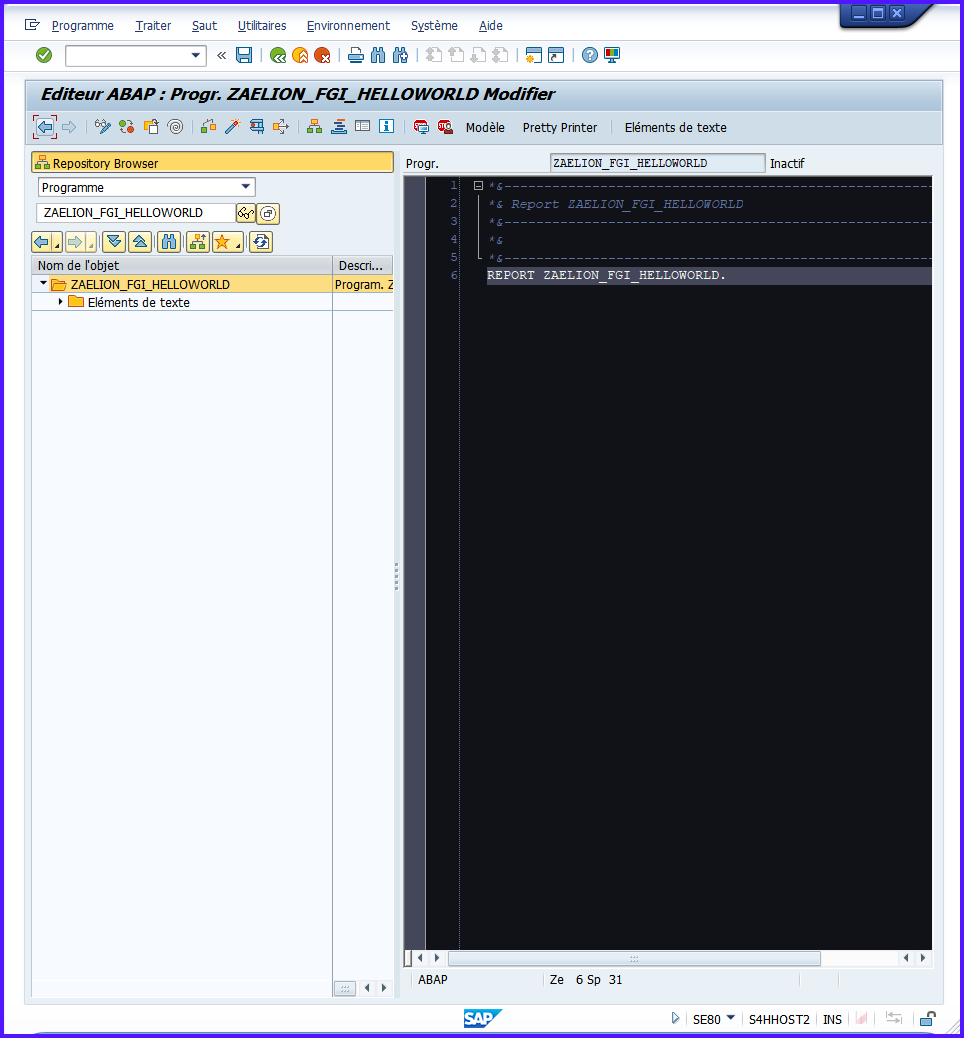
-
Switch to Edit mode (Ctrl+F1)
SE80offers tree visualization:PROGRAM→ Includes → Tables → Functions.
Creating a Program with SE38 #
- Enter
/nSE38 - Enter the name of the
PROGRAM(ex. ZAELION_TRI_HELLOWORLD) - Fill in Title
- Select
Executable Program - Save and choose PACKAGE (ex. ZAELION_2025_FGI)
- Associate a TO and validate
- Switch to Edit mode (Ctrl+F1)
Always follow the flow: Name Z/Y → PACKAGE → TO → Activate → Execute.
First Steps in the Program #
Auto-generated PROGRAM:
*&---------------------------------------------------------------------*
*& Report ZAELION_TRI_HELLOWORLD
*&---------------------------------------------------------------------*
REPORT ZAELION_TRI_HELLOWORLD.
Add code:
WRITE: 'Hello world!'.
You should have:
*&---------------------------------------------------------------------*
*& Report ZAELION_TRI_HELLOWORLD
*&---------------------------------------------------------------------*
*&
*&---------------------------------------------------------------------*
REPORT ZAELION_TRI_HELLOWORLD.

WRITE: 'Hello world!'.
WRITE displays text on screen. This allows you to verify that the
programworks before adding complex processing.
Execution Steps #
-
Save (Ctrl+S)
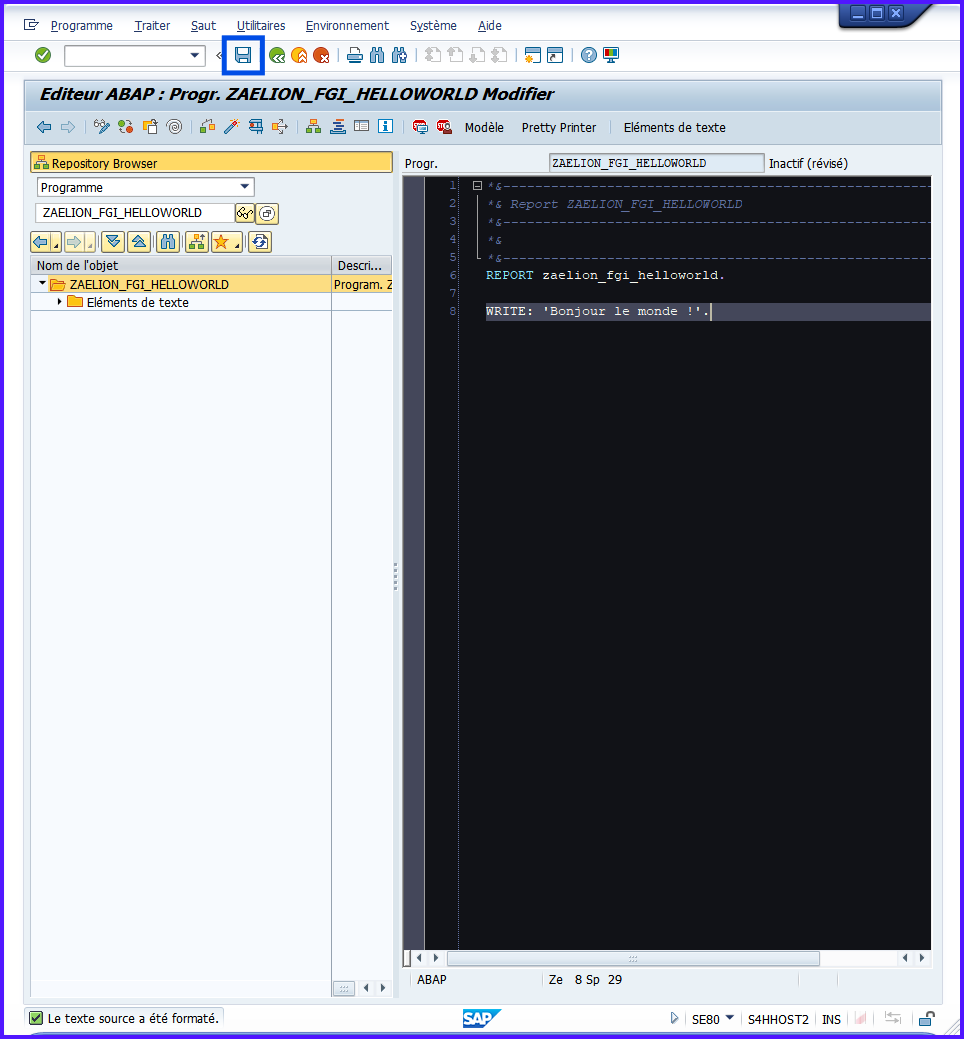
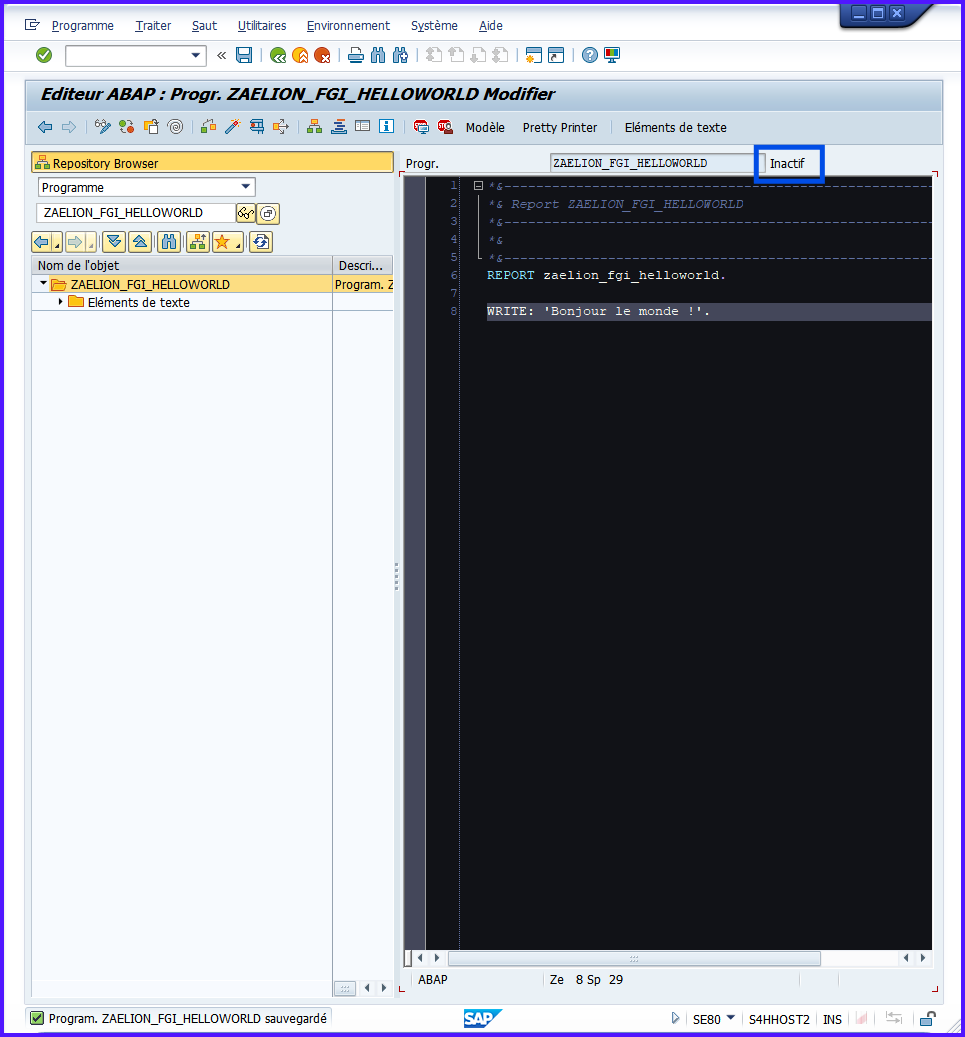
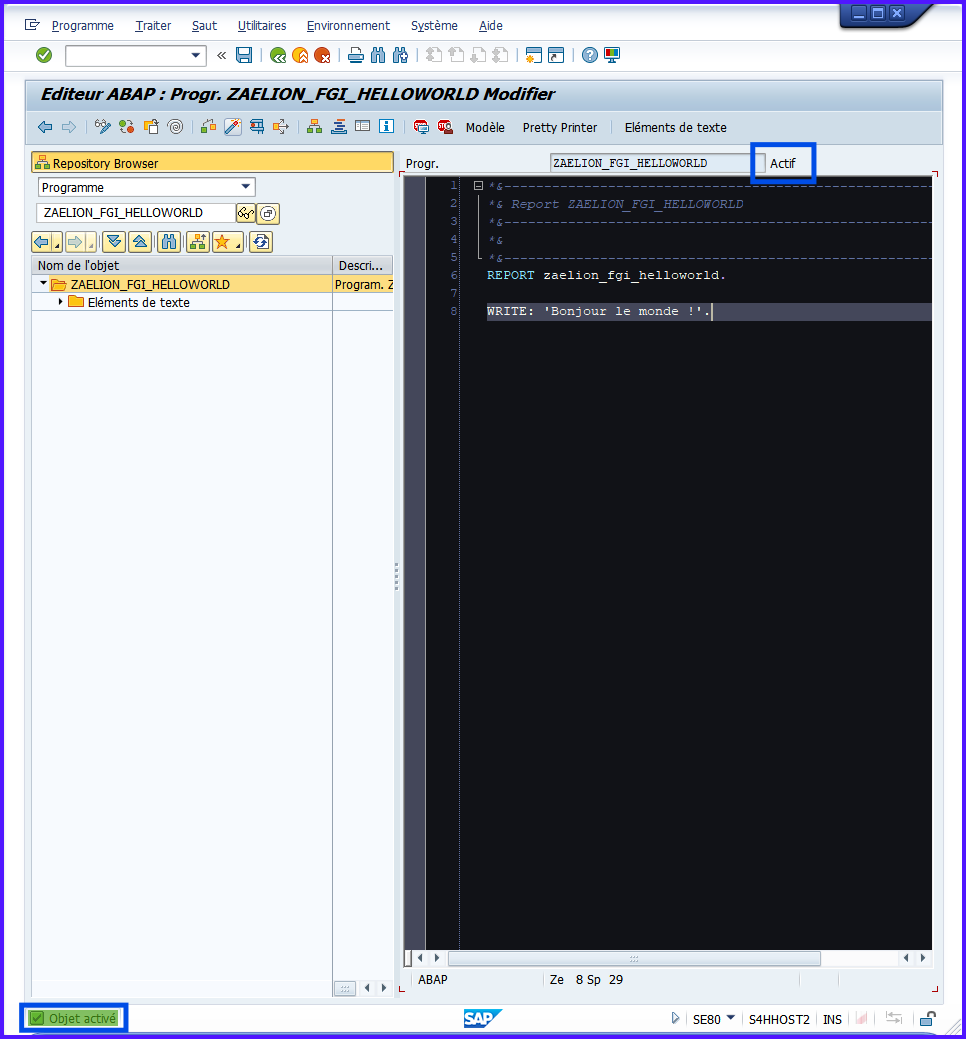
-
Activate (Ctrl+F3)
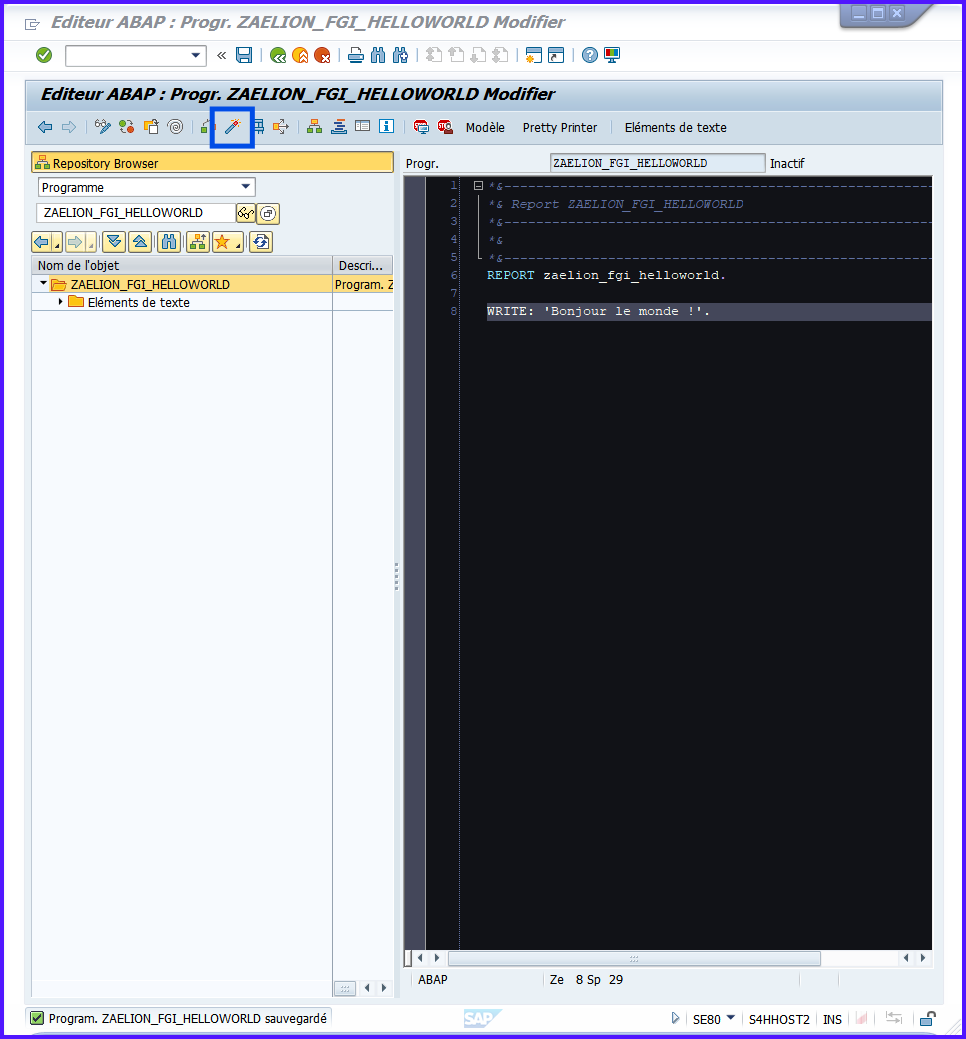
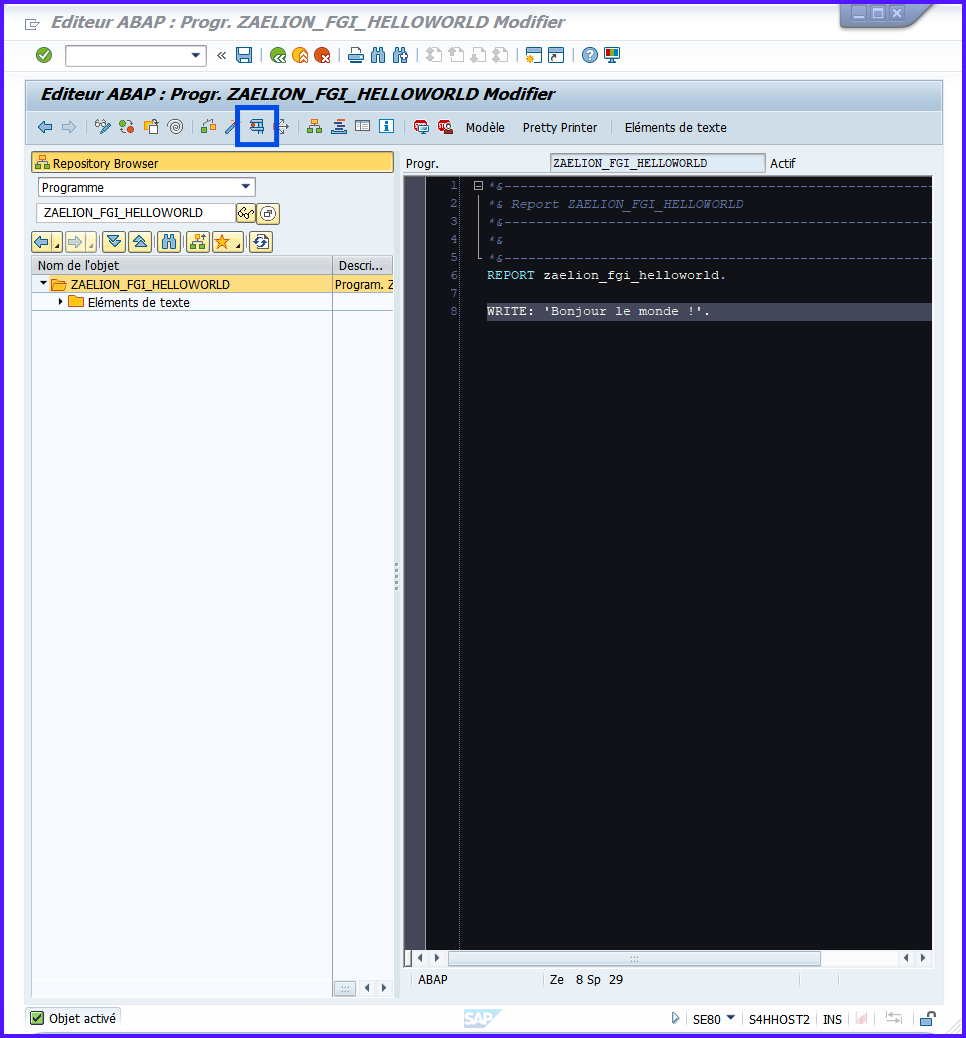
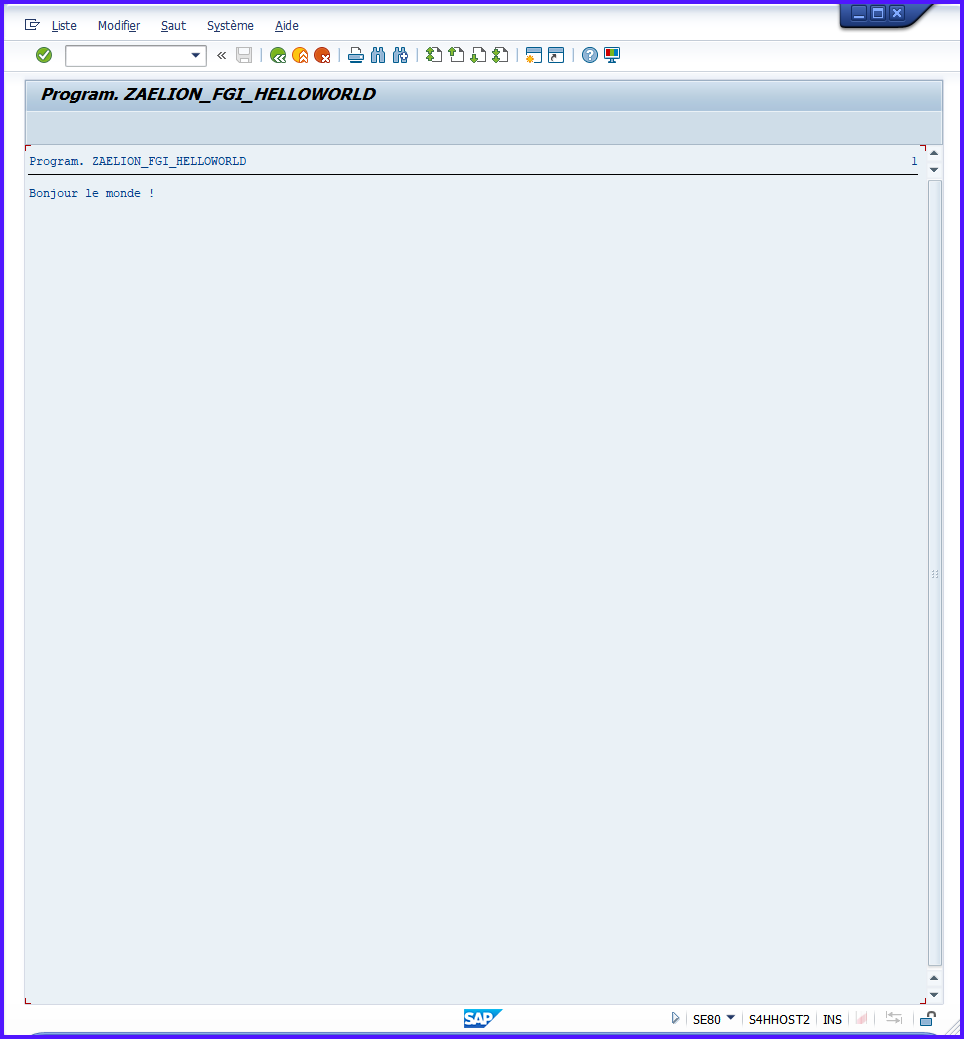
-
Execute (F8)
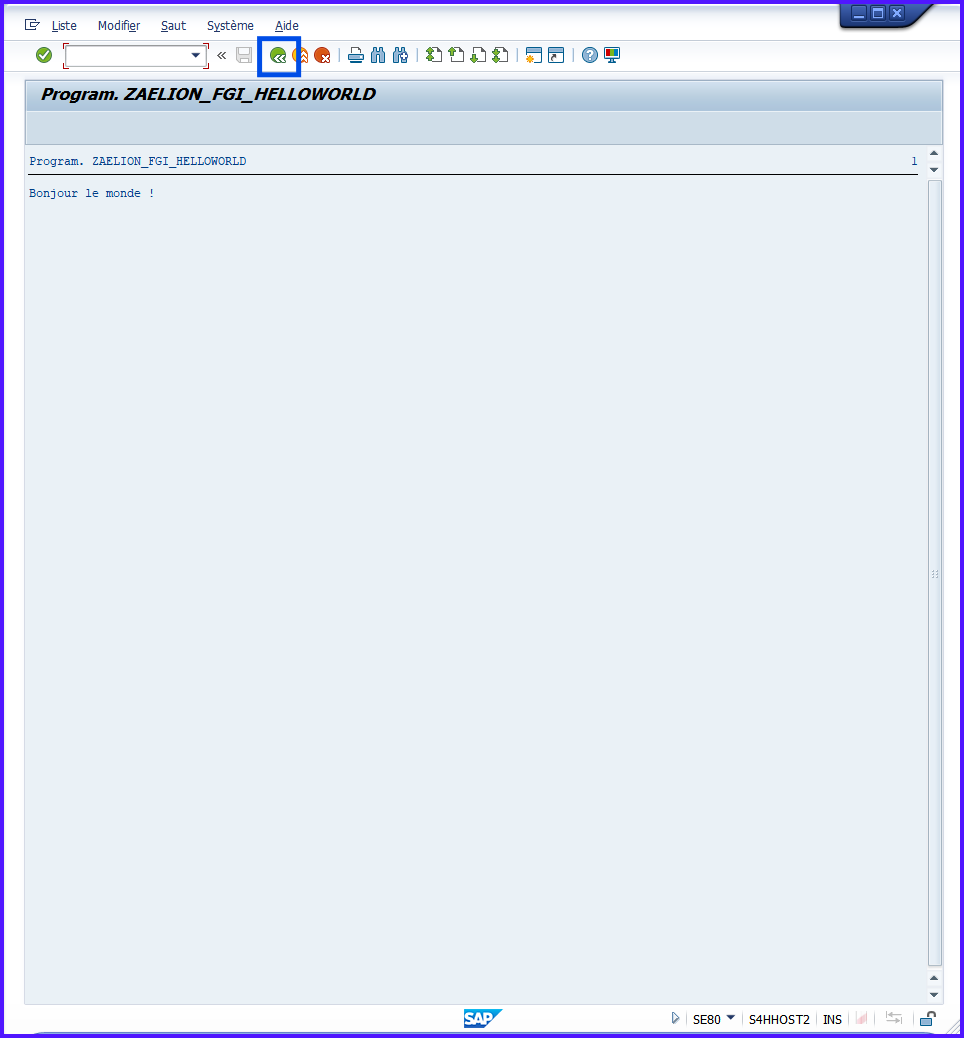
-
Back (F3)
Always follow the order: Save → Activate → Execute to avoid compilation errors.
Best Practices #
| Best Practice | Explanation |
|---|---|
Name a PROGRAM with Z or Y |
SAP convention for client object |
Link the PROGRAM to a PACKAGE |
Facilitates organization and transport |
| Associate a coherent TO | Avoids object scattering |
| Always activate | Non-activated PROGRAM = not executable |
Start simple (WRITE) |
Test execution before complex logic |
Practical Exercise #
- Create a
PROGRAMZAELION_TRI_HELLOWORLD - Add a simple
WRITE - Save, Activate, Execute
- Verify the displayed message
- Observe the structure PACKAGE + TO in
SE80
Summary #
- An ABAP
PROGRAMis a sequence of executable instructions- Used to process data, display results, automate actions
- Types: Executable, Module pool, Include, Function group, Class pool
- Created via
SE38orSE80- Must be saved in a PACKAGE and associated with a TO
- Execution: Save → Activate → Execute
- Start simple with
WRITEto verify functionality
The
PROGRAMis the recipe, the PACKAGE is the recipe filing cabinet, and the TO is the box to transport your recipes to other systems.
Creating an INCLUDE – SE38 / SE80 #
Objectives #
- Understand the role of an
INCLUDEin an ABAP program - Create an
INCLUDEviaSE38orSE80 - Know how to integrate it into a main program
- Organize your ABAP code for clarity and reuse
The goal is to modularize ABAP code to make it more readable, reusable and easy to maintain, while enabling collaborative work.
Definition #
An
INCLUDEis a reusable code file inserted into one or more ABAP programs. It allows you to separate code to make it more readable and modular.
An
INCLUDEis like a chapter of a book: the main program is the complete book, and eachINCLUDEis a chapter that can be written or reused elsewhere.
[!NOTE]
INCLUDEs cannot be executed alone. They must be integrated into a main program.
Why Use INCLUDEs? #
| Advantage | Description |
|---|---|
| Readability | Separate declarations, processing and forms |
| Reusability | Share same code between multiple programs |
| Easier Maintenance | Modify one part without impacting entire program |
| Collaboration | Multiple developers can work on different INCLUDEs |
Always think “one
INCLUDE= one specific role” (top, screen, logic) to avoid confusion.
Types of INCLUDEs #
Type of INCLUDE |
Usual Content | Example |
|---|---|---|
Declaration INCLUDE |
Global variables, constants, types | ZAELION_TRI_HELLOWORLD_TOP |
Screen display INCLUDE |
Screen logic | ZAELION_TRI_HELLOWORLD_SCR |
Logic INCLUDE |
Main program sub-logic | ZAELION_TRI_HELLOWORLD_F01 |
The type is not imposed by SAP, it’s a convention for structuring your ABAP program.
Creating an INCLUDE via SE80 #
Starting PROGRAM:
*&---------------------------------------------------------------------*
*& Report ZAELION_TRI_HELLOWORLD
*&---------------------------------------------------------------------*
*&
*&---------------------------------------------------------------------*
REPORT ZAELION_TRI_HELLOWORLD.

WRITE: 'Hello world!'.
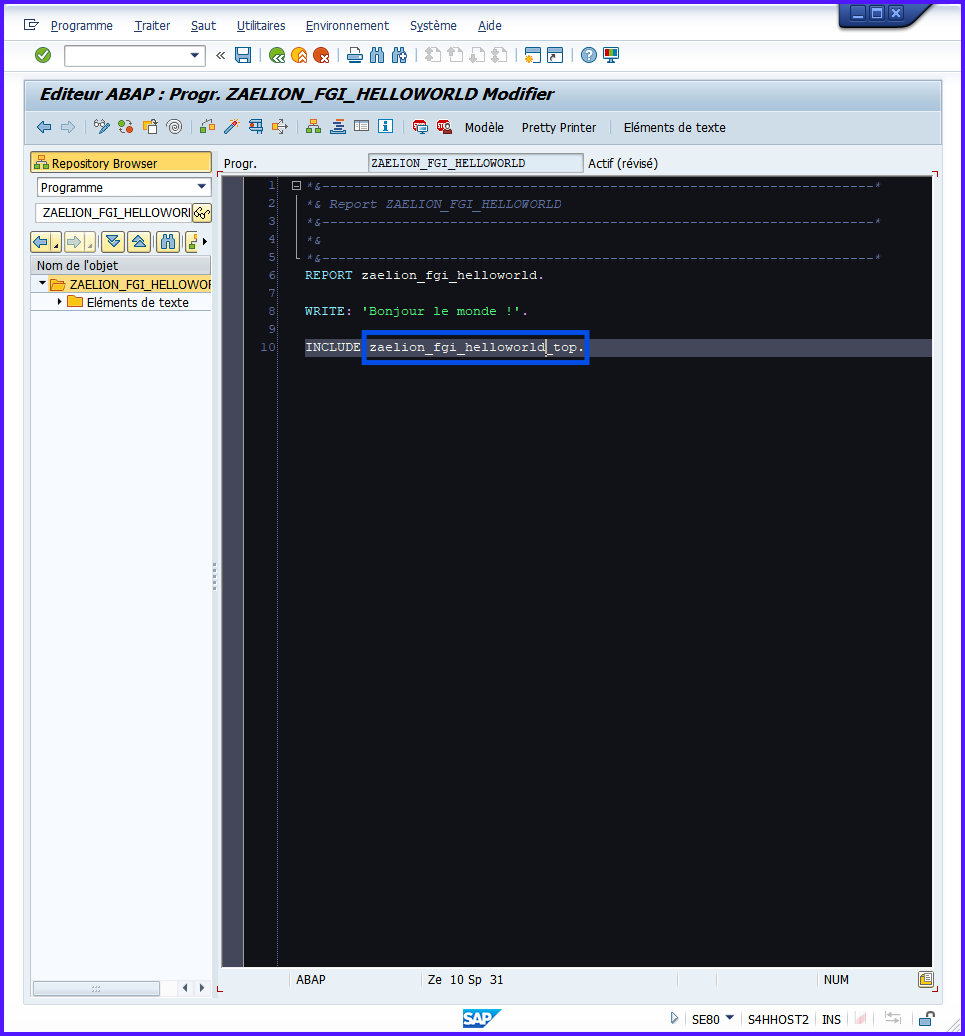
- Add in the program:
INCLUDE ZAELION_TRI_HELLOWORLD_TOP.
You should have:
*&---------------------------------------------------------------------*
*& Report ZAELION_FGI_HELLOWORLD
*&---------------------------------------------------------------------*
*&
*&---------------------------------------------------------------------*
REPORT ZAELION_TRI_HELLOWORLD.

WRITE: 'Hello world!'.

INCLUDE ZAELION_TRI_HELLOWORLD_TOP.
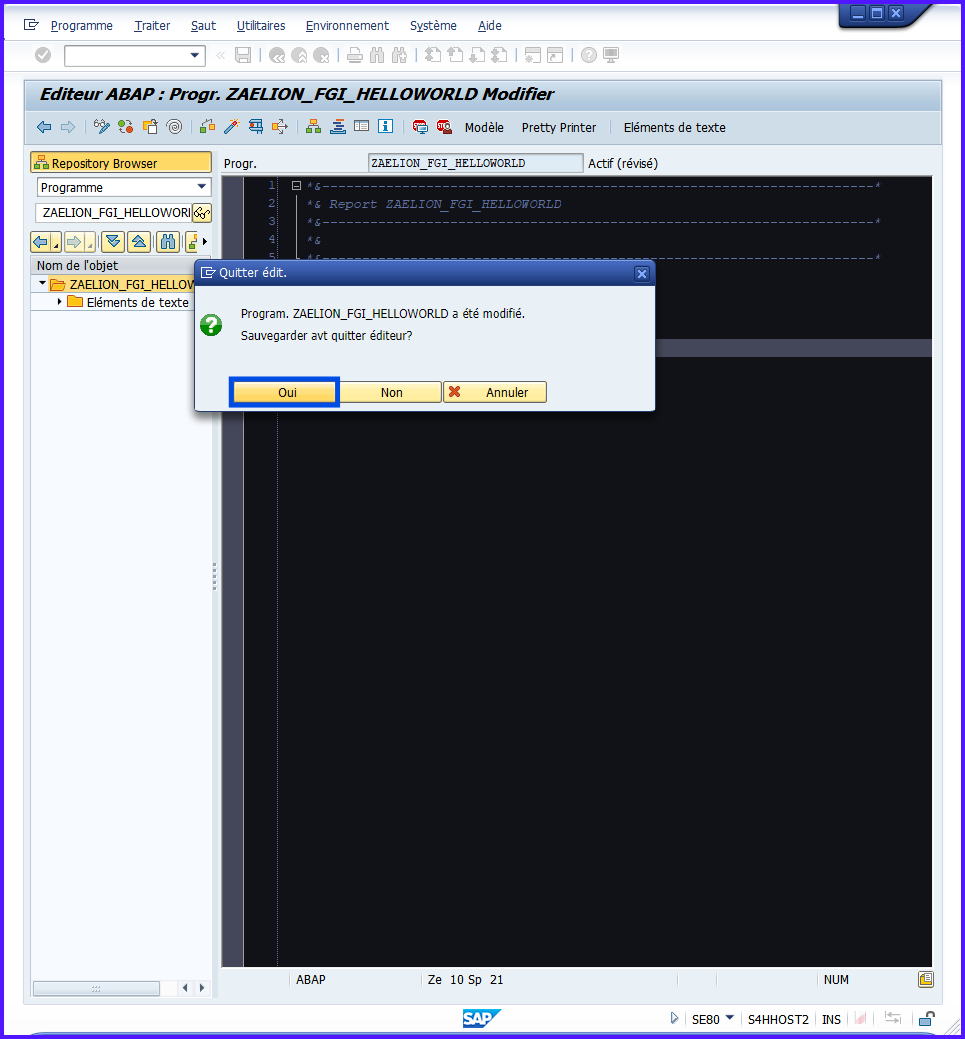
-
Double-click on the INCLUDE name → creation popup → validate → save if requested
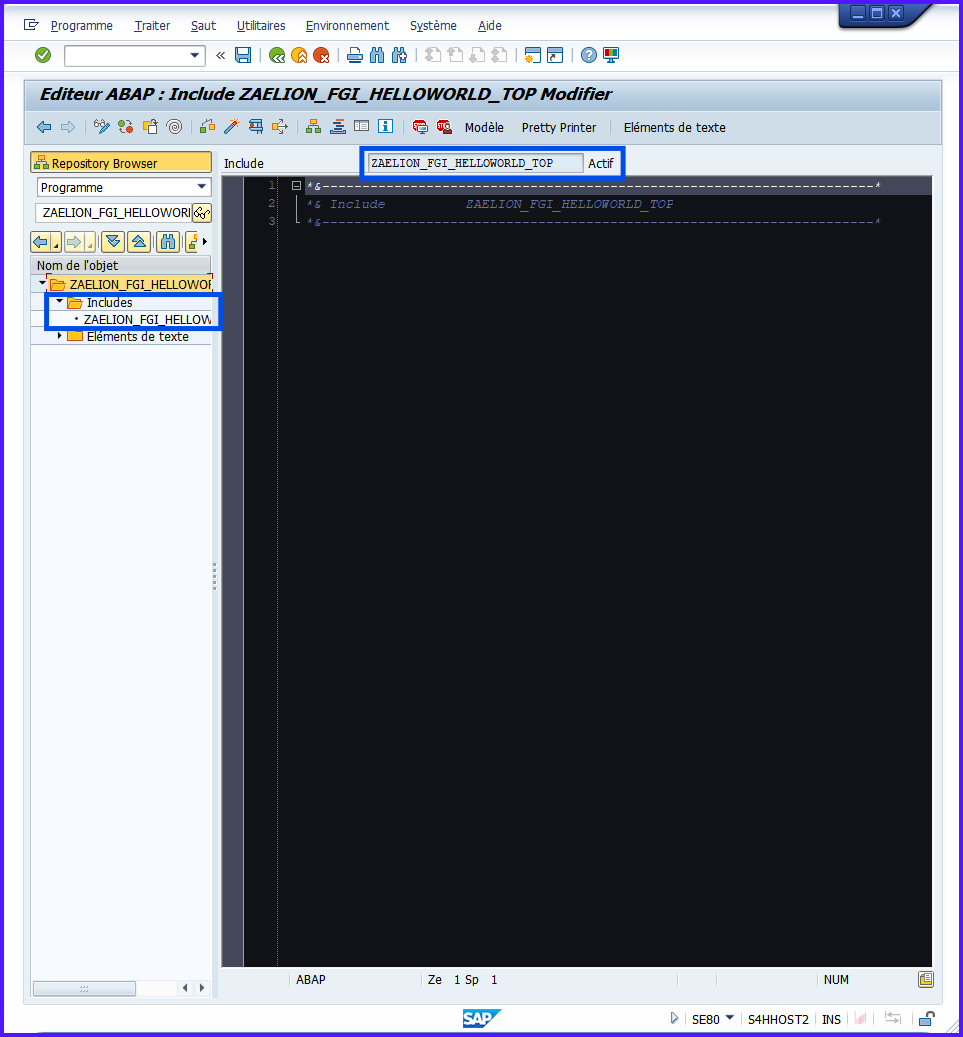
-
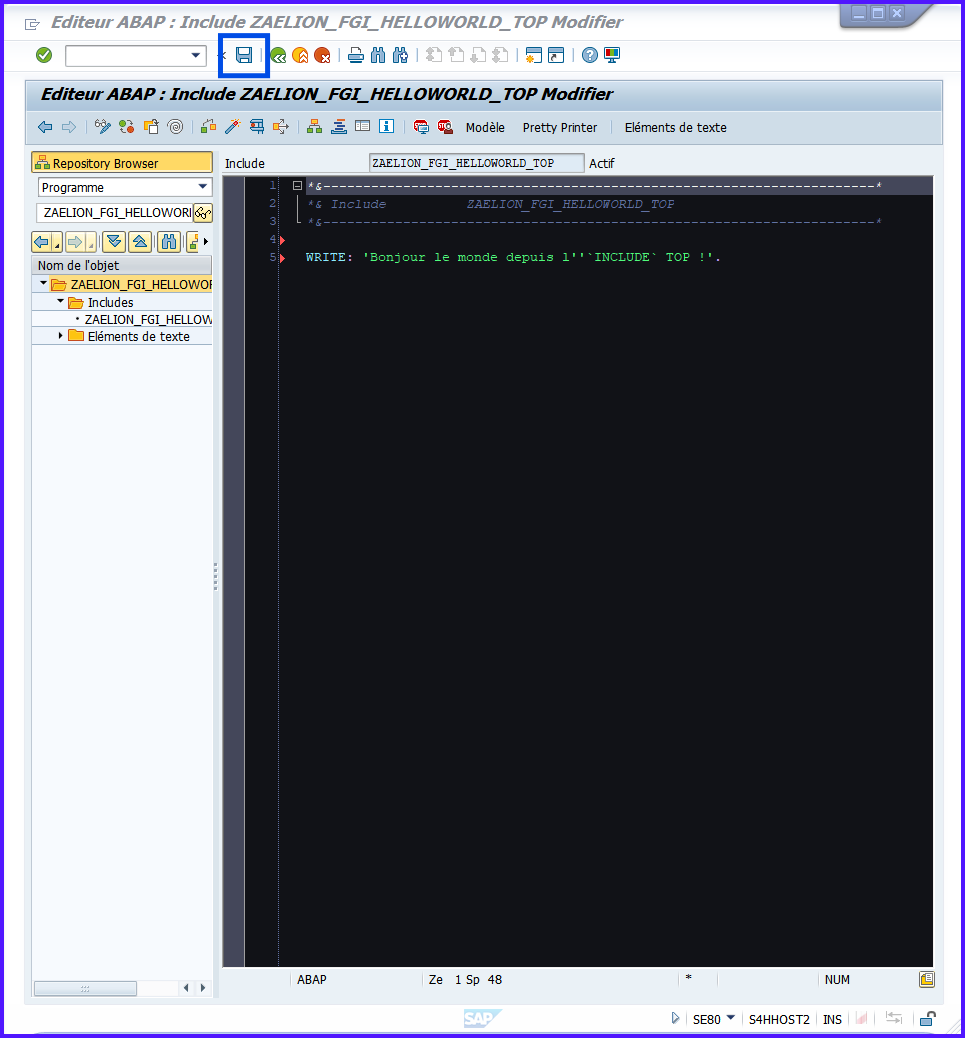
Add a WRITE to test:
WRITE: 'Hello world from the INCLUDE TOP!'.
You should have:
*&---------------------------------------------------------------------*
*& Include          ZAELION_FGI_HELLOWORLD_TOP
*&---------------------------------------------------------------------*

WRITE: 'Hello world from the INCLUDE TOP!'.
-
Save, Activate objects, Execute main program to see result
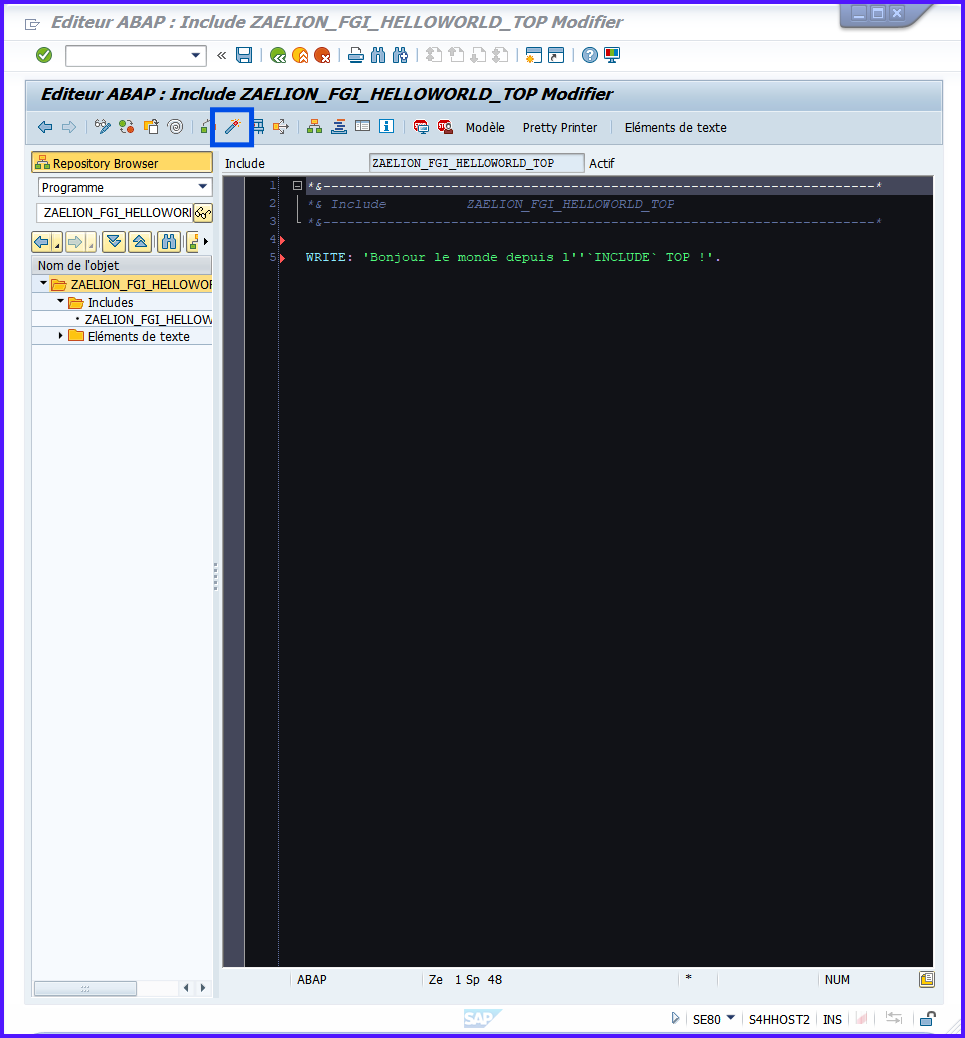
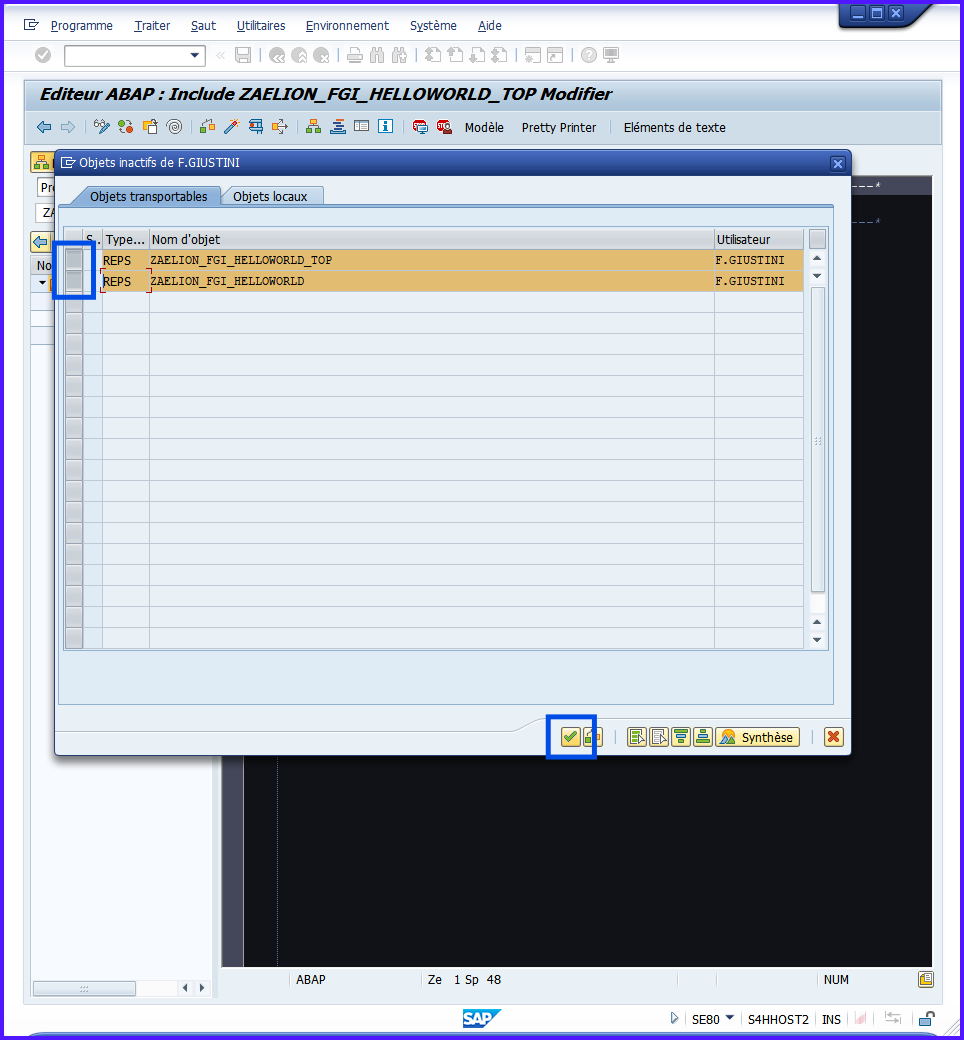
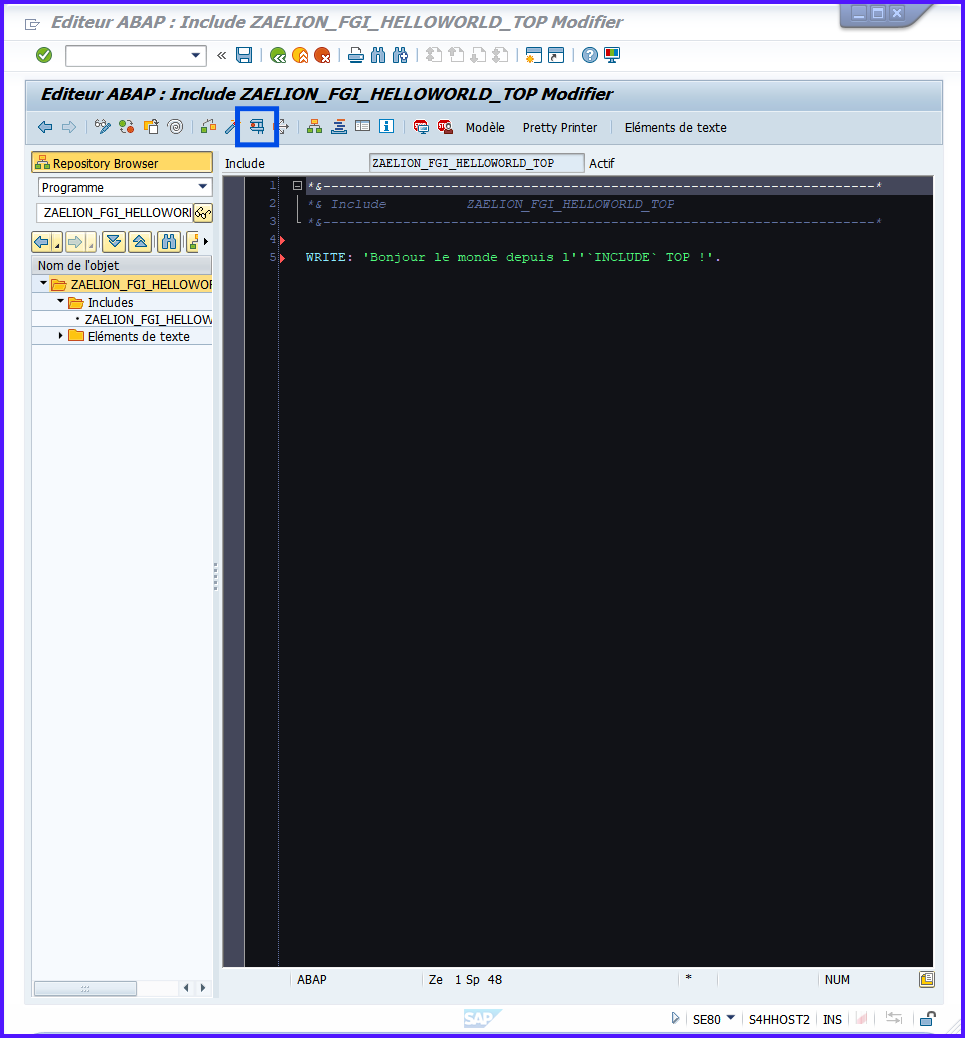
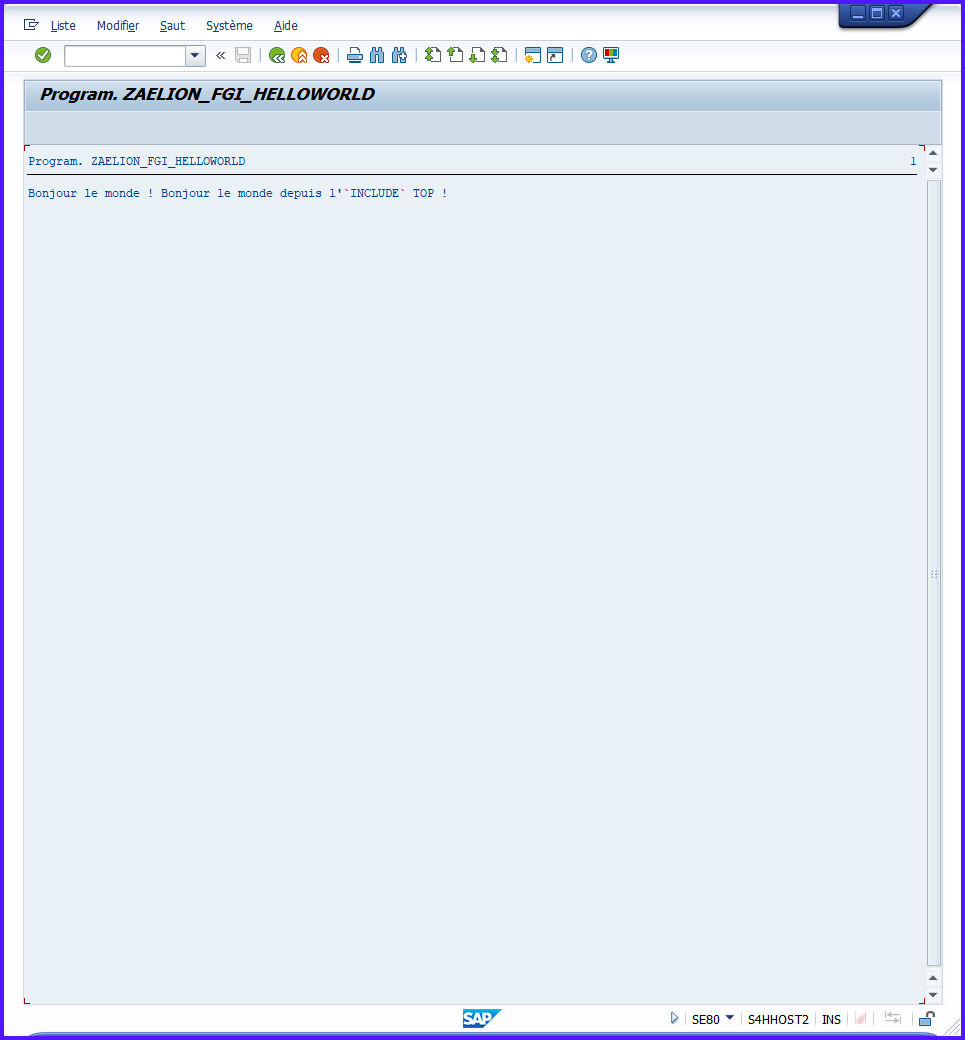
Always verify integration: a non-activated
INCLUDEprevents proper execution of the main program.
Best Practices #
| Best Practice | [!IMPORTANT] |
|---|---|
| Name INCLUDEs with program prefix | Identify INCLUDE and its parent program easily |
| Group INCLUDEs by function | Ex: …_TOP, …_SCR, …_F01 |
| Always activate after modification | Avoid main program not compiling |
Document role of each INCLUDE |
Add comment at top of file |
| DRY – Don’t repeat code | Centralize common logic in single INCLUDE |
Practical Exercise #
- Modify WRITE (add
/afterWRITE:)
WRITE:/ 'Hello world!'.
- Create INCLUDE ZAELION_TRI_HELLOWORLD_TOP
INCLUDE ZAELION_TRI_HELLOWORLD_TOP.
- Add WRITE in INCLUDE:
WRITE:/ 'Hello world from the INCLUDE TOP!'.
- Save, Activate objects
- Execute main program and verify display
- Do the same with INCLUDEs
ZAELION_TRI_HELLOWORLD_SCRandZAELION_TRI_HELLOWORLD_F01
SOLUTION
REPORT ZAELION_TRI_HELLOWORLD
*&---------------------------------------------------------------------*
*& Report ZAELION_TRI_HELLOWORLD
*&---------------------------------------------------------------------*
*&
*&---------------------------------------------------------------------*
REPORT ZAELION_TRI_HELLOWORLD.

WRITE:/ 'Hello world!'.

INCLUDE ZAELION_TRI_HELLOWORLD_TOP.
INCLUDE ZAELION_TRI_HELLOWORLD_SCR.
INCLUDE ZAELION_TRI_HELLOWORLD_F01.
INCLUDE ZAELION_TRI_HELLOWORLD_TOP
*&---------------------------------------------------------------------*
*& Include          ZAELION_FGI_HELLOWORLD_TOP
*&---------------------------------------------------------------------*

WRITE:/ 'Hello world from the INCLUDE TOP!'.
INCLUDE ZAELION_TRI_HELLOWORLD_SCR
*&---------------------------------------------------------------------*
*& Include          ZAELION_TRI_HELLOWORLD_SCR
*&---------------------------------------------------------------------*

WRITE:/ 'Hello world from the INCLUDE SCR!'.
INCLUDE ZAELION_TRI_HELLOWORLD_F01
*&---------------------------------------------------------------------*
*& Include          ZAELION_TRI_HELLOWORLD_F01
*&---------------------------------------------------------------------*

WRITE:/ 'Hello world from the INCLUDE F01!'.
Exécution :

Summary #
- An
INCLUDEcontains code reusable in one or more programs- Created via
SE38orSE80and integrated into program withINCLUDE- Makes code clearer, modular and easier to maintain
- Must be saved in a PACKAGE and associated with a TO
Each
INCLUDEis a chapter of the book that constitutes your program. You can modify it, reuse it and transport it without touching the rest of the book.
Managing Dumps and Debugger – ST22
#
Objectives #
- Understand what a
DUMPis in SAP - Know how to analyze a
DUMPvia transactionST22 - Discover ABAP debugger and learn how to use it
- Identify difference between debugging via
/HandBREAKPOINTS
The goal is to learn how to diagnose ABAP errors and follow code execution to fix anomalies.
Definition #
A
DUMP(orABAP Runtime Error) is a fatal error that stops an ABAP program to protect the system. SAP then records a detailed report inST22for analysis.
It’s like a blue screen on a computer, but SAP provides all information needed to understand and fix the problem.
Common DUMP Examples #

DUMP Code |
Meaning | Example |
|---|---|---|
| CONVT_NO_NUMBER | Error converting text → number | “ABC” converted to integer |
| SYNTAX_ERROR | ABAP syntax error | Poorly activated program or missing Include |
DUMPs are often caused by unexpected values or code errors. Reading them carefully allows finding the exact source.
Analyzing a DUMP with ST22 #
-
Enter
/nST22 -
Choose period (“Today” or filter by user/program)

-
Click on
DUMPto analyze
-
Examine key sections:


| Section | Role |
|---|---|
| Short Text | Quick description of error |
| Error Analysis | [!IMPORTANT] technical |
| Source Code Extract | ABAP line where program crashed |
| Variables in Memory | Variable values at time of DUMP |
| Call Stack | Order of program and include execution |
Double-click on line in Source Code Extract opens SE38 directly at faulty line.
Using the ABAP DEBUGGER #
The debugger allows executing code line by line, inspecting/modifying variables and understanding program behavior.
Debugging a Transaction – /H #
- Enter
/Hin command bar → Debugging switched on - Execute transaction to analyze
- SAP automatically opens debugger before execution
| Action | Key / Icon | Description |
|---|---|---|
| Next | F5 | Execute current line, enter subprograms |
| Skip | F6 | Skip line without entering sub-calls |
| Continue | F8 | Execute until next breakpoint |
| Dynamic Breakpoint | Ctrl+Shift+F8 | Pause on specific line |
Activate /H before clicking or validating a form to observe complete flow.
Debugging a Program – SE38 / SE80 #
-
Open program via SE38 or SE80
-
Add breakpoint on line (click in margin → red dot)

-
Save and execute program (F8)


| Tab | Utility |
|---|---|
| Local/Global Variables | See variable values in memory |
| Internal Tables | Explore itab contents |
| Call Stack | See order of program execution |
| Breakpoints/Watchpoints | Manage stops and monitor variables |
Variables can be modified directly in debugger to test scenarios.
Best Practices #
| Best Practice | [!IMPORTANT] |
|---|---|
Read ST22 carefully |
Identify exact cause of DUMP |
| Use /H for transactions | Understand complete flow |
| Use breakpoints for code | Test logics and corrections |
| Modify variables carefully | Don’t modify production directly |
| Document corrections | Facilitates tracking and maintenance |
Practical Exercise #
- Intentionally generate simple
DUMP(ex. DIVISION BY ZERO)
*&---------------------------------------------------------------------*
*& Report ZAELION_FGI_HELLOWORLD
*&---------------------------------------------------------------------*
*&
*&---------------------------------------------------------------------*
REPORT zaelion_fgi_helloworld.

WRITE:/ 'Hello world!'.

INCLUDE zaelion_fgi_helloworld_top.
INCLUDE zaelion_fgi_helloworld_scr.
INCLUDE zaelion_fgi_helloworld_f01.

*&---------------------------------------------------------------------*
*& DUMP
*&---------------------------------------------------------------------*

DATA: lv_num TYPE i,
      lv_den TYPE i,
      lv_res TYPE i.

lv_num = 10.
lv_den = 0.

lv_res = lv_num / lv_den.

WRITE: / 'Result:', lv_res.
- Execute
- Analyze
DUMPinST22 - Add breakpoint in program, execute and observe variables
Summary #
- A
DUMPis a fatal ABAP error that stops program and generates report inST22ST22allows analyzing: message, faulty code, variables, call stack- ABAP Debugger: execute line by line, inspect/modify variables
- Access: /H for transactions, breakpoint for programs
- Key functions: F5 (next), F6 (skip), F8 (continue), dynamic breakpoints
[!IMPORTANT]
ST22= incident log, debugger = microscope to follow line by line what program does.