
Transaction SE11 on SAP #
Transaction SE11 #
The transaction SE11 is a central SAP tool for managing the DATA DICTIONARY or DICTIONNAIRE DE DONNEES (DDIC).
It allows creating, viewing and maintaining all objects related to data in SAP.
Objectives #
- Understand the
SE11interface and its menus - Know how to view and modify data objects:
tables,Views,DATA TYPES - Manage
KEYS,INDEXand relationships between objects - Use help features for creation and control
Definition #
Imagine that
SE11is a central toolbox where all SAP data construction plans are stored.
Without this box, it’s impossible to build, connect or verify system consistency.
All objects created in SAP (fields, structures, tables, etc.) are recorded in the
DDIC.
It’s the technical foundation on which the entire data model rests.
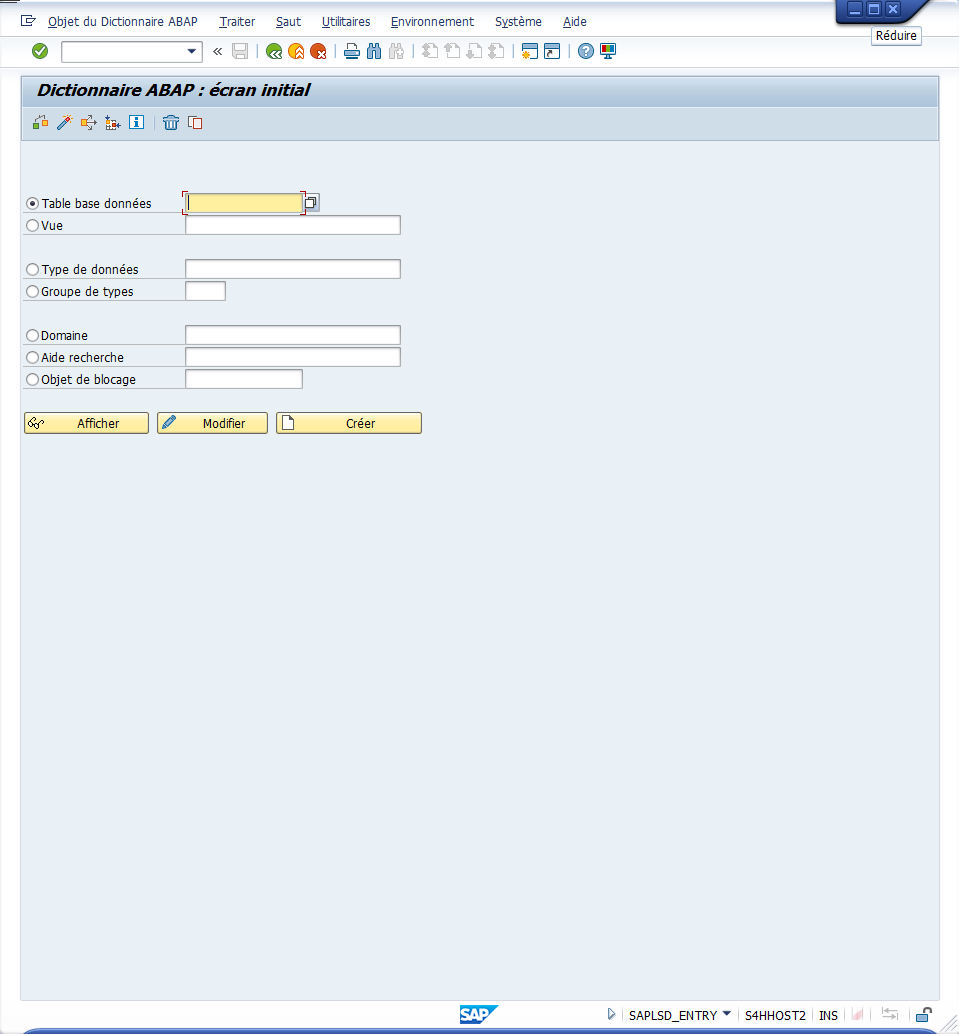
The transaction SE11 is a SAP transaction used for data dictionary management. Here are its main uses:
-
Viewing data objects:SE11allows viewing different data objects in SAP, such as DB tables, Views, Data Types, etc. This also includes viewing Fields, Primary Keys, constraints and other properties of data objects. -
Creating and modifying data objects: SAP developers can useSE11to create new data objects or modify existing objects, such as tables or Data Types. -
Maintaining data structures: SE11 allows managing complex data structures by defining relationships between tables, adding or removing Fields, defining join keys, etc. -
Generating data reports: Users can use SE11 to generate reports on data stored in tables by allowing data access via SQL queries or reporting tools.
Menu #
Check object[ Ctrl ] + [ F2 ]Activate[ Ctrl ] + [ F3 ]Where-Usedallows knowing where the object is used [ Shift ] + [ F3 ]Analyze environmentlists ABAP components that the object uses [ Ctrl ] + [ Shift ] + [ F4 ]Application help[ Ctrl ] + [ F8 ]Delete object from DDIC[ Shift ] + [ F2 ]Copy object from DDIC[ Ctrl ] + [ F5 ]
Features #
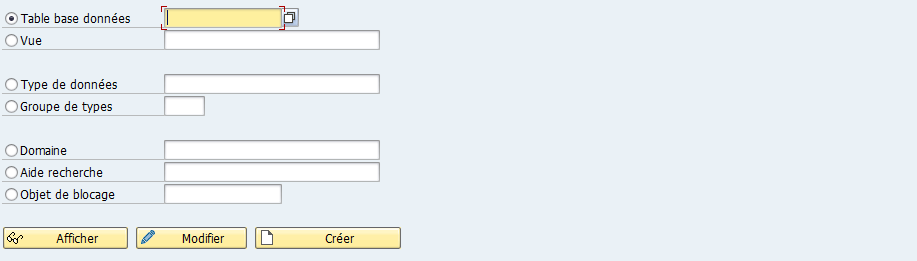
Database Table: classic programming table where system information is stored.View: visual grouping of multiple tables.Data type: can be a data element, table structure or table type.Type Group: kind of include where several variable types are stored (Constants, table type…).Domain: Domain.Search help: Search help.Lock Object: allows locking a table… if needed. Creating a lock object will automatically create twofunction modules:ENQUEUE_lock-object-name(call this function to lock the table…)DEQUEUE_lock-object-name(call this function to unlock the table…)
Buttons #

Display[ F7 ]Change[ F6 ]Create[ F5 ]
Display window (at execution) #
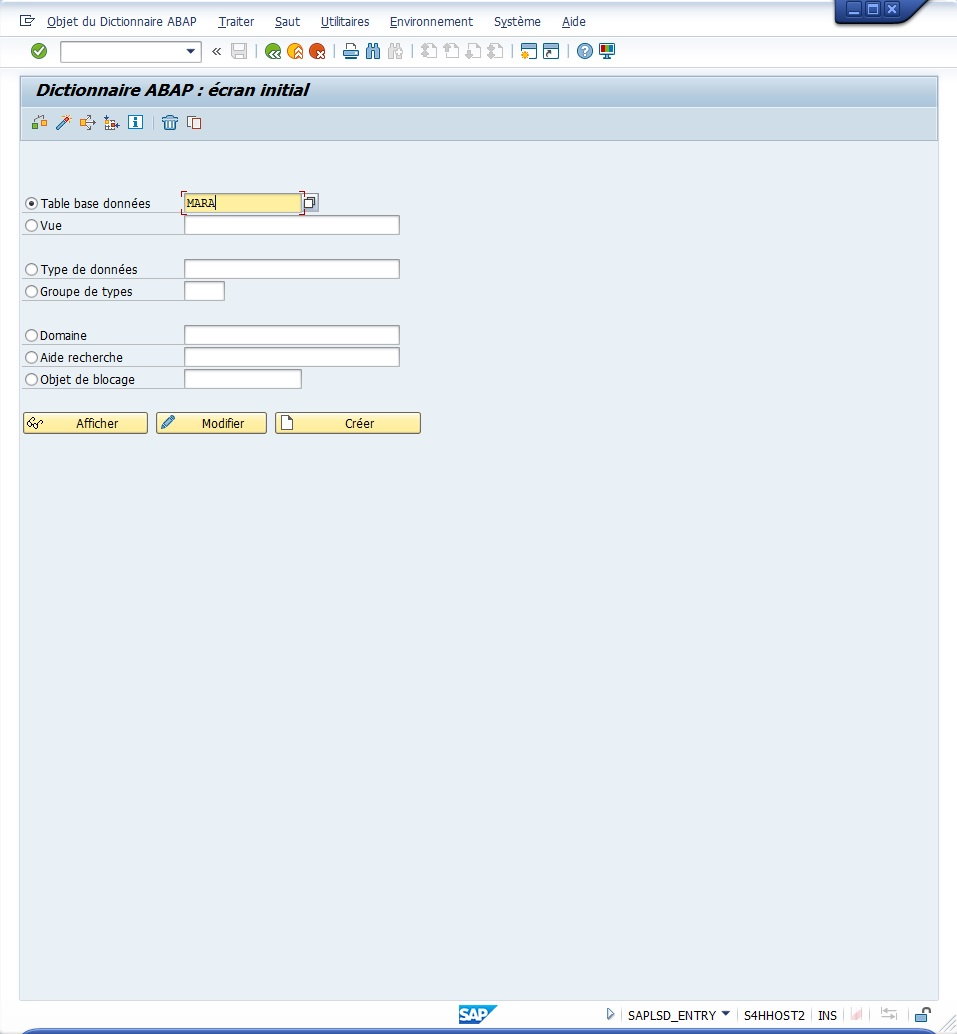
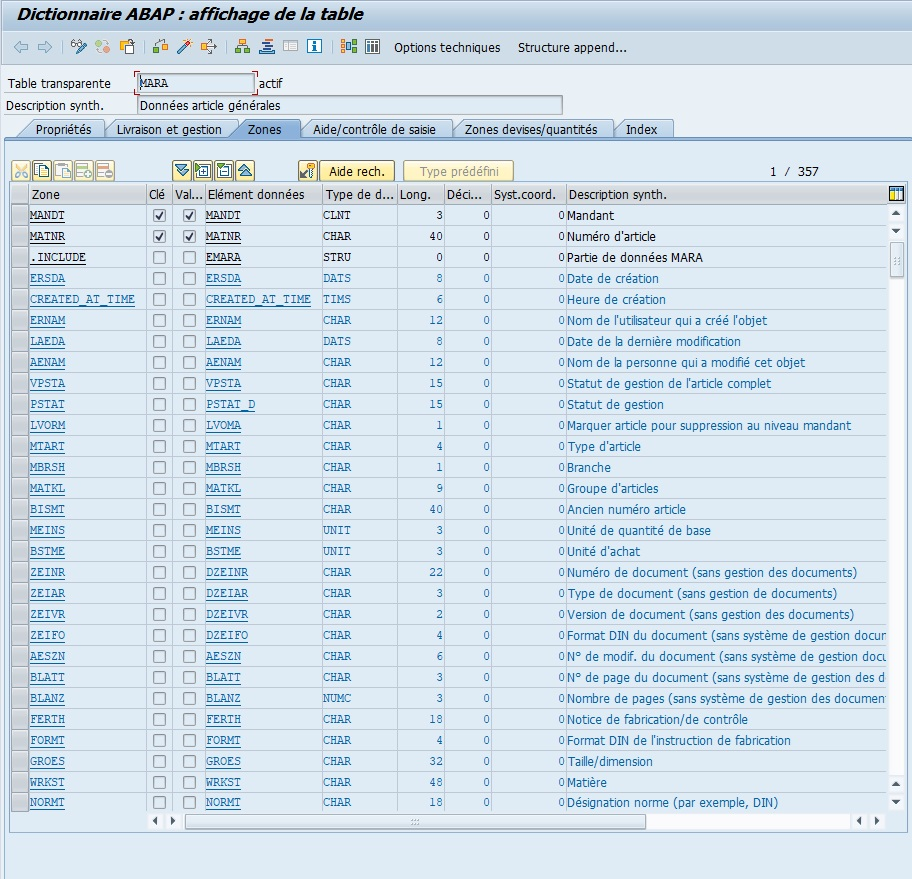
Menu #

-
<- ->
-
Display <-> Change[ Ctrl ] + [ F1 ] -
... -
Other object[ Shift ] + [ F1 ] -
Check[ Ctrl ] + [ F2 ] -
Activate[ Ctrl ] + [ F3 ] -
Where-used[ Ctrl ] + [ Shift ] + [ F3 ] -
Object list display[ Ctrl ] + [ Shift ] + [ F5 ]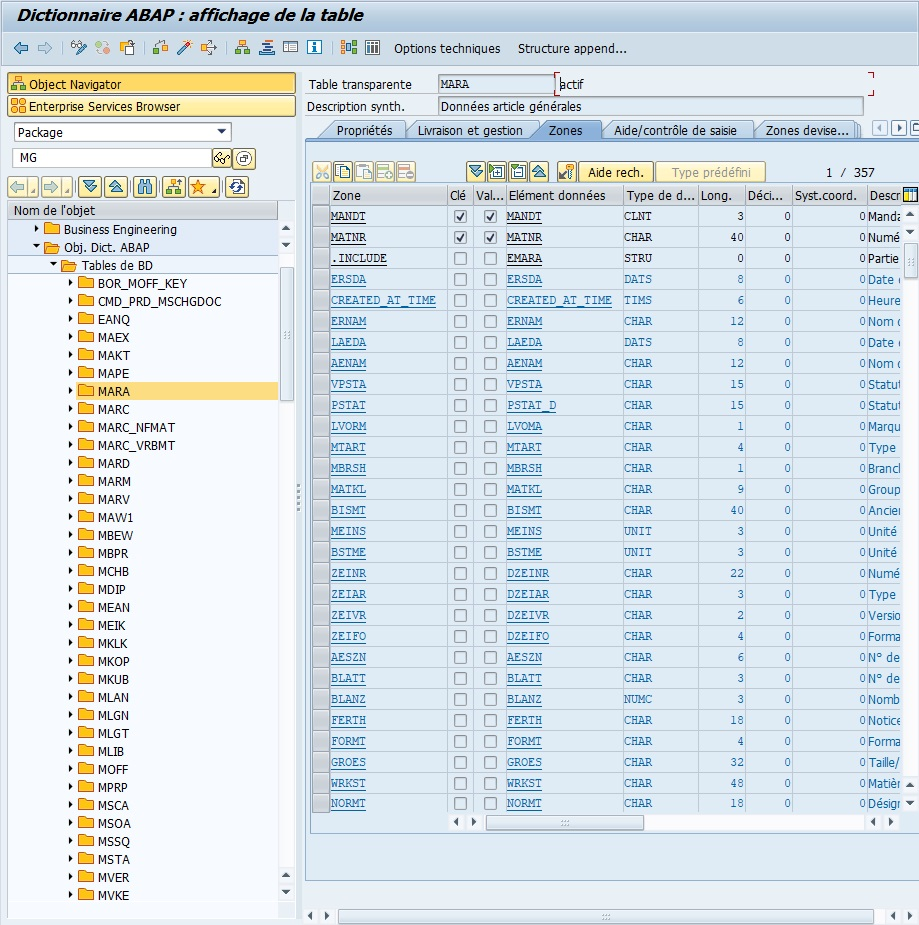
-
Display navigation window[ Ctrl ] + [ Shift ] + [ F4 ]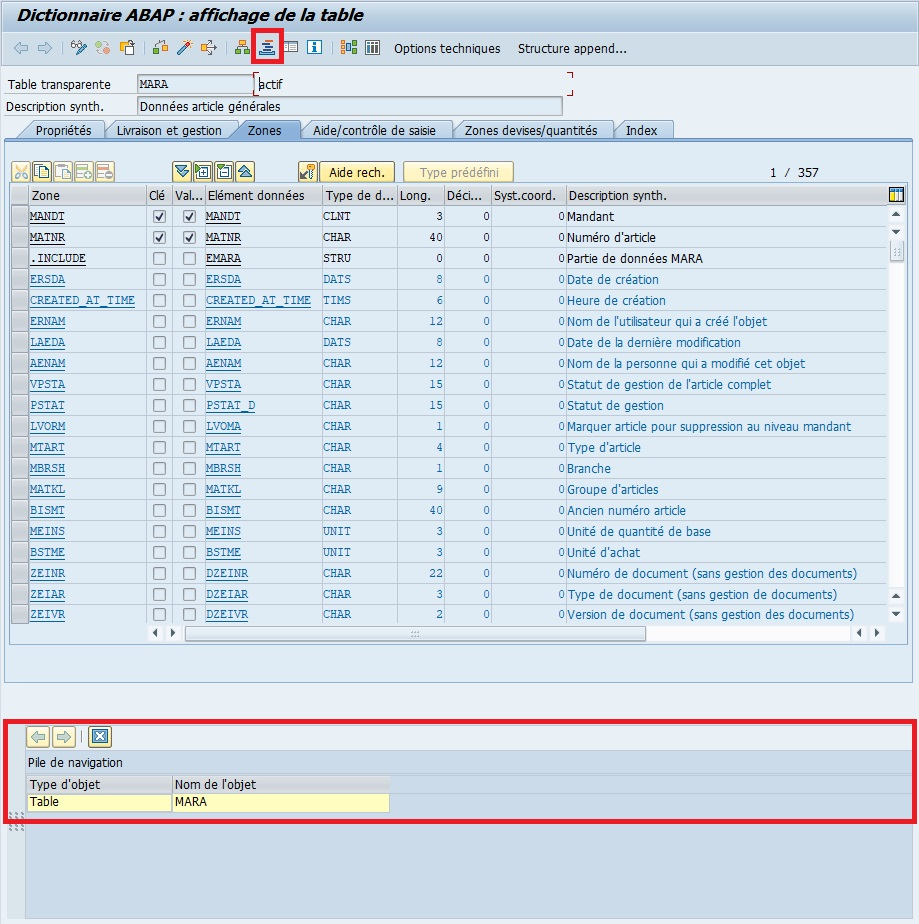
-
Enable/Disable fullscreen[ Shift ] + [ F12 ] -
Manual[ Ctrl ] + [ F8 ] -
Graphic[ Ctrl ] + [ Shift ] + [ F11 ]
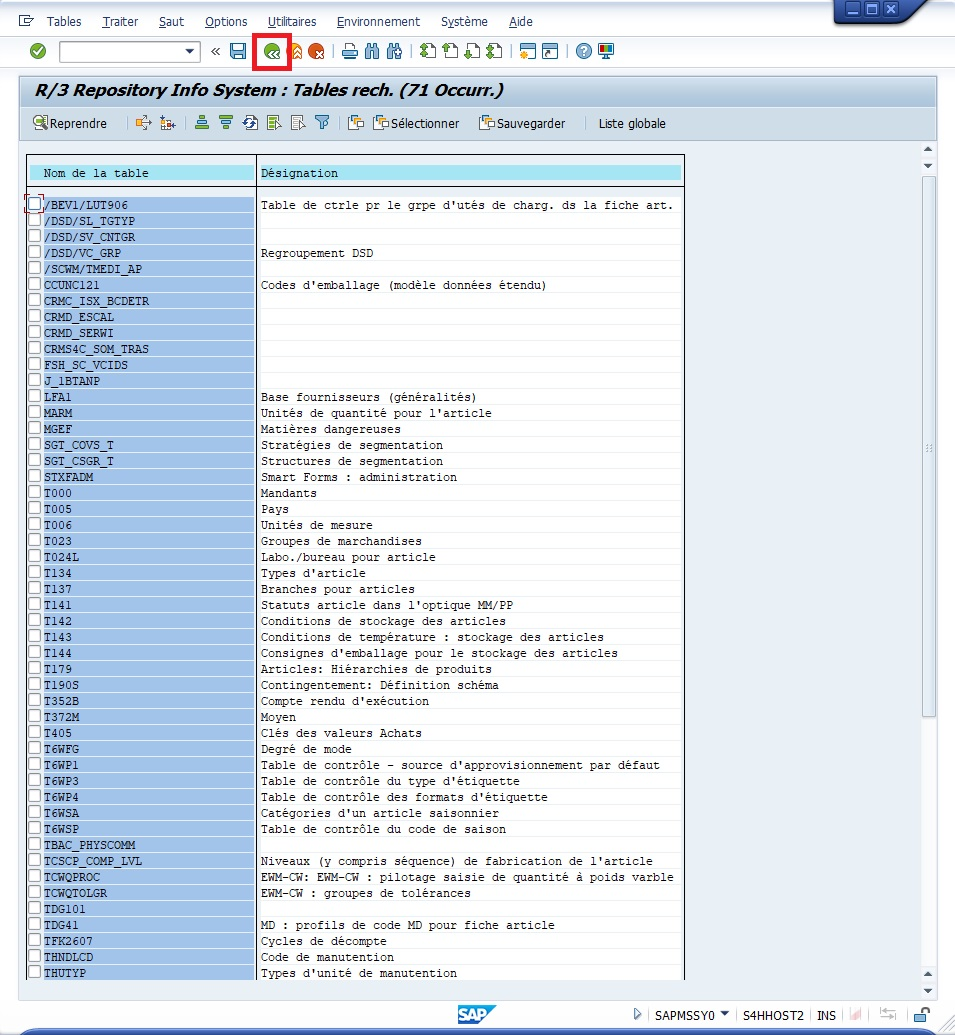
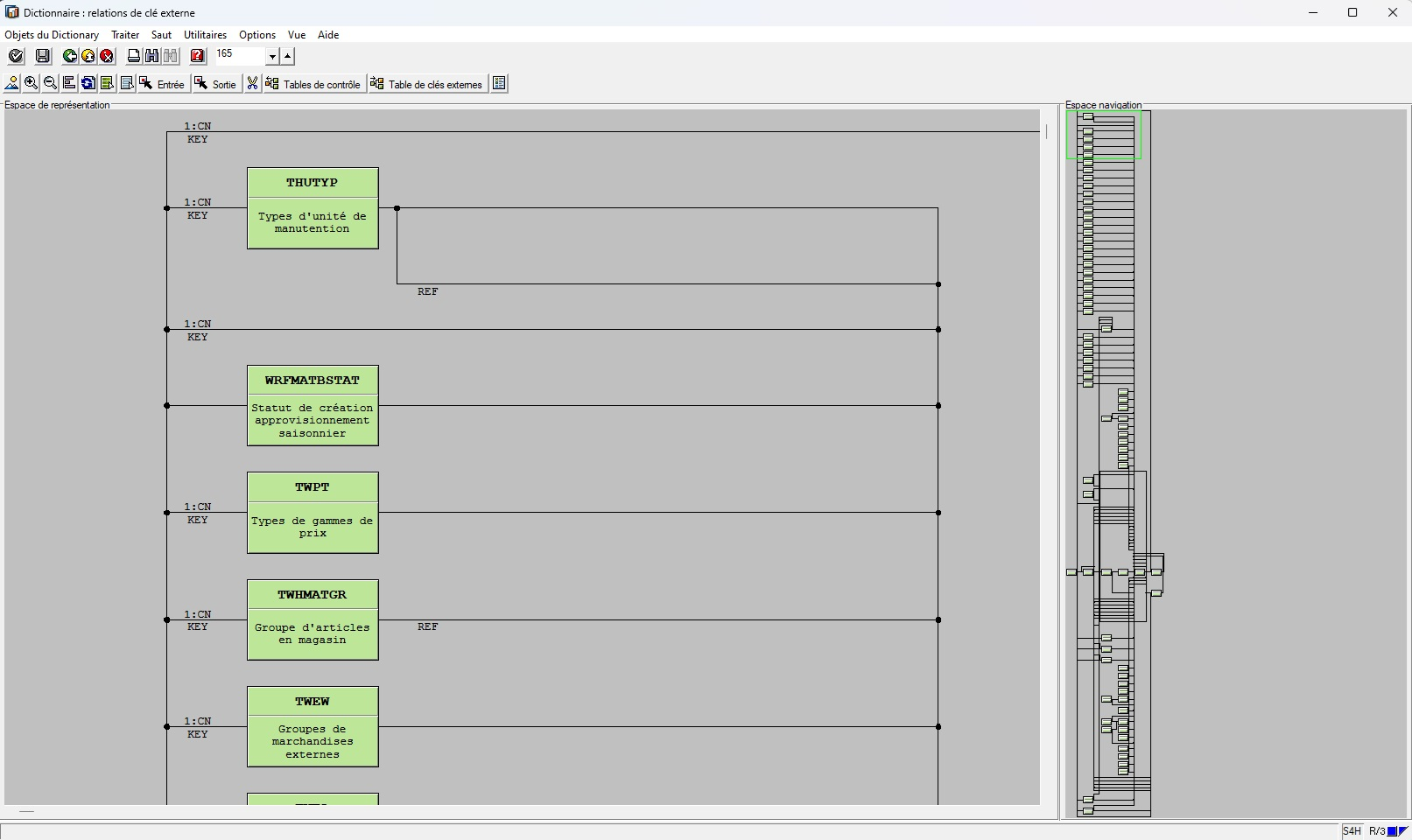
-
Contents[ Ctrl ] + [ Shift ] + [ F10 ] -
Technical optionsof the table [ Ctrl ] + [ Shift ] + [ F9 ] -
Append structureto view structures added to the structure (MARA in our example) [ F5 ]
FIELDS TAB #
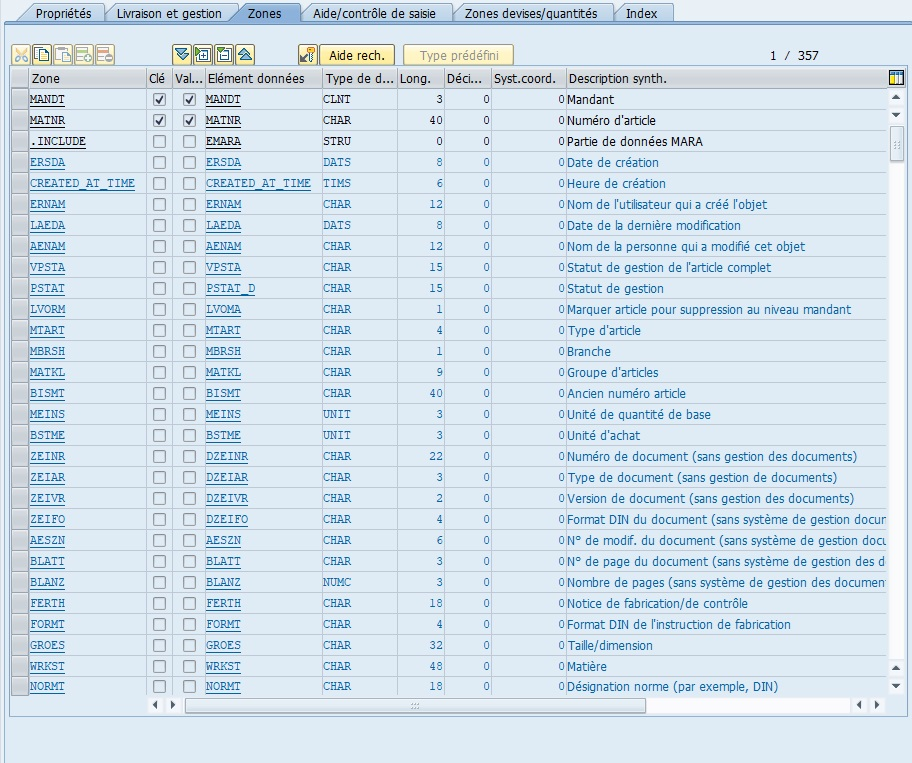
-
Fields
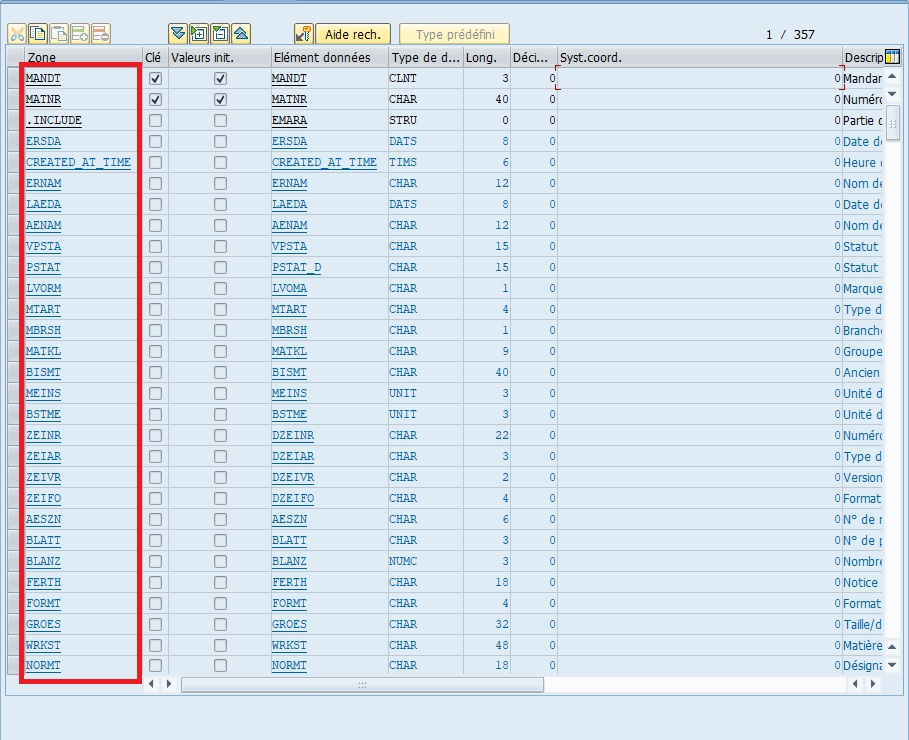
-
Keys
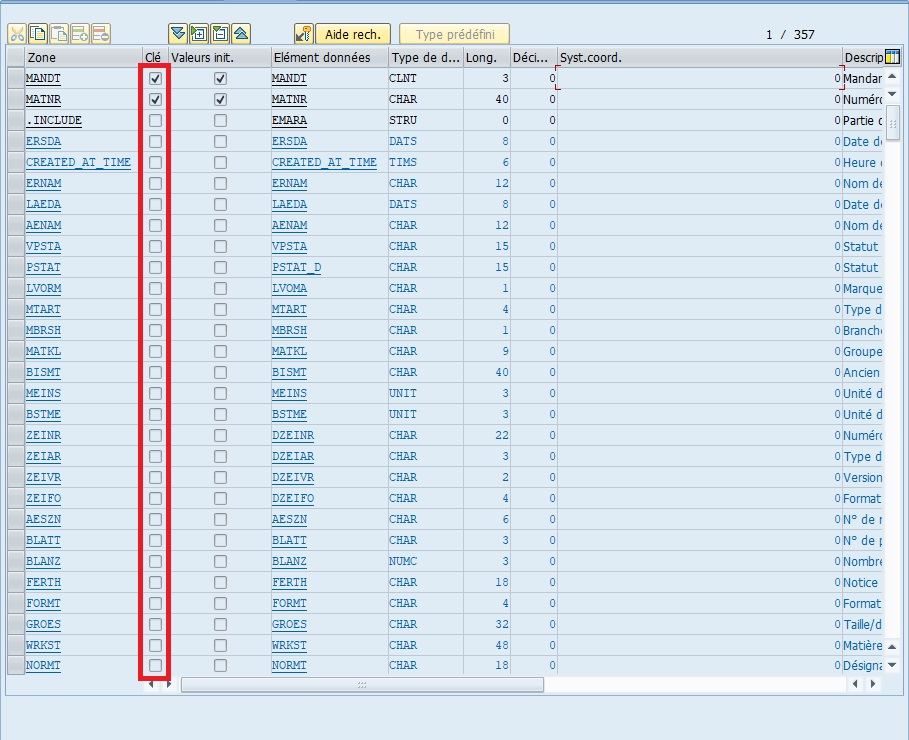
-
Initial value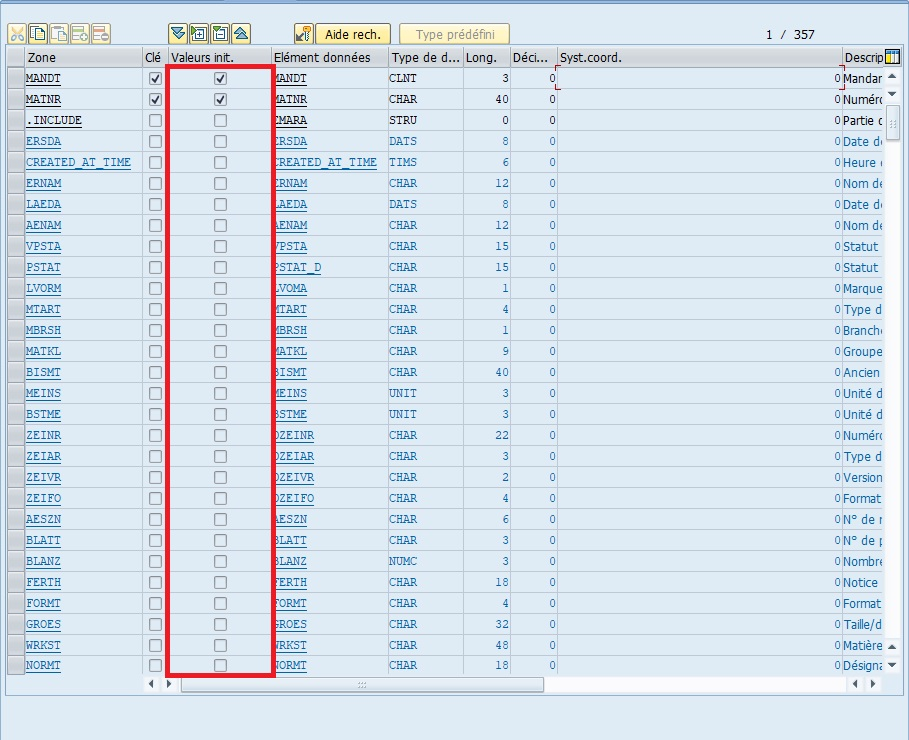
-
Data element
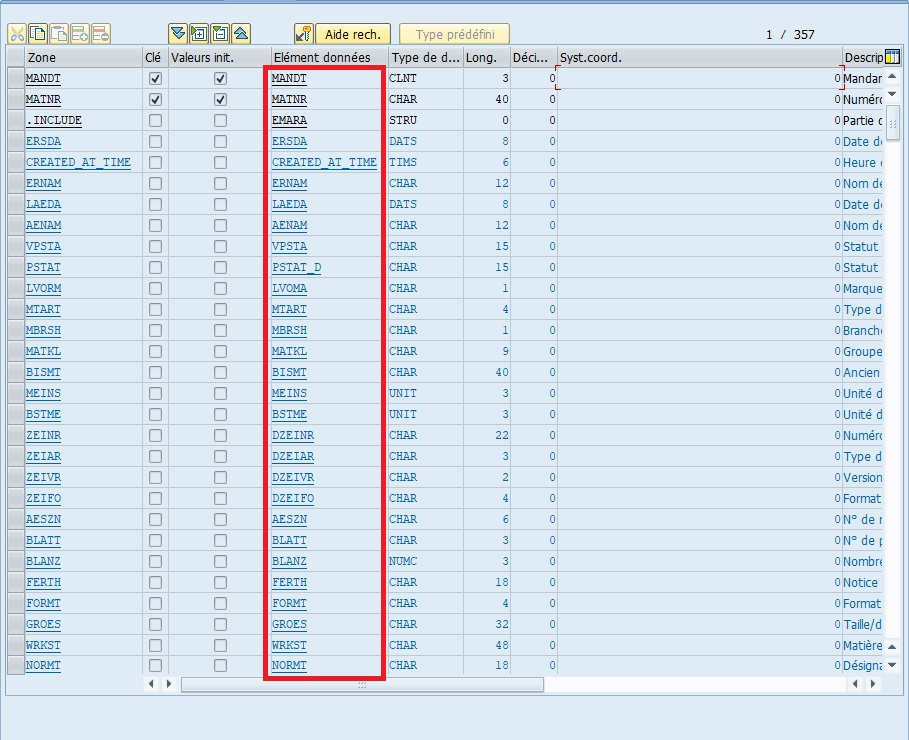
-
Data type (length and decimals)
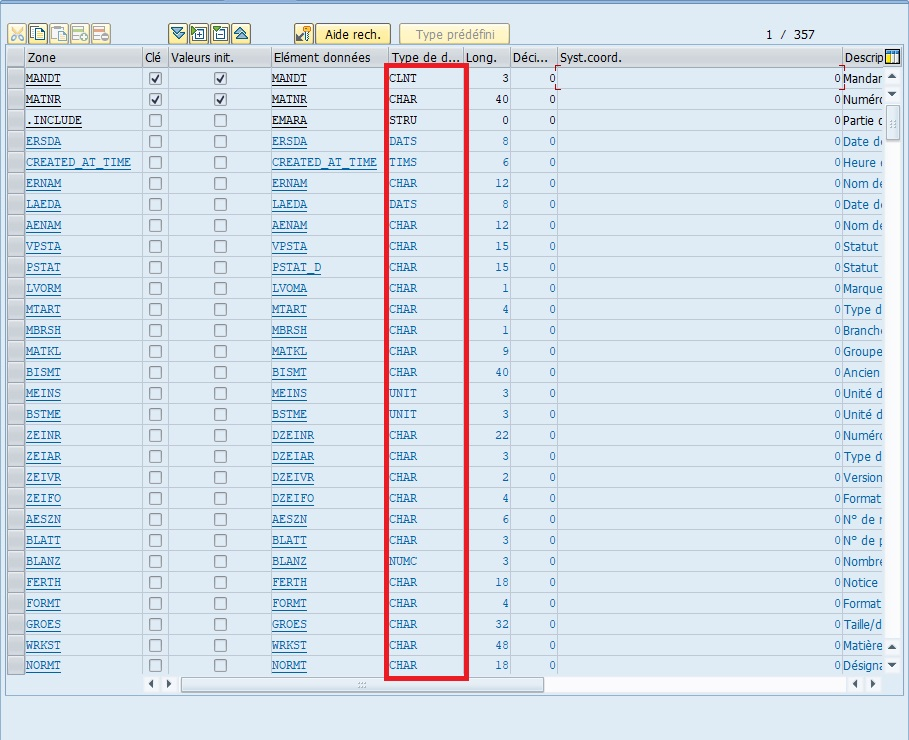
-
Description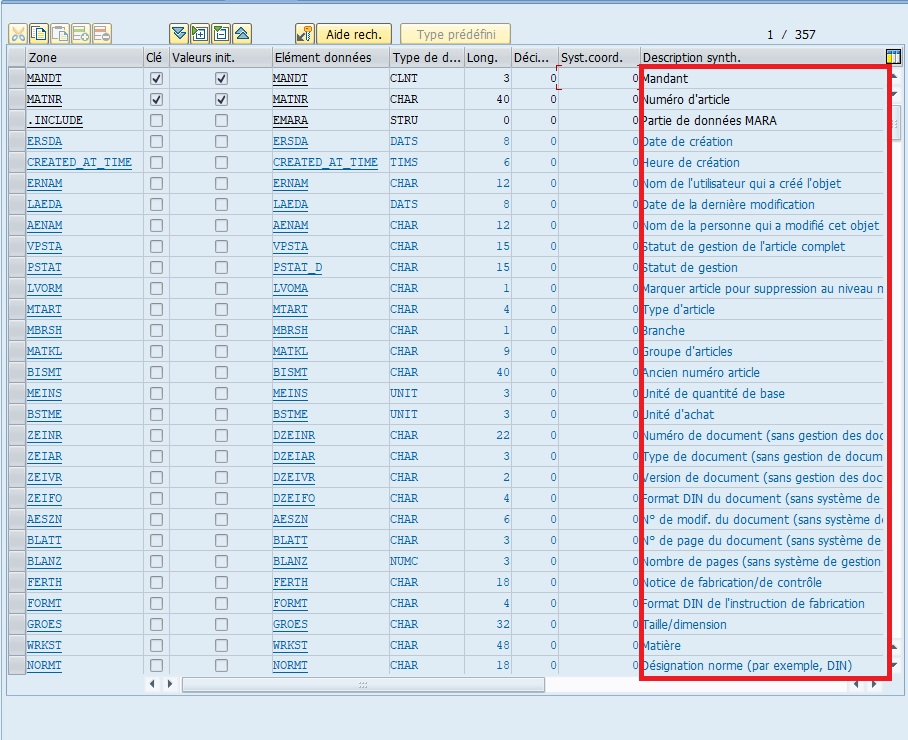
INPUT HELP/CHECK TAB #
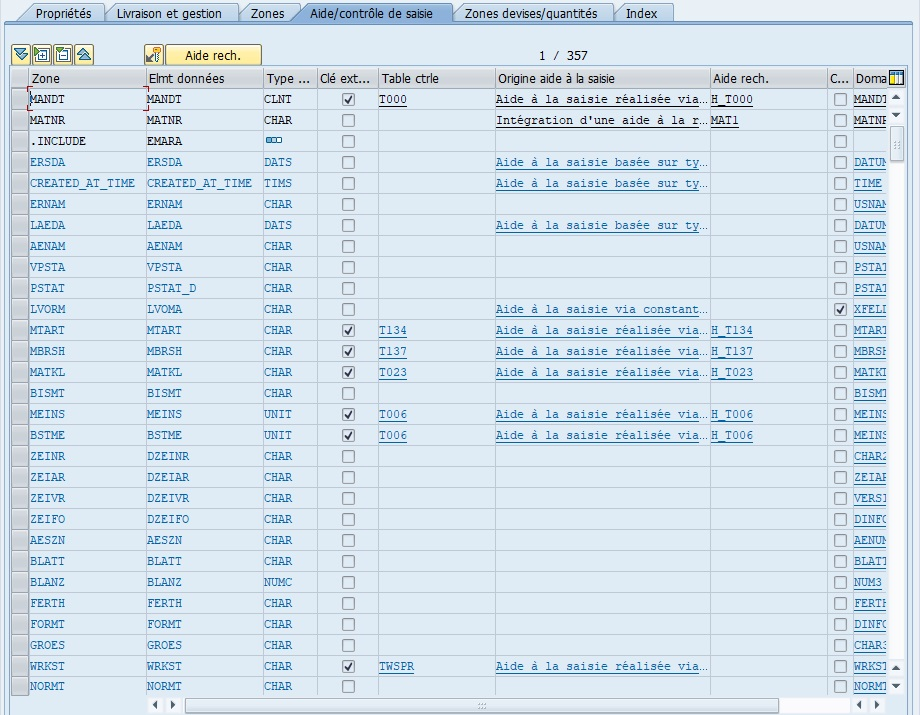
Input help/check is a feature that provides assistance to users when entering data in a Field.
The Input Help/Check tab displays the link between a Field and its check table.
CURRENCY/QUANTITY FIELDS TAB #
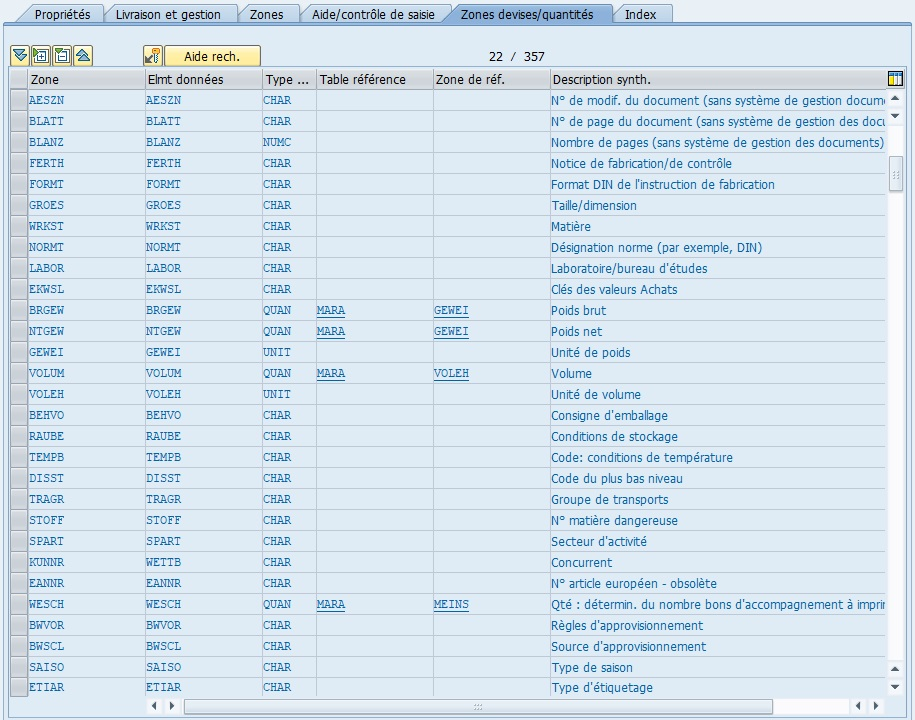
The “Currency/Quantity Fields” tab is a feature allowing definition of specific characteristics of data fields related to currencies and quantities in SAP.
More specifically, it displays links between a Field containing a quantitative value and its unit of measure.

For example, the BRGEW field of the MARA structure represents the gross weight of an item. However, we don’t know initially if the weight is in kilograms, grams or tons. BRGEW must therefore be linked to another Field to define and store its unit of measure. In this example, BRGEW is linked to the GEWEI field (of unit of measure type) which has the description “Weight unit”.
When creating a table, it is mandatory to always link a quantity type field (data type: QUAN) with a field that will describe its unit of measure (Data type: UNIT).
Domains #
Objectives #
- Understand the role of a
DOMAINin the SAP dictionary - Identify available data types
- Define technical and editorial properties of a
DOMAIN - Create a
DOMAINin transactionSE11with its value ranges and conversion routines
Definition #
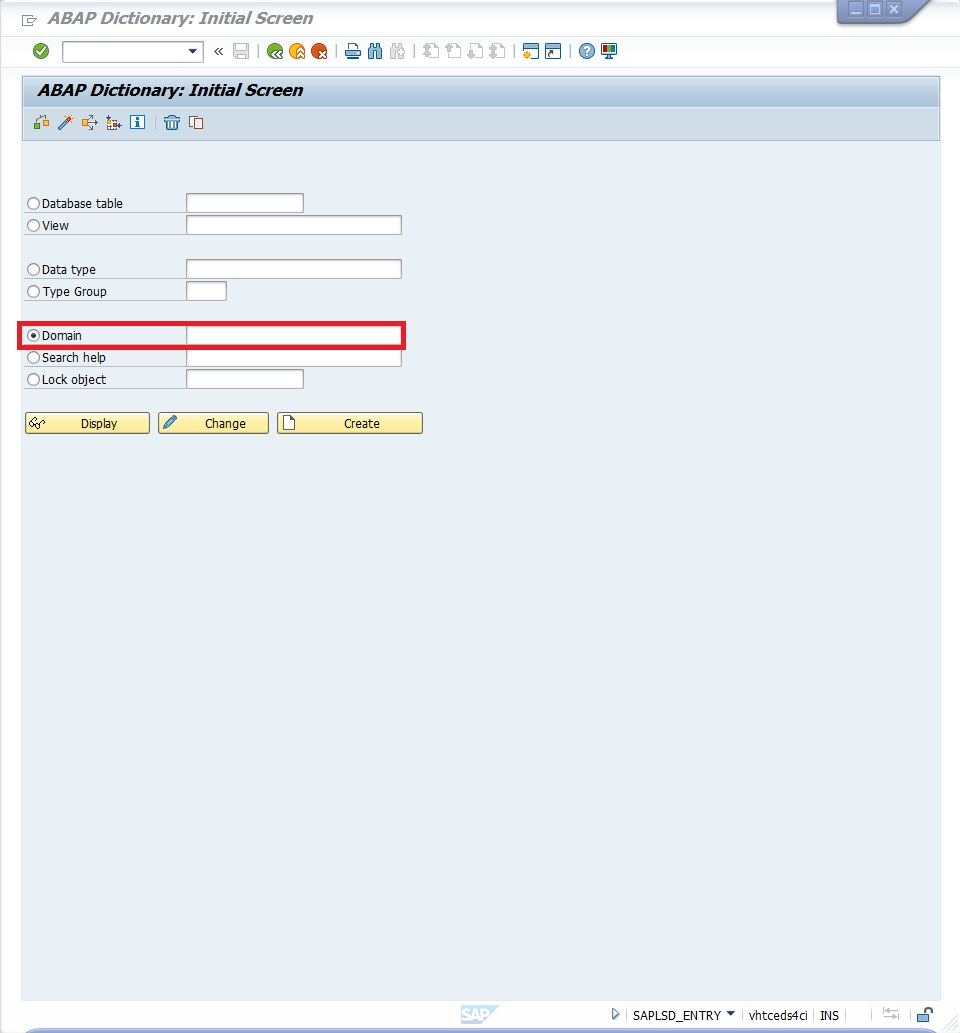
It can be seen as the mold into which data must fit.
The definition of a
DOMAINconstitutes the lowest level of data description in SAP.
It allows defining the technical characteristics of a field contained in a TABLE.
SE11 #
To facilitate understanding, we will take the example of the
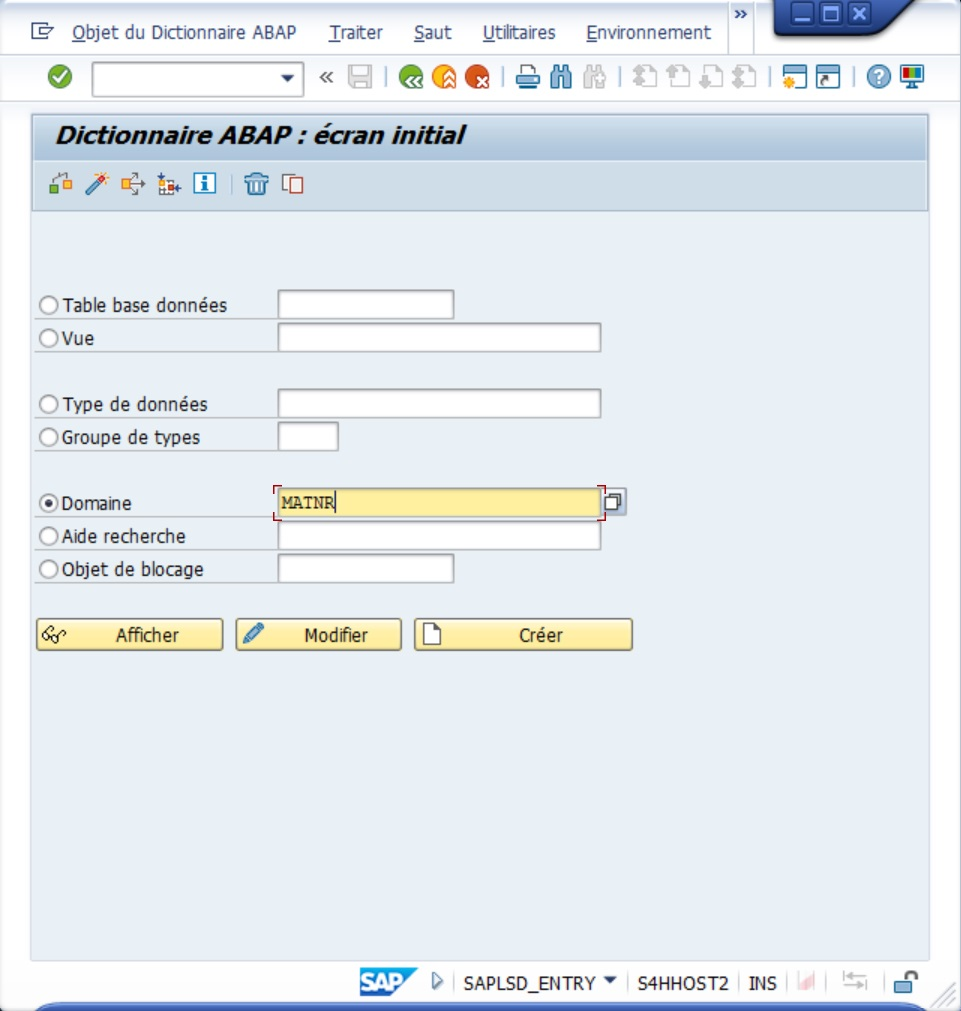
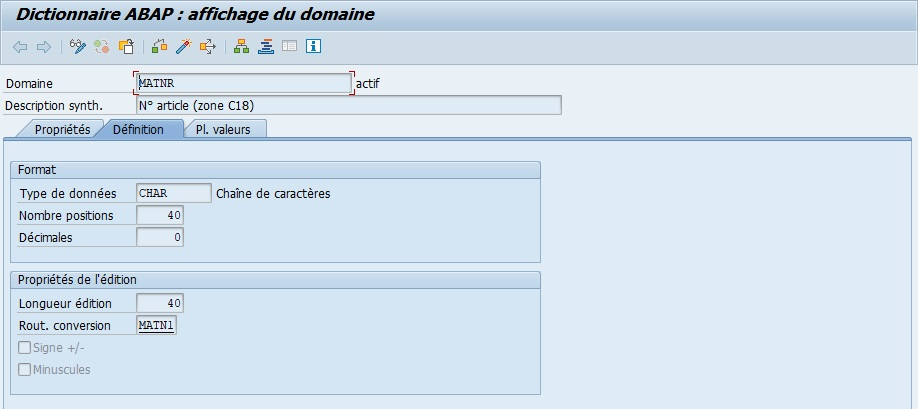
MATNRdomain, accessible from TransactionSE11by entering the searched domain name in the “Domain” input. Then click on [ Display ] (or “Display”)
Menu #

Two arrows: (Previous Object and Next Object) to navigate between screens.Display <-> Change: to switch to modification in case of display and vice versa [Ctrl][F1]Active <-> Inactiveallows navigating between active and inactive versionOther Object: to select another domain without going back through the initial SE11 screen. [Shift][F5]Check[ Ctrl ] + [ F2 ]Activate[ Ctrl ] + [ F3 ]Where-Used[ Ctrl ] + [ Shift ] + [ F3 ]Display Object List[ Ctrl ] + [ Shift ] + [ F5 ]Display Navigation Window[ Ctrl ] + [ Shift ] + [ F4 ]Enable/Disable FullscreenOnline Manual[ Ctrl ] + [ F8 ]
Description #

Properties tab #

Last modificationof the domainPackageof the domainOriginal languageof the domain (during its creation)
Definition tab #
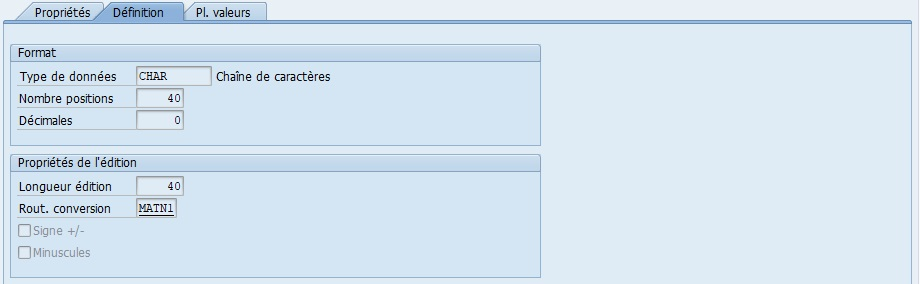
Data typecharacterizing the domain formatNumber of positionsThis is the number of characters of a data type in the ABAP DictionaryDecimalsOutput lengthThis is the output length as part of domain output propertiesConversion routineThis is the conversion routine as part of domain output propertiesSign +/-domain parameterLowercasedomain parameter
Value range tab #
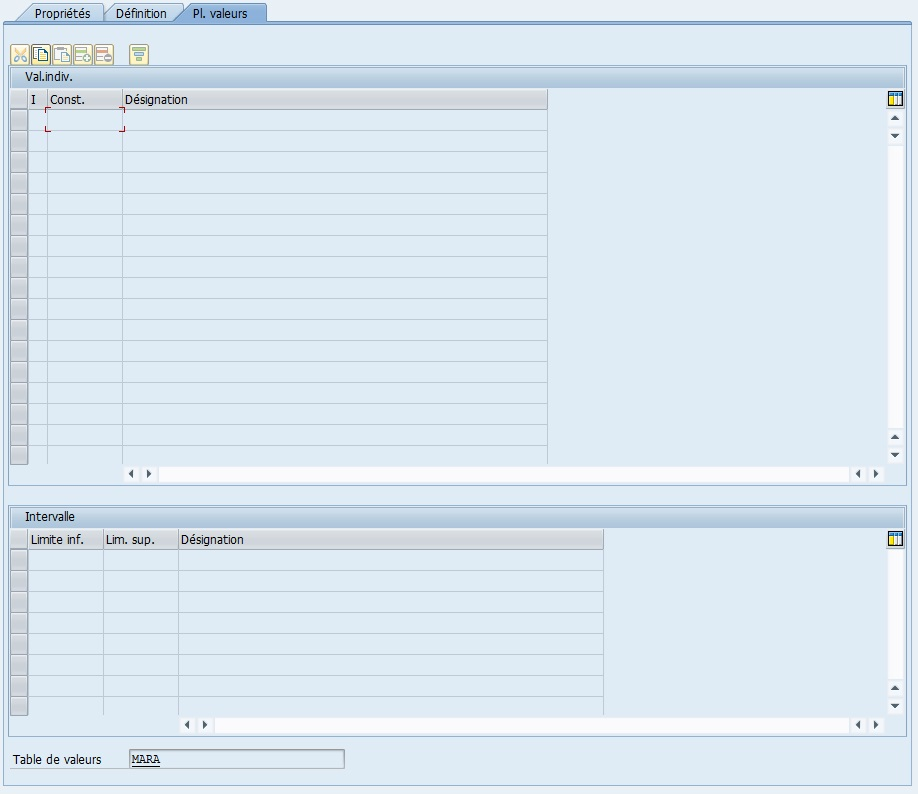
A value range for a domain refers to a range or set of allowed values for that field.
If it is filled in during domain creation, when a user uses a variable defined by this domain, SAP will check if the entered value exists by consulting this value range. If it doesn’t exist, it will return an error message.
Available data types #
- CHAR: alphanumeric character string
- CURR: currency (EUR, USD…)
- DATS: date format
- DEC: decimal number with sign and thousands separator
- FLTP: floating point number (up to 16 positions)
- INT1, INT2, INT4: integer numbers
- NUMC: numeric text (useful for concatenating numbers and text)
- STRING: long character string
- XSTRING: hexadecimal string
Imagine a cookie cutter.
TheDOMAINdefines the shape and size of the cookie. Regardless of the filling (the value), it must always fit in this mold.
The
DOMAINsets the universal technical rules of a field (type, length, format).
Thus, all fields based on thisDOMAINwill share the same constraints and behaviors.
A
DOMAINcan be reused in multiple tables. If you modify it, all fields using it will be impacted.
Main properties #
- Data type: base format (CHAR, NUMC, DEC, etc.)
- Number of positions: number of allowed characters
- Decimals: only for numeric types
- Output length: visible length in interfaces
- Conversion routine: automatic conversion or formatting (e.g. ALPHA)
- Sign +/-: allows negative numbers
- Lowercase: allows lowercase letters
If a
DOMAINdefines a 5-character identifier, and you enter123456, SAP will reject the value.
If you enter123, the ALPHA conversion routine can complete with zeros to get00123.
A length that is too short or incorrect type definition can cause truncation or incompatibility errors with other objects.
Always define type and length with functional consistency (e.g.:
ZID_CLIENT→ CHAR10 to allow mixed alphanumeric format).
Value range #
A value range defines a set of allowed values for the field.
It’s like a menu in a restaurant. If the dish you ask for is not on the menu, the waiter (SAP) tells you it’s not allowed.
When a range is defined, SAP automatically checks that the entered value belongs to this list and rejects any non-compliant data.
Value ranges are useful for restricting fields such as contract type, country code, or status.
Define value ranges as soon as data is coded or limited to a closed list (e.g. Y/N, A/B/C…).
Conversion routine #
Conversion routines allow automatically formatting data during entry or display.
A field of type
MATNR(material number) must always have 10 characters.
If you enter12345, the ALPHA routine will automatically convert it to0000012345.
SAP uses these routines to ensure display uniformity between screens, databases and reports.
Thus, values are always stored in the same technical format, but displayed in a readable form.
If a conversion routine is not suitable, display or comparison errors may occur between systems (e.g.: between ECC and S/4HANA).
Use standard SAP routines (e.g.: ALPHA, CUNIT, CURRENCY) rather than creating new ones.
Creating a domain #
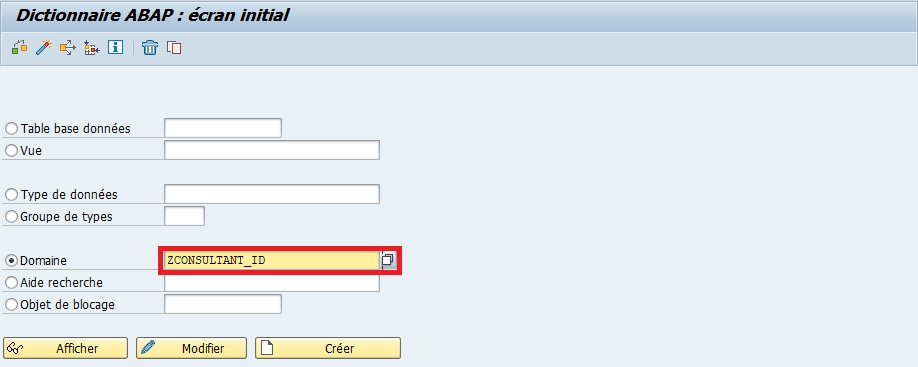
- Transaction SE11
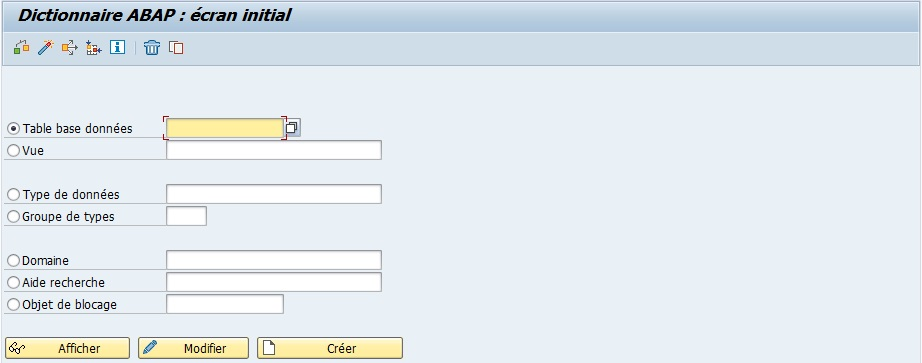
ChecktheDomainoption
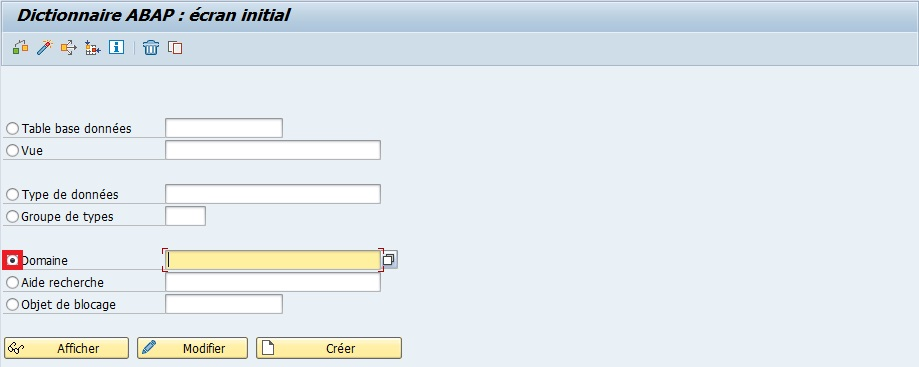
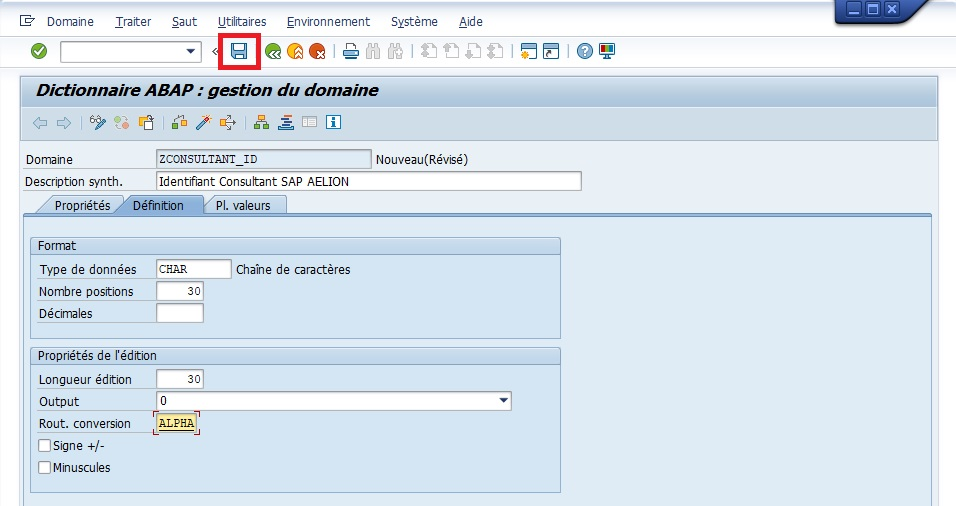
Namethe domain (exampleZCONSULTANT_ID)
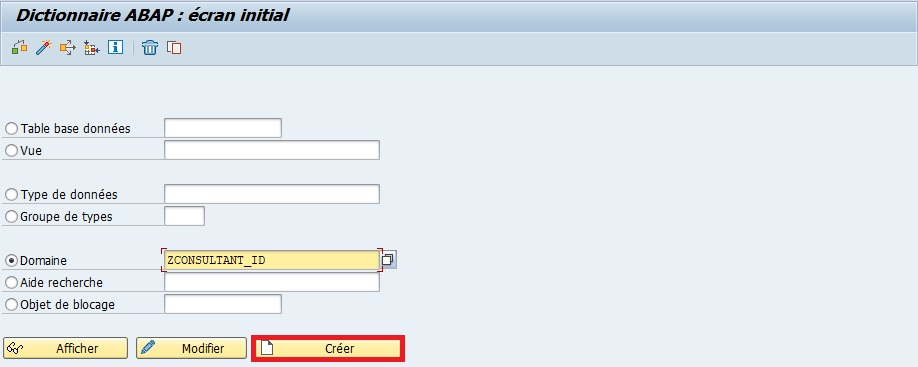
Createor [ F5 ]
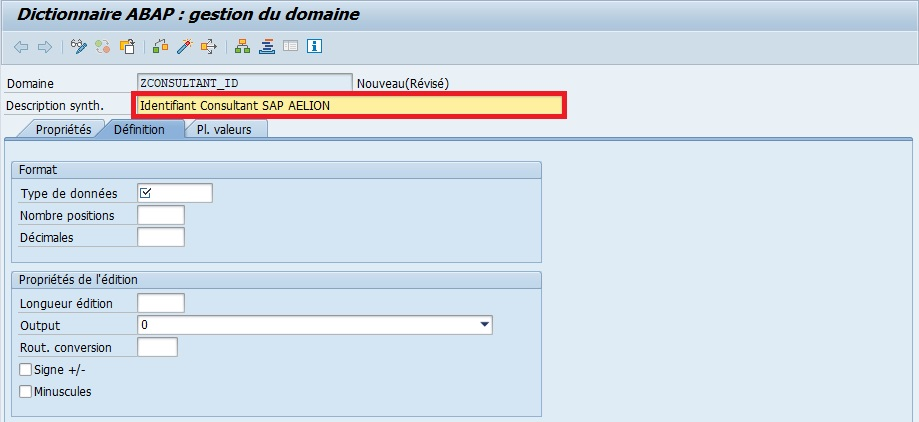
Enteradescription(mandatory) (exampleSAP AELION Consultant Identifier)
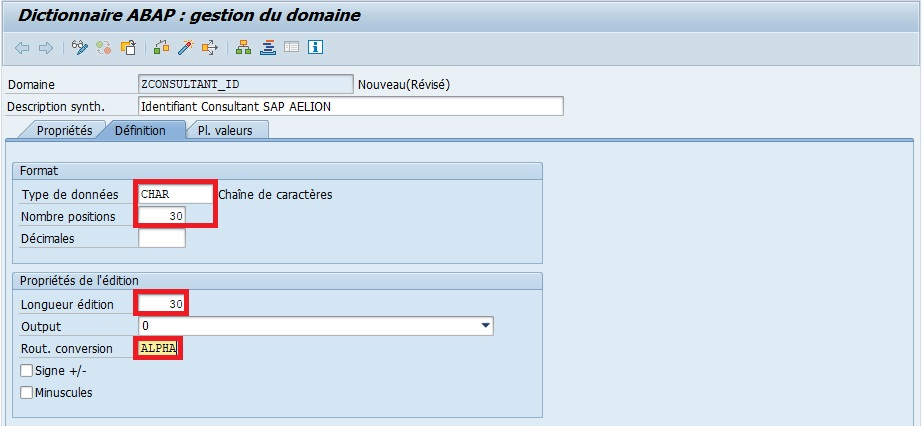
- Insert the following information:
Data type: CHARNumber of positions: 30Output length: 30Conversion routine: ALPHA
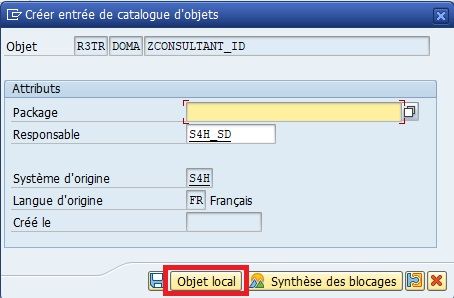
Save
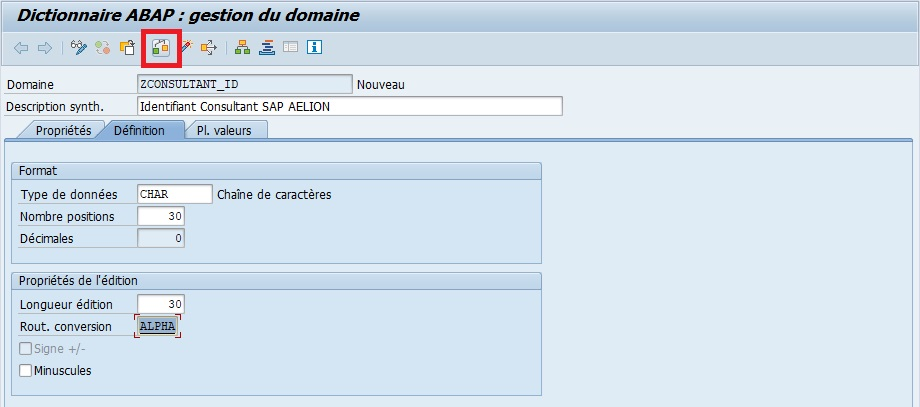
Check

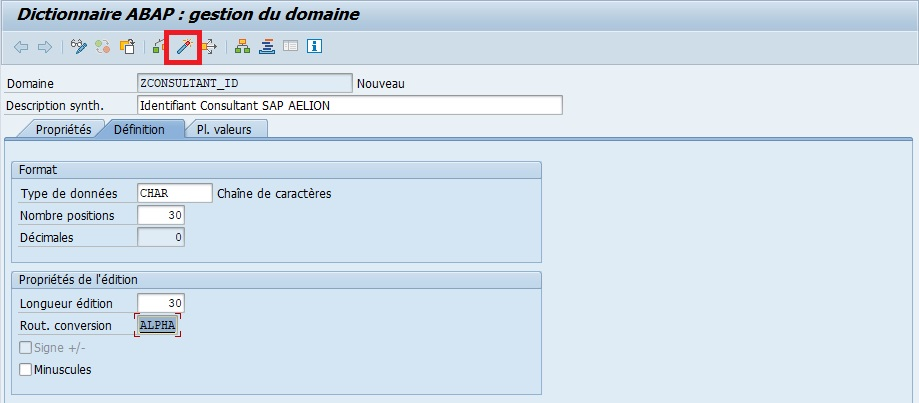
Activate
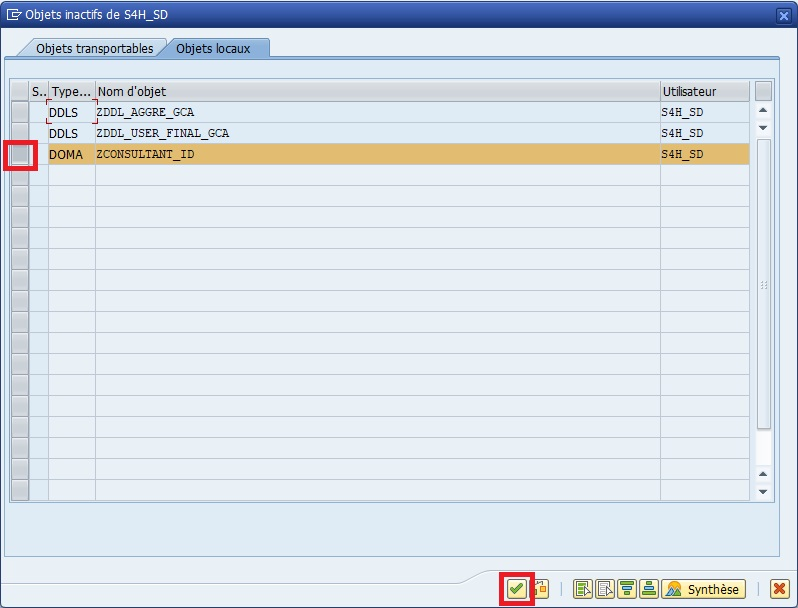
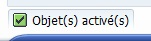
Creating a
DOMAINis like defining an official template for a form:
each field must respect this template to guarantee data uniformity throughout the system.
Domain activation automatically checks for possible inconsistencies.
In case of error, SAP precisely indicates the field or property to correct.
Summary #
A
DOMAINdefines the technical structure of an SAP field: type, length, decimals, conversion and value range.
It guarantees consistency and data quality throughout the system.
- Each field of an SAP table is based on a
DOMAIN.- The
DOMAINensures data homogeneity and validation.- Conversion routines and value ranges strengthen data model integrity.
Always create a reusable
DOMAINrather than defining types directly in table fields.
This simplifies maintenance and long-term data normalization.
Data elements #
Objectives #
- Understand the role of a
DATA ELEMENT - Identify the relationship between
DATA ELEMENTandDOMAIN - Define description and data presentation
- Create a
DATA ELEMENTin transaction SE11
Definition #
If the
DOMAINis the mold that defines the shape and size of the cookie,
theDATA ELEMENTis the label stuck on the cookie.
All cookies from the same mold can have different labels depending on their use (e.g.: “customer cookie”, “supplier cookie”).
A
DATA ELEMENTis linked to a singleDOMAIN, but aDOMAINcan be used by multiple data elements.A
DATA ELEMENTis the reference zone of data in SAP.
It defines how data is presented and used in the system, and it is always associated with aDOMAIN.
The
DOMAINsets technical characteristics (type, length, format),
while theDATA ELEMENTsets the functional meaning and display label of the field.
The
DOMAINZCONSULTANT_IDdefines a 30-character technical identifier.
TheDATA ELEMENTZCONSULTANT_IDdefines how this field will appear on screen:
for example “SAP Consultant Identifier”.
The
DATA ELEMENTis a presentation abstraction:
it makes technical data understandable for business users.
It’s a layer between technical (DOMAIN) and semantic (screen, form, report).
Relationship between domain and data element #
| Element | Main role | Example |
|---|---|---|
DOMAIN |
Technical definition (type, length, conversion) | CHAR30 |
DATA ELEMENT |
Functional definition (text, label, help, doc.) | “SAP Consultant Identifier” |
The
DOMAINsays how data should be stored,
theDATA ELEMENTsays how it should be understood and displayed.
Never confuse
DOMAINandDATA ELEMENT.
Modifying aDOMAINaffects all elements using it.
Modifying aDATA ELEMENTonly affects field presentation (not its structure).
Creating a data element #
Prerequisites #
Have created a DOMAIN (e.g.: ZCONSULTANT_ID).
Steps #
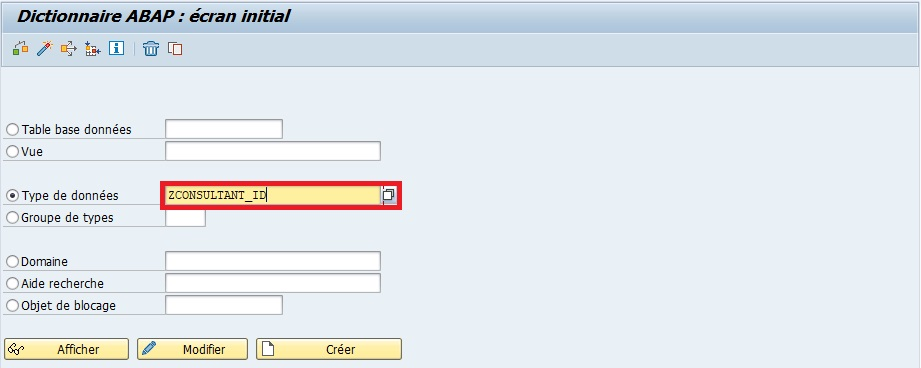
- Transaction SE11
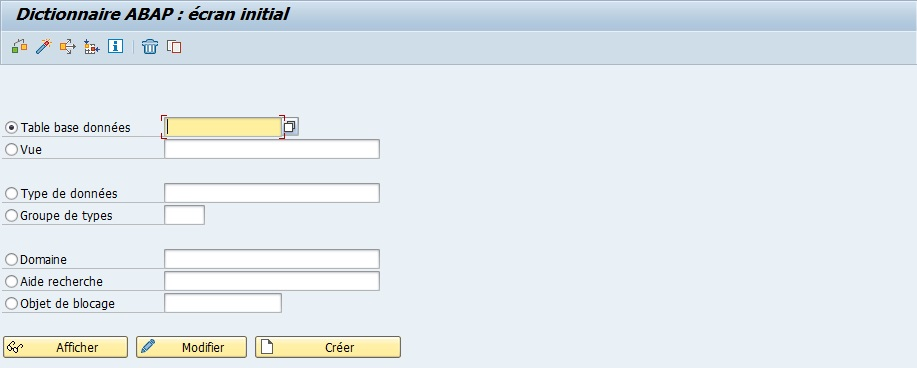
ChecktheData typeoption
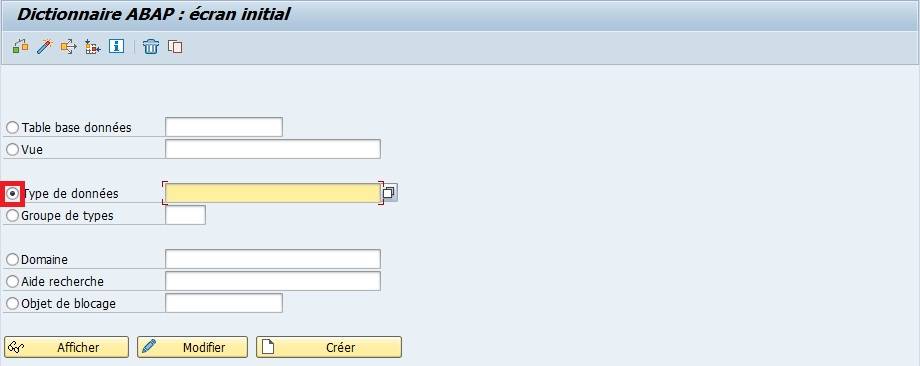
Namethe element (exampleZCONSULTANT_ID)
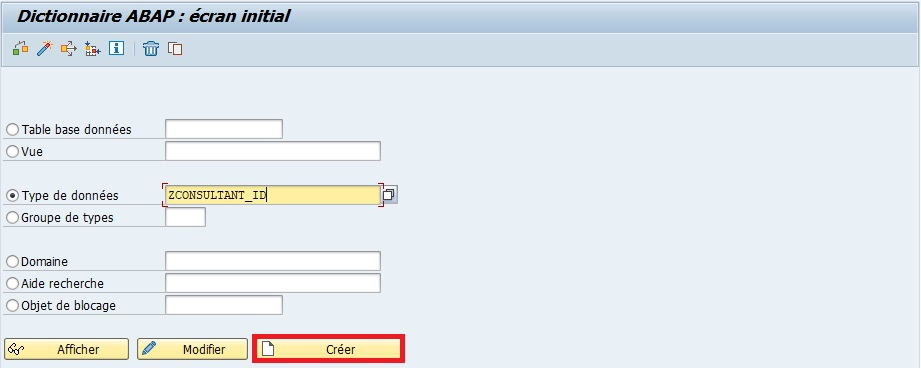
Createor [ F5 ]
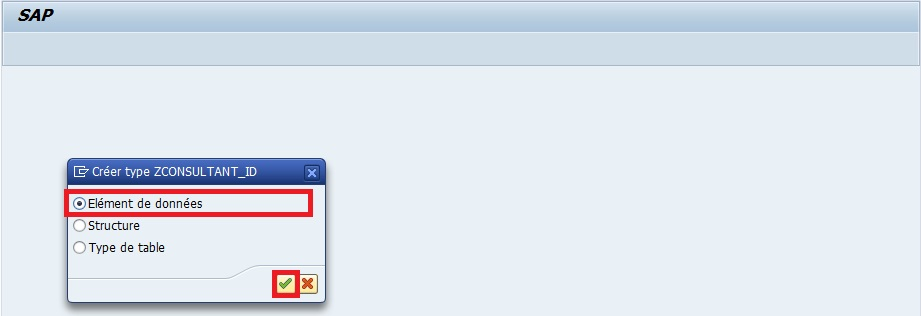
SelectData element
Enteradescription(mandatory) (exampleConsultant identification number)
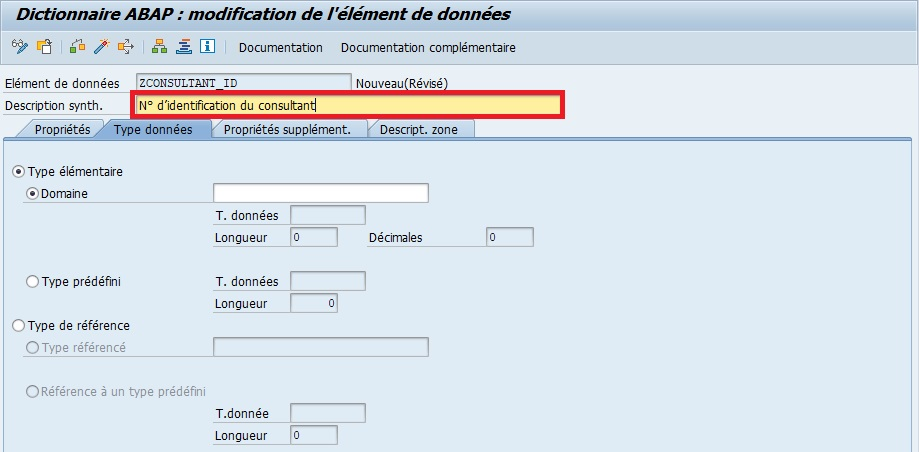
Fill inthe DOMAIN (exampleZCONSULTANT_ID)
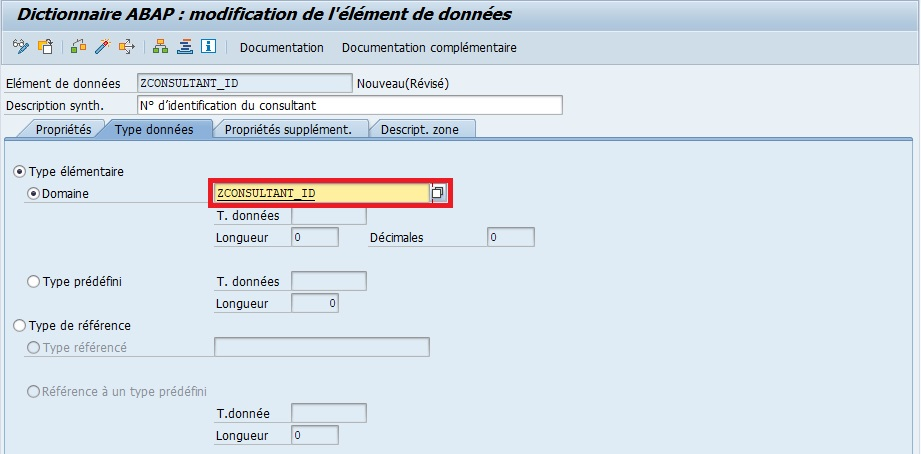
Press[ Enter ]
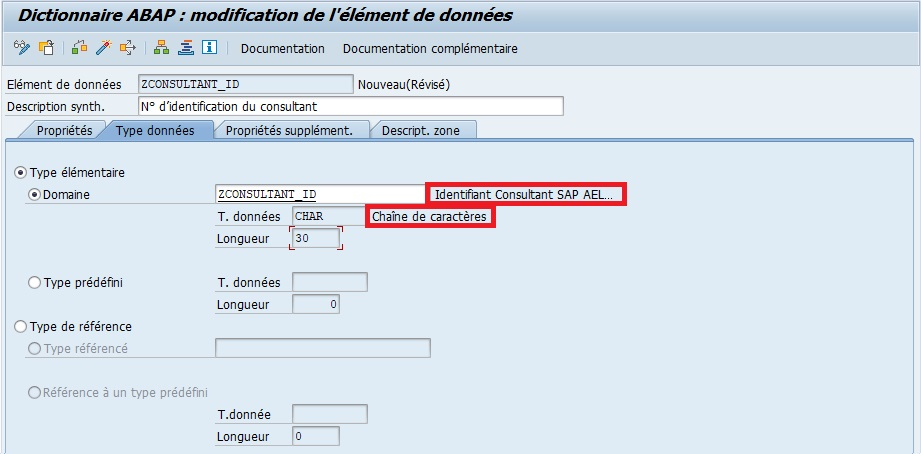
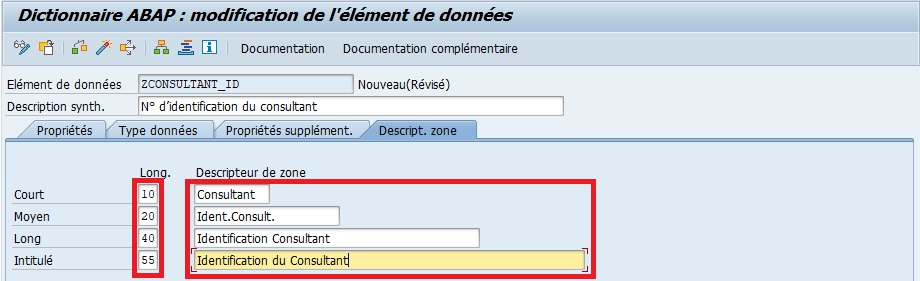
Fill infield descriptions in theField labeltab
| Length | Nbr characters | Name |
|---|---|---|
Short |
10 | Consultant |
Medium |
20 | Consult.Ident. |
Long |
40 | Consultant Identification |
Heading |
55 | Consultant Identification |
Save
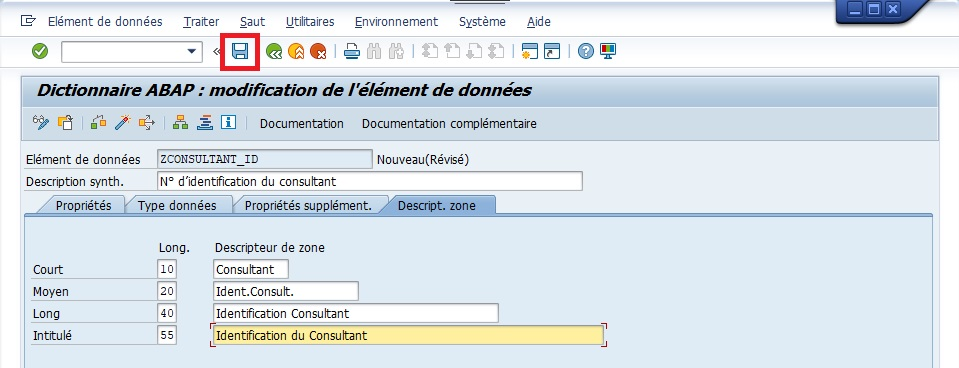
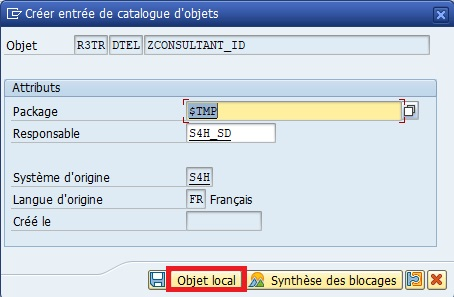
In this example, DATA ELEMENT creation will be done locally but it is subject, like any object, to the possibility of being affiliated with a TR.

Check


Activate

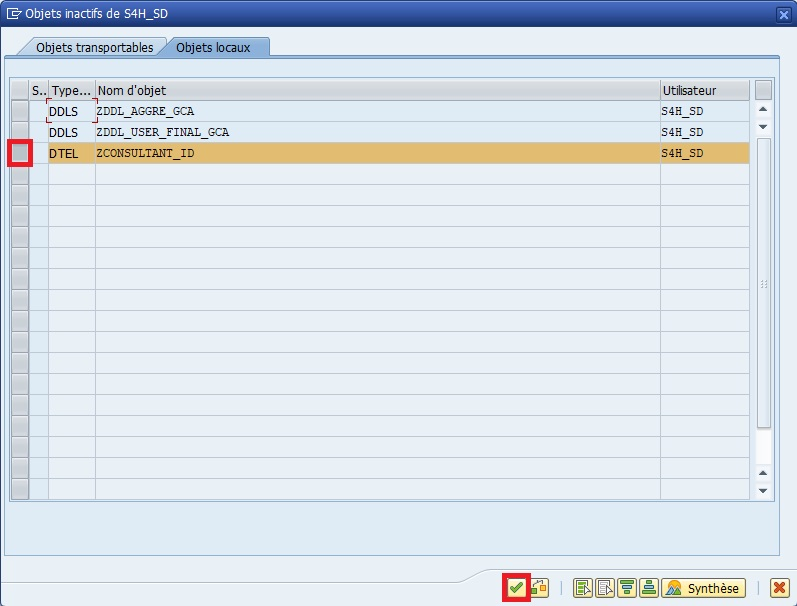
These labels will be automatically used in screens, reports, ALV and forms. This allows standardizing field presentation throughout the system.
If the
DOMAINis the cookie mold,
theDATA ELEMENTadds the label and writing style on the cookie.
All cookies from this mold will be technically identical,
but the label (DATA ELEMENT) allows knowing what they correspond to.
Short, medium and long texts are used depending on display context:
- Short: lists, ALV, tables
- Medium: classic SAP screens
- Long / Heading: tooltips, input help, forms
The
DATA ELEMENTshould not be confused with a table field.
A table field reuses aDATA ELEMENT, it doesn’t define it.
Recommended usage #
Recommended usage
- Create a
DATA ELEMENTper distinct functional field, even if theDOMAINis the same.- Use explicit names (
ZCLIENT_ID,ZSUPPLIER_ID) to facilitate maintenance.- Always document field meaning in SE11 “Documentation” tab.
- This facilitates understanding and reuse in other SAP projects.
Summary #
The
DATA ELEMENTis the semantic definition of an SAP field.
It relies on aDOMAINfor its technical characteristics,
but adds meaning, labels and user help.
- A
DATA ELEMENT= a functional label based on a technicalDOMAIN- A
DOMAINcan be shared, but aDATA ELEMENTonly references oneDOMAIN- It guarantees homogeneous presentation and clear understanding of data throughout SAP
In a well-structured SAP project, the
DOMAIN+DATA ELEMENTpair
constitutes the foundation of any clean, consistent and understandable data model.
Fields / Zones / Fields #
Objectives #
- Understand what a
FIELDis in SAP - Identify the relationship between
FIELD,DATA ELEMENTandDOMAIN - Know how to create and modify
FIELDSin SE11 - Differentiate the display of
FIELDSin tables and structures
Definition #
Imagine an Excel sheet:
- each column (e.g.: Name, First name, Date of birth) is a
FIELD- the column type (text, number, date) is defined by the
DOMAIN- the displayed label (Customer name, Age, etc.) is defined by the
DATA ELEMENT
- A
FIELDis an information storage zone in a table or structure.- Each
FIELDis linked to aDATA ELEMENT, which itself is linked to aDOMAIN.- The
FIELDdefines the exact content, length, type and display of the data.A
FIELD(or zone) in SAP corresponds to a specific column of a table or structure.
EachFIELDcontains precise information and is linked to aDATA ELEMENTand aDOMAINthat define its type and characteristics.
In the
MARAtable (material data):
- The
FIELDMATNRcorresponds to the material identifier.- The
DOMAINdefines its length (CHAR 18).- The
DATA ELEMENTdefines its display label (“Material number”).
The
FIELDis the physical column in the database.
TheDATA ELEMENTis the functional description of theFIELD.
TheDOMAINdefines the technical nature of the allowed value.
The same
DOMAINcan be shared between multipleFIELDS(e.g.: customer ID, supplier ID),
but eachFIELDhas its own meaning via itsDATA ELEMENT.
Fields in SE11 (structures) #
In transaction SE11, when opening a structure, each line of the definition table corresponds to a
FIELD.We find the columns:
FIELDname- Associated
DATA ELEMENTFIELDdescription- Underlying
DOMAIN
A structure is like a paper form: each box to fill (
FIELD) has precise rules (DOMAIN) and a clear label (DATA ELEMENT).
Structures allow defining sets of
FIELDSused in multiple tables or programs.
Thus, if the same group ofFIELDSmust be reused elsewhere, we can reference the structure instead of redefining everything.
- To view
FIELDdetails in SE11, double-click on theDATA ELEMENTname.- To know its exact type, double-click on the associated
DOMAIN.
Fields in SE16N (data tables) #
In SE16N, each
FIELDcorresponds to a table column.
You can view, filter or enter values in theseFIELDSto query or update data.
Each column in SE16N is comparable to an Excel column.
You can sort, filter or enter values, but data form (length, type, unit) remains controlled byDOMAINandDATA ELEMENT.
- Modifications in SE16N affect actual SAP database data.
- Direct editing in SE16N should be avoided without authorization, as a wrong value can cause inconsistencies.
SE16N is a data analysis tool, not a design tool.
FIELDSappear with their labels from data elements, making reading more intuitive.
Link between field, data element and domain #
| Level | Role | Example |
|---|---|---|
DOMAIN |
Defines technical type (CHAR, NUMC, etc.) | CHAR(10) |
DATA ELEMENT |
Defines functional meaning of FIELD |
“Customer identifier” |
FIELD |
Concrete column in an SAP table | KUNNR in KNA1 |
This hierarchical link ensures consistency and definition reuse.
Thus, if aDOMAINchanges (for example identifier length),
allFIELDSusing thisDOMAINwill benefit from the same technical update.
Recommended usage #
Recommended usage
- Name
FIELDSwith explicit prefixes (e.g.:ZCLIENT_ID,ZCITY_NAME)- Reuse existing data elements to maintain dictionary consistency
- Never create a
FIELDwithoutDOMAINorDATA ELEMENT(avoids inconsistencies)- Systematically document each
FIELDin SE11 (Documentation tab)
In case of doubt about a
FIELDmeaning, consult:
- SE11 → double-click on the
DATA ELEMENT- Where-Used (
Ctrl+Shift+F3) to know where it’s used in the system
Summary #
- Each
FIELD= 1 physical column in a table or structure- Each
FIELDis defined by aDATA ELEMENT- Each
DATA ELEMENTrelies on aDOMAIN- In SE11,
FIELDSare visible in structures- In SE16N, they appear as manipulable columns
This hierarchy (
FIELD→DATA ELEMENT→DOMAIN) is fundamental to understanding SAP Data Dictionary logic.
It ensures that all system data speaks the same language, both for developers and business users.
Table structures #
Objectives #
- Understand what a table structure is in SAP
- Differentiate a structure from a table
- Know how to create a structure and add fields to it
- Master INCLUDE and APPEND concepts
Definition #
A table structure is a set of fields defined from data elements, without physical storage in the database.
It serves to organize, transmit and manipulate information, like a model or pattern to create tables or work on temporary data.
Imagine a mock-up or skeleton: you see the shape and components (fields), but there’s no real data yet.
The structure serves as a model to build tables or manipulate information temporarily.
- A table structure doesn’t store data, it only defines the shape and type of fields.
- Each field of a structure is linked to a data element, itself linked to a domain.
- Structures are often used to:
- Pass parameters to programs or functions
- Build temporary tables
- Define models to create standard or transparent tables
The structure is a technical definition, like a form plan or table model.
We know what columns there will be and what type of data they will contain, even if no data exists yet.
Include & Append #
Include #
Copy an already assembled Lego block into a new construction. If the Lego block changes, all constructions using it are automatically updated.
- Integrates all fields from an existing structure into another structure or table.
- If the source structure changes, modifications automatically propagate to all structures or tables including it.
- Fields from an include appear in blue in SE11, meaning they’re not native to the main table.
To reuse standard field sets, avoid recreating them manually.
Append #
Add an extension to a house: the original house remains intact, but you can add a room for your specific needs.
- Adds additional fields to a table or structure without modifying the original.
- Useful for standard SAP tables where direct modification is forbidden.
- Append fields are specific to your development.
Append fields must not create conflicts with existing fields. Always check consistency with original table.
Creating a table structure (SE11) #
- Transaction SE11
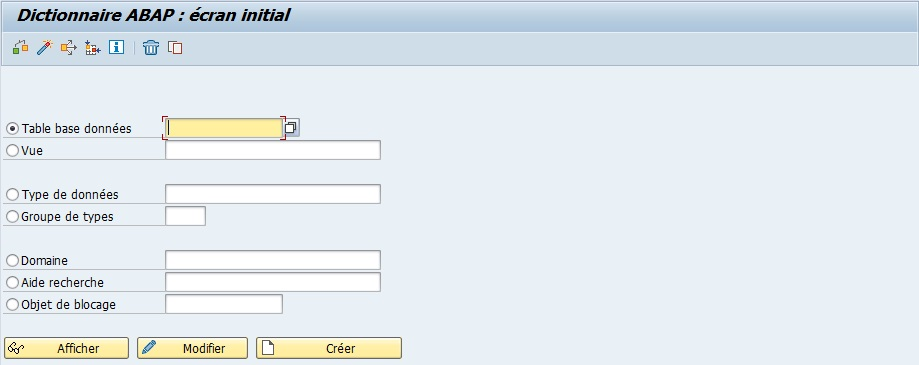
ChecktheData typeoption
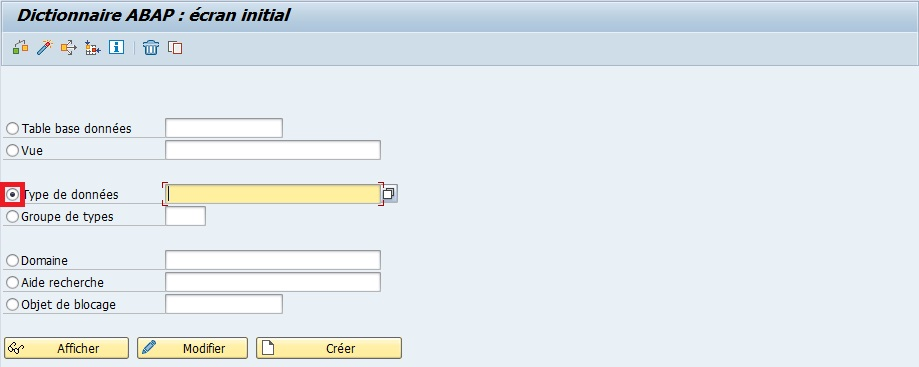
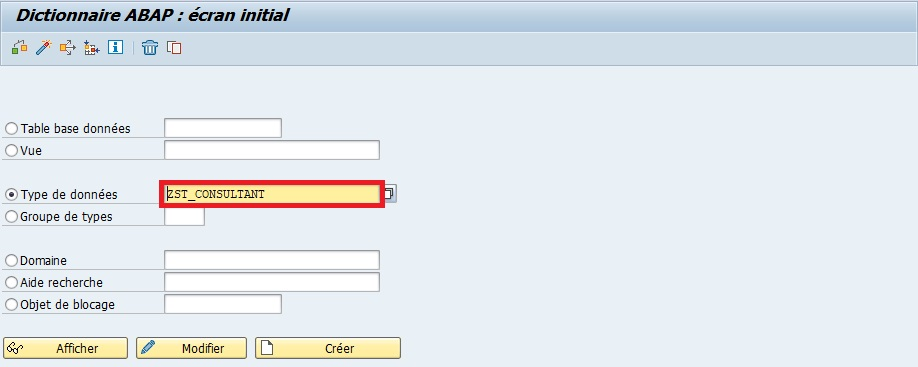
Namethe element (exampleZST_CONSULTANT)
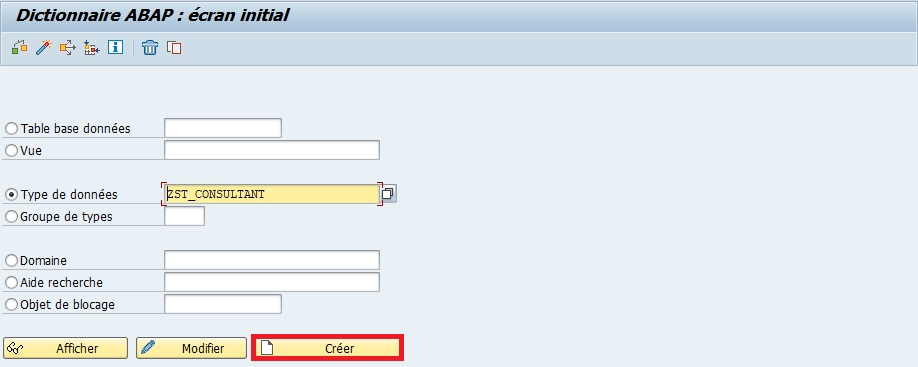
Createor [ F5 ]
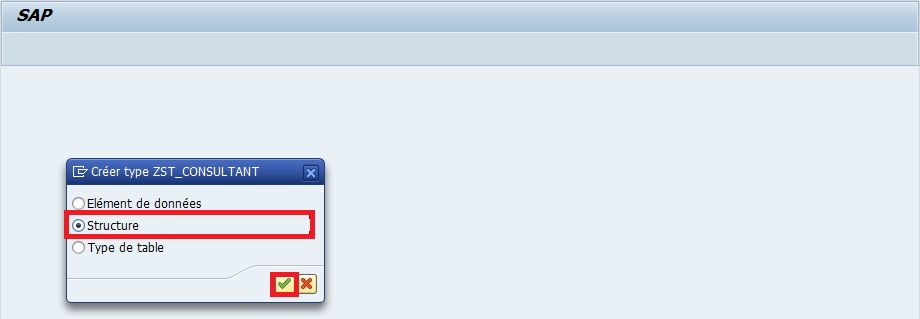
SelectStructure
Enteradescription(mandatory) (exampleZT_CONSULTANT Table Structure).

Insertthe following fields:
| COMPONENT | TYPE CATEGORY | COMPONENT TYPE |
|---|---|---|
| CONSULTANT_ID | TYPES | ZCONSULTANT_ID |
| CITY | TYPES | CITY |
| COUNTRY | TYPES | LAND_X |
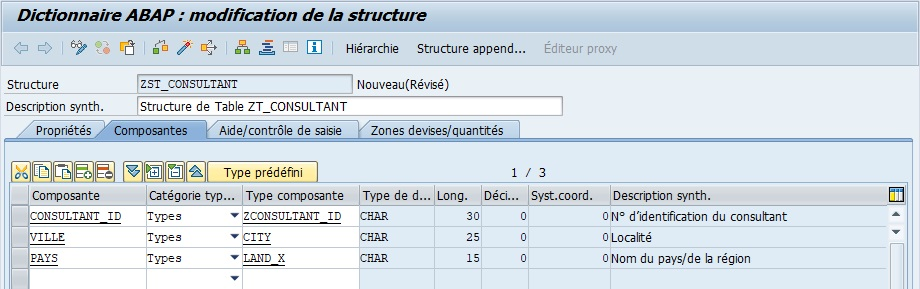
Save
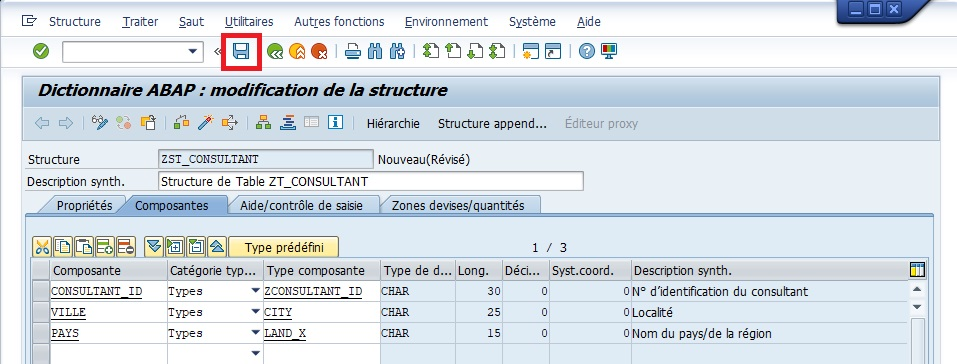
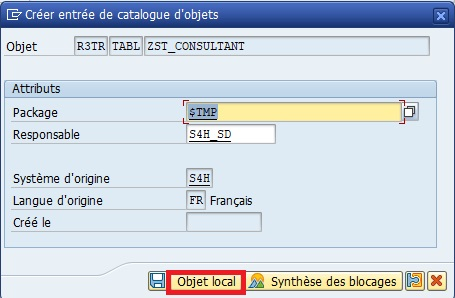

Check


Activate

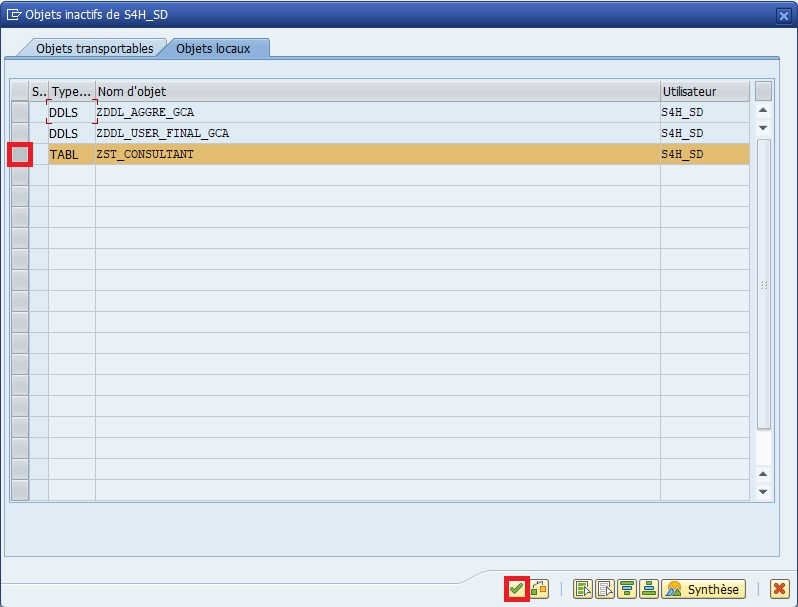
Creating a structure is like preparing an Excel sheet with defined columns, ready to receive data. You define the information shape before filling the boxes.
- Always check that associated data elements exist and are correct.
- Field names must follow Z/AELION nomenclature to avoid collisions with SAP standard.
A structure doesn’t contain data. To store data, you’ll need to use a table based on this structure or an internal table in a program.
Best practices #
| Best practices | Explanation |
|---|---|
| Always check and activate | Verifies that structure is valid and usable |
| Use INCLUDE to reuse | Avoids recreating already existing fields |
| Use APPEND to customize | Adds specific fields without touching standard |
| Document the structure | Facilitates maintenance and understanding for other devs |
Recommended usage
- Reuse INCLUDE to harmonize common fields in multiple tables/structures
- Use APPEND only for your specific developments or extensions
Summary #
- A table structure is a field model without physical storage
- Include: reuses fields from an existing structure
- Append: adds specific fields without touching the original
- Structures serve to organize data and facilitate their passage between programs
The structure is like a mock-up or template.
You know which columns exist and how they’re defined, but the data itself is not yet present.
Tables #
Objectives #
- Understand what a table is in SAP
- Differentiate transparent table, pool table and cluster table
- Know how to create a table and add fields to it
- Master primary key, index and value range concepts
- Understand INCLUDE and APPEND
- Create a table with INCLUDE or APPEND
Definition #
Imagine a complete Excel sheet: each column is a field, each line is a record. Unlike a structure, data is actually stored in the database.
A table is a physical storage object in SAP, composed of fields (or columns) defined by data elements.
It allows storing, organizing and managing data in a structured way.
Table types #
| Table type | Description |
|---|---|
| Transparent | Corresponds to a real table in the database, one line = one record |
| Pool table | Groups several small transparent tables in a single physical table |
| Cluster table | Groups related tables in a physical table to optimize storage |
- Transparent table: an individual card for each record.
- Pool table: several mini-cards stored in a single folder.
- Cluster table: several linked cards combined in an envelope.
Primary keys #
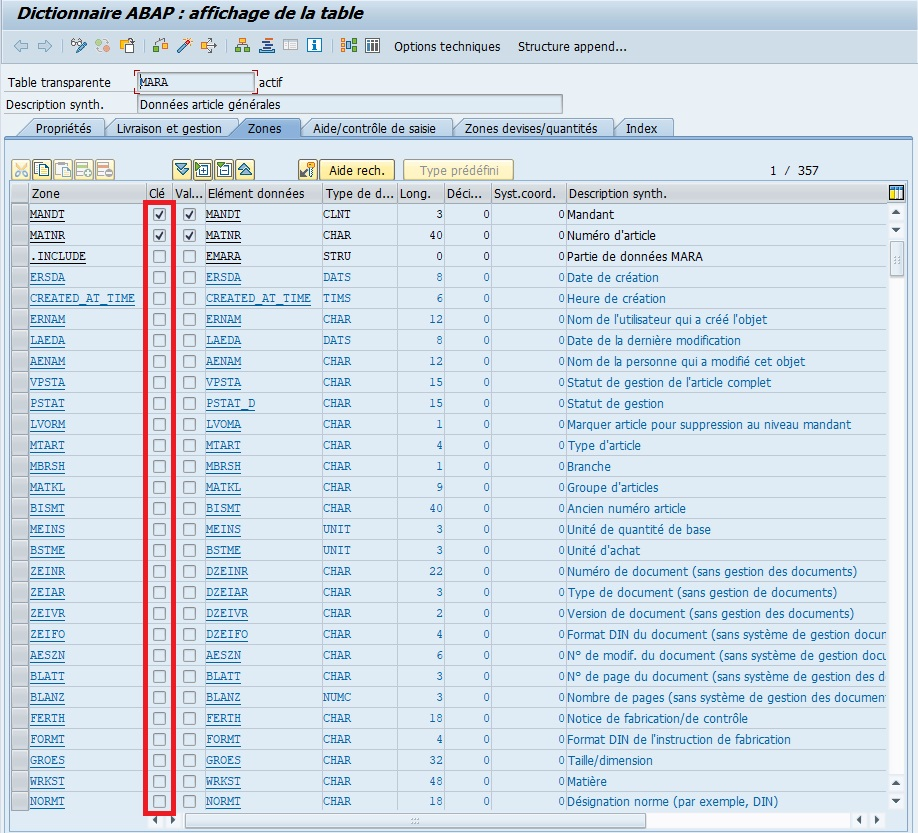
Primary keys, often abbreviated as “PK” for “Primary Key” in English, are a fundamental concept in database management. A primary key is one or more fields in a database table that uniquely identify each record in that table. Here are some important points to remember about primary keys:
-
Record uniqueness: Theprimary keyguarantees that each record in thedatabase tableis unique. This means no two records can have the sameprimary keyvalue. -
Integrity constraint:Primary keysare often defined as anintegrity constraintin thedatabase, meaning the database management system (DBMS) guarantees theprimary keyis respected at all times. Thus, attempts to insert or update records that would violate thisconstraintare automatically rejected. -
Automatic indexing:Primary keysare often automatically indexed by theDBMSto improve search andjoinoperation performance on the table. This speeds up data access when executing queries. -
Definition during database design:Primary keysare defined during initialdatabasedesign.Databasedesigners choose fields that should form theprimary keybased on specific application requirements and relationships between data. -
Types of primary keys: Aprimary keycan be composed of a single field (simple primary key) or multiple combined fields (composite primary key). In the case of acomposite primary key, the set of values from all fields forming the key must be unique.
Creating a table #
Creating a table is like preparing an Excel folder with columns and rows, where each cell is ready to receive data.
- Transaction SE11
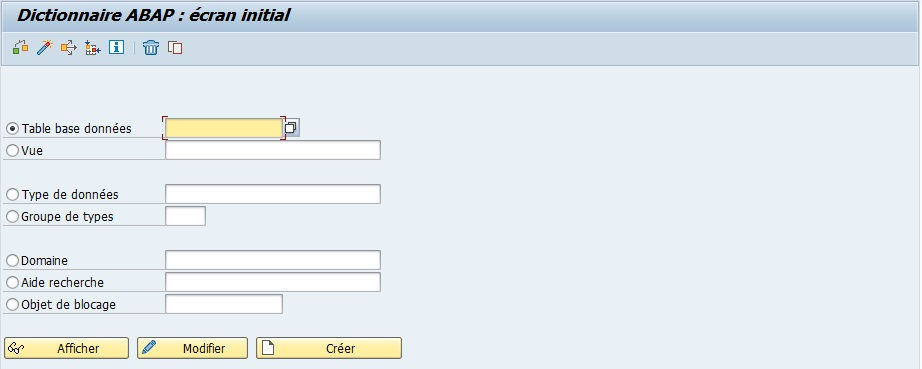
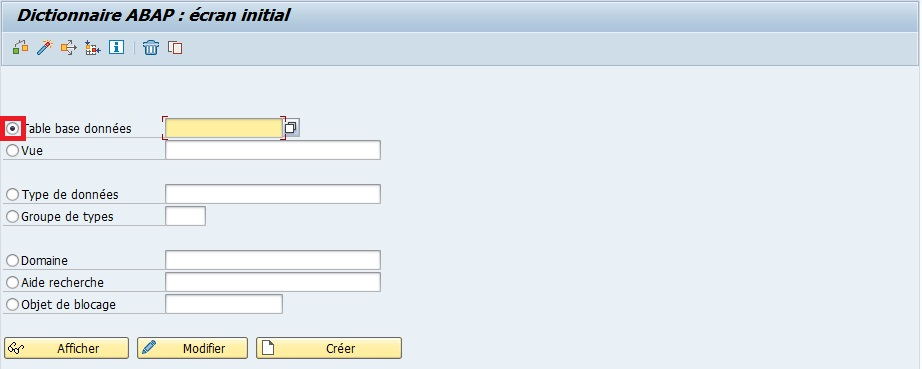
SelecttheDatabase tableoption
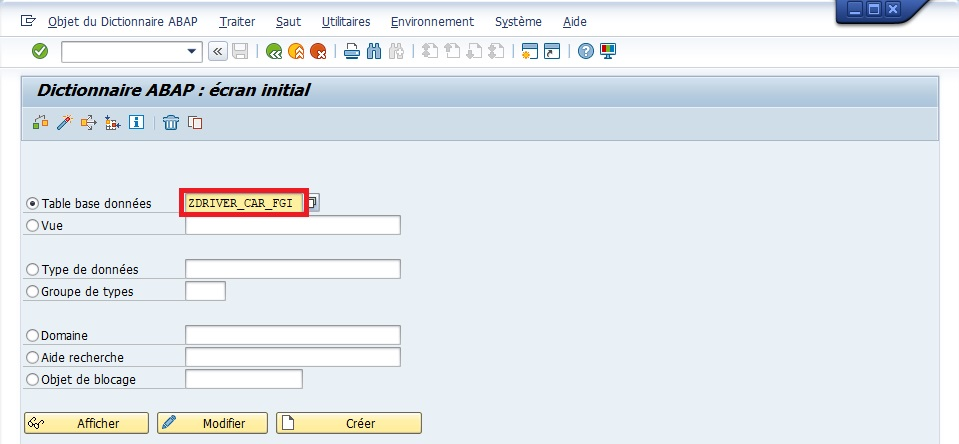
Enterthe table name (example ZDRIVER_CAR_FGI).
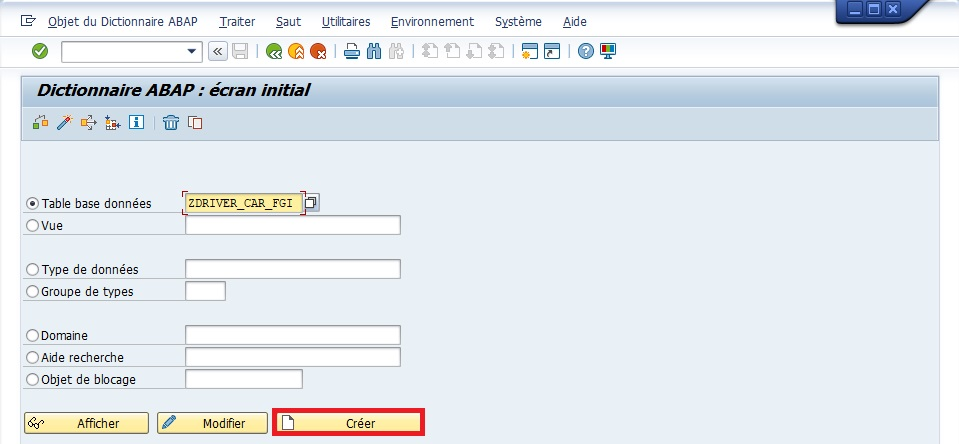
Createor [ F5 ]
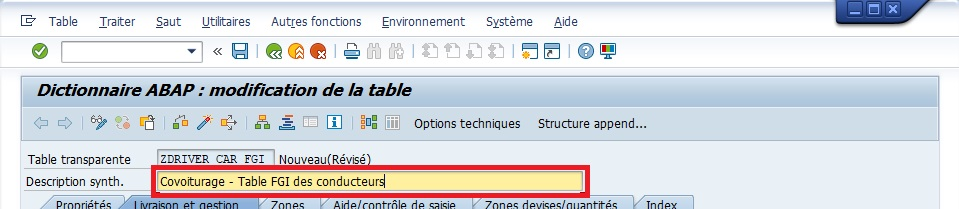
Enteradescription(mandatory) (exampleSAP Consultants Table).
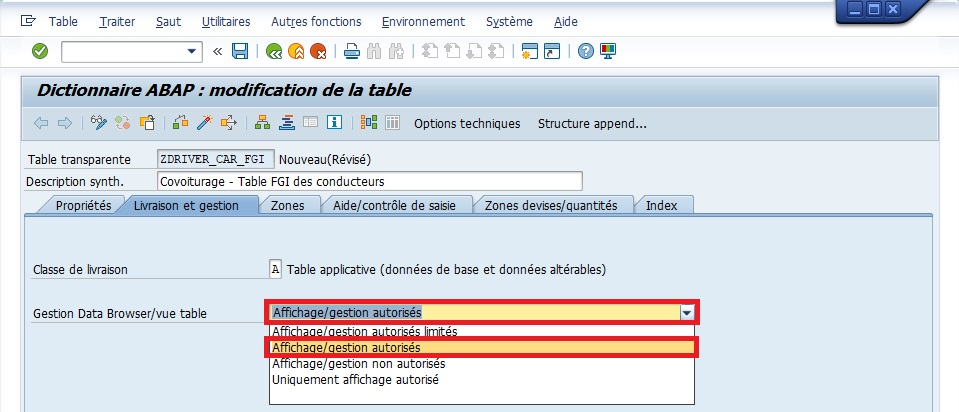
Delivery and Maintenancetab:Delivery class:class A
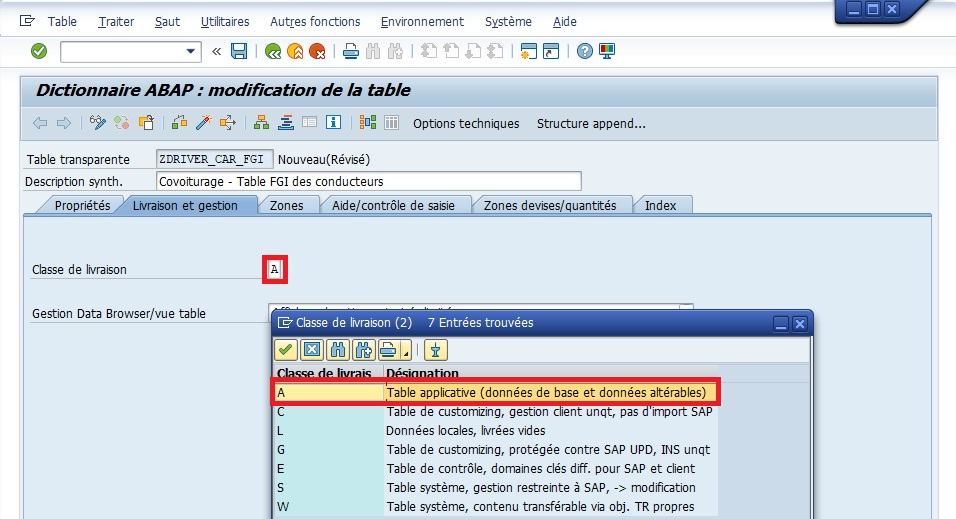
Data Browser/Table View Maintenance:Display/Maintenance allowed
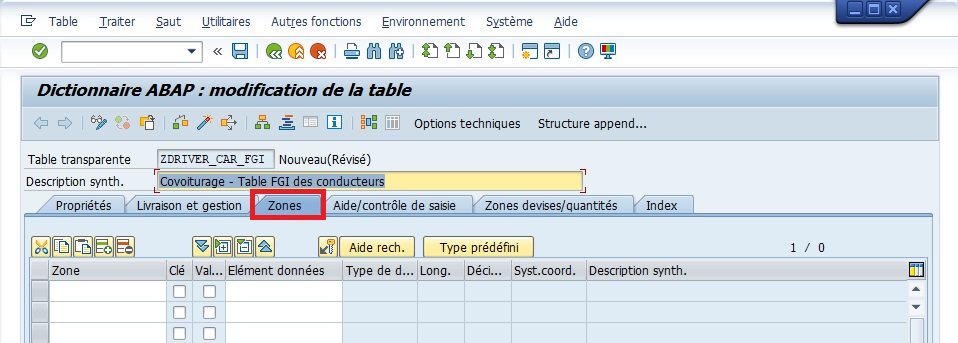
Fields tab
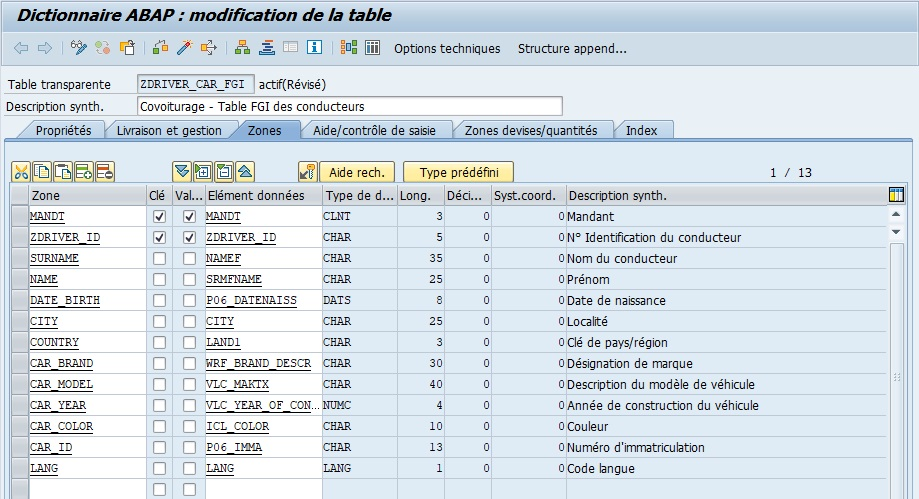
Fill infields with their FIELDS, KEYS and DATA ELEMENTS
The cropped data element is: VLC_YEAR_OF_CONSTRUCTION
Foreign key
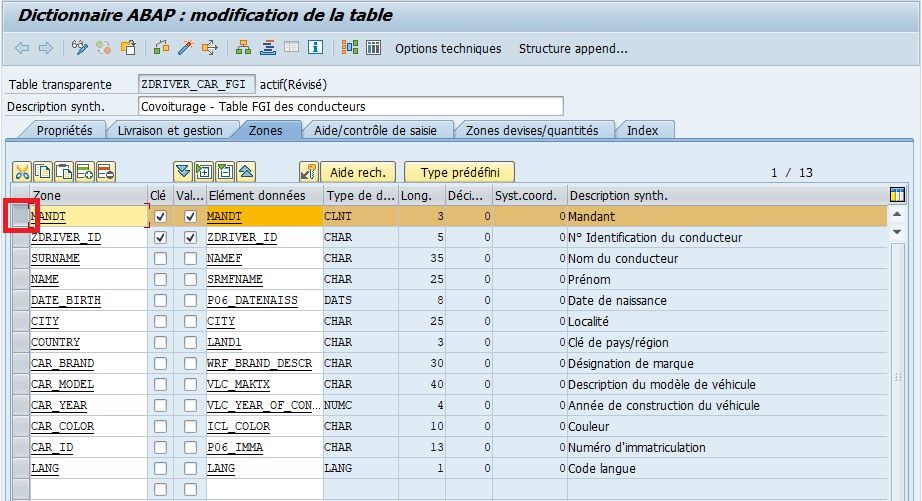
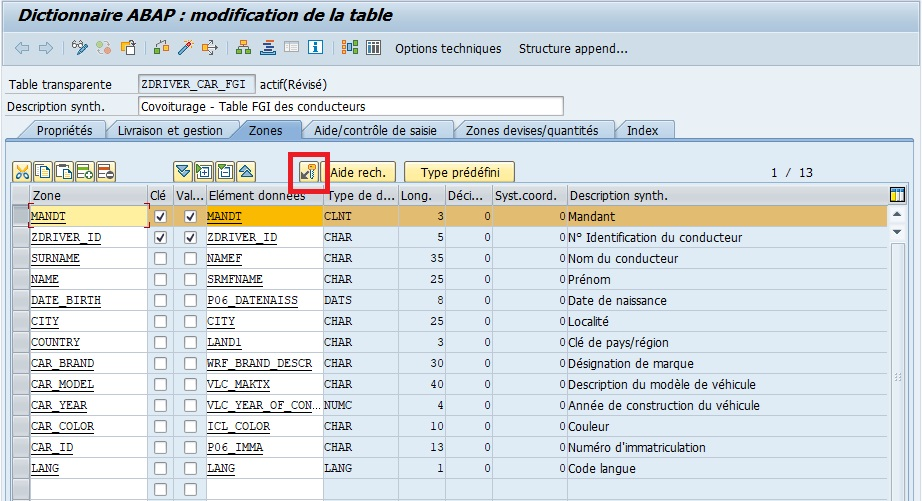
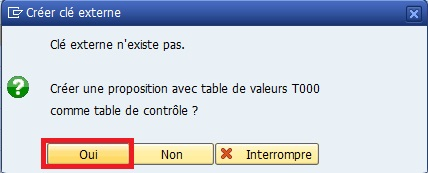
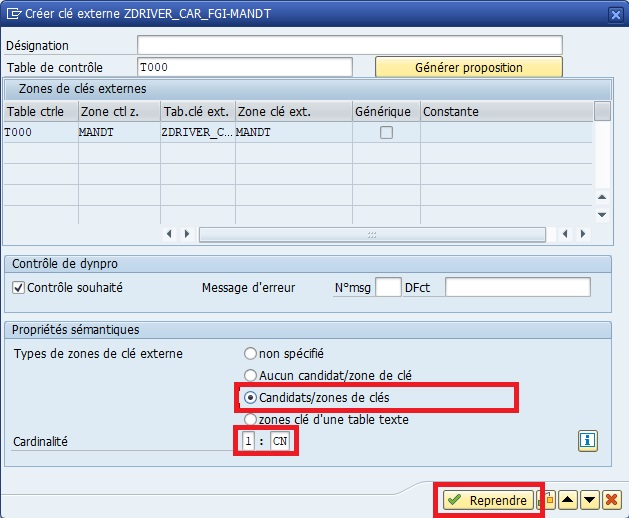
Repeat the same steps for the COUNTRY field.
No information to fill in the Currency/Quantity fields tab since there is no unit of measure needed.
SaveandActivate
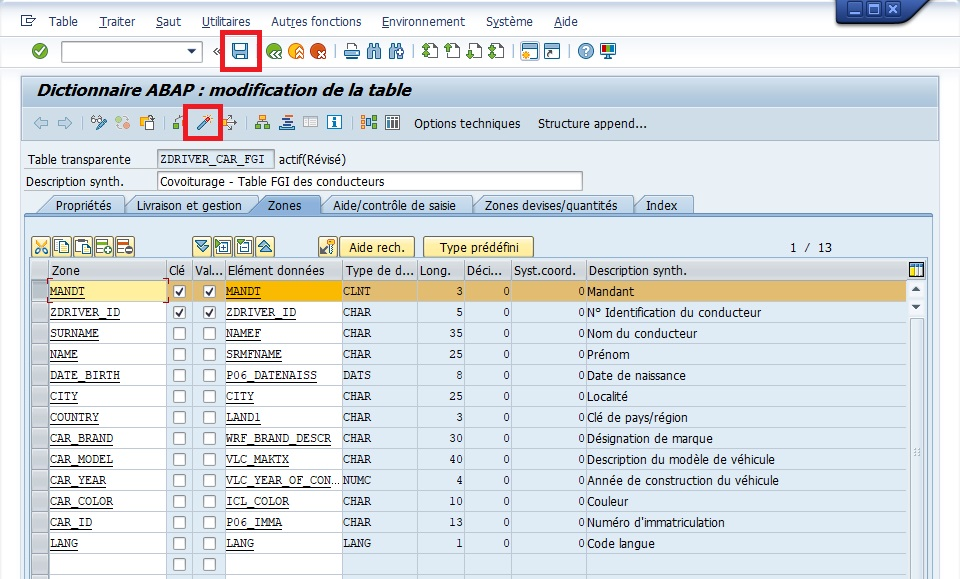
Enhancement category
Enhancement category is not mandatory but recommended because it defines the type of fields that will compose the table (table extension should be understood as adding fields in the table directly or through an append in the case of standard tables).
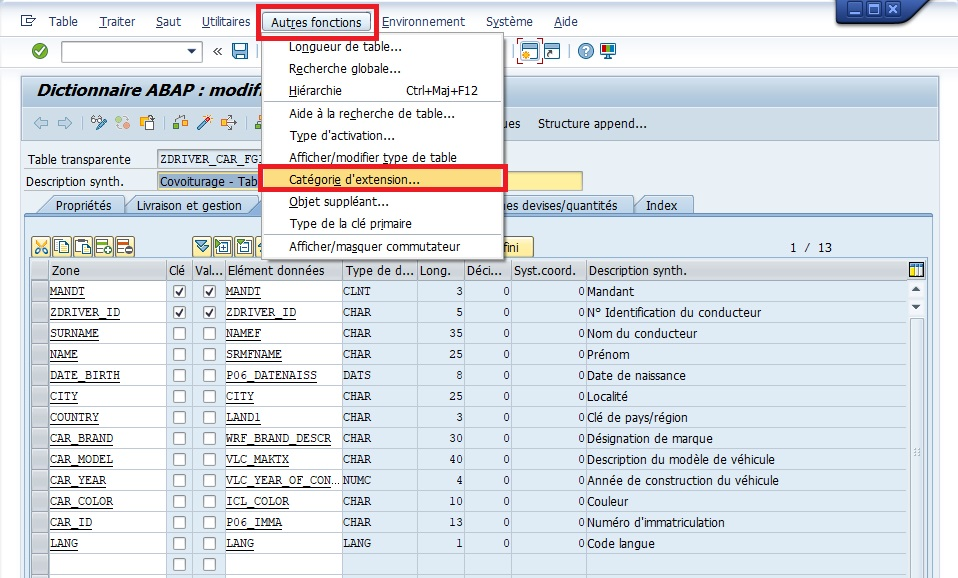
For information:
Can be enhanced without restriction: no rule for table or structure extension.
Can be enhanced and alphanumeric or numeric: all fields must be either alphanumeric or numeric. The difference with Can be enhanced without restriction is that it won’t be possible to add date or time type fields (for example) in an append or include.
Can be enhanced and alphanumeric: the table or structure will only be composed of alphanumeric fields and an error will be returned if a field is defined as numeric (it will then be possible to modify the extension type).
Not enhanced: it will be possible to add a field directly to the initial table or structure, but impossible via an append. Thus, as append is the only way to add a field to a standard table, there will be no possibility to accomplish this task.
Not classified (default), no extension has been defined for the table or structure.
In the case of our table, there will be no need for restriction, the Can be enhanced without restriction option will therefore be chosen.
-
Input help/checktabHere, there’s nothing to add because we don’t have quantity and therefore no unit of measure. When you have to create a table with a field having a quantity such as a number of pieces, a size, the amount of a currency, … you’ll need (just below the line in question) to add a line with the field corresponding to its unit of measure. For example:
- Quantity of pieces: 13
- Type of piece: pallet
or again
- Amount: 12807
- Currency: Euros
In general, this information will be provided to you in the functional specification.
-
Savethen click onTechnical settings
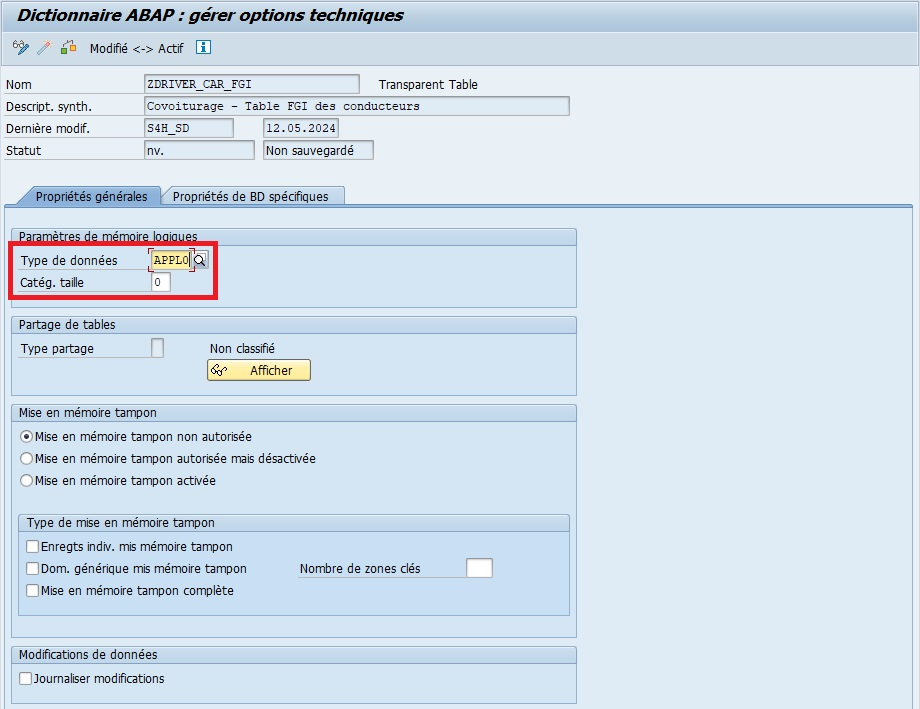
-
General propertiestab, fill in the following elements as follows: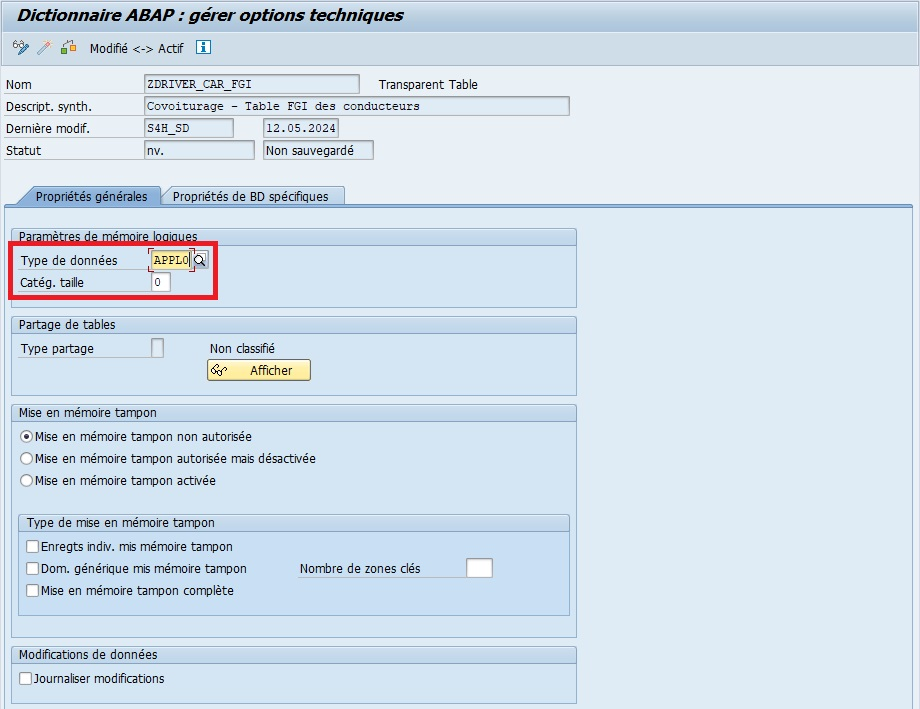
Data class: APPL0Size category: 0
-
Savethen [ Green arrow ] to return to previous screen. -
Activate
Best practices #
| Best practices | Explanation |
|---|---|
| Always define primary key | Guarantees record uniqueness |
| Use existing domains and data elements | Ensures consistency and facilitates maintenance |
| Add indexes for frequent searches | Optimizes query performance |
| Document tables | Facilitates understanding and maintenance |
- Always define primary key before filling the table
- Reuse data elements and domains to ensure homogeneity
Include and append #
Include #
- Allows reusing existing fields from a structure or table in a new table or structure
- Avoids recreating the same fields in multiple places
- Fields appear in blue in SE11
- Any modification to the included structure automatically propagates
Copy a ready-to-use template into a new card, instead of rewriting all columns.
- Reuse to harmonize common fields in multiple tables
- Ensures data consistency
Append #
- Allows adding additional fields to a table or structure without modifying the original
- Very useful for adapting a standard SAP table to specific needs
- Added fields are specific to your development
Add an extension to a standard card, without touching the original card.
E.g.: add an “Internal employee number” field to a standard customer table.
Append fields must not conflict with existing fields. Always check consistency.
Creating a table with append or include #
Creation with include #
- Create a reusable structure (e.g.:
ZST_ADDRESSwith CITY, COUNTRY, POSTAL_CODE) - Open SE11 to create the table
- In the Fields tab, add an INCLUDE of the existing structure
- INCLUDE fields appear automatically and can be used as if you had created them directly
- Save, Check, Activate
Copy a ready-to-use template into a new card instead of rewriting all columns.
Creation with append #
- Open existing table (standard or specific) in SE11
- Click on Create Append Structure
- Name the APPEND structure (e.g.:
ZAPPEND_CONSULTANT) - Add additional fields in this structure
- Associate APPEND structure to table via Append tab
- Save, Check, Activate
Add an additional card to an existing folder, without touching original cards.
Summary #
- A table is a physical storage object in SAP
- Each table is composed of fields defined by data elements
- Primary key uniquely identifies each record
- Tables can be transparent, pool or cluster
- INCLUDE = reuse of existing fields
- APPEND = adding new fields without touching original table
- Creating a table with INCLUDE or APPEND allows saving time, customizing SAP tables and maintaining consistency
SAP Views #
Objectives #
- Understand what a
VIEWis in SAP - Differentiate types of
VIEWS: Database View, Projection View, Help View - Know how to create a
VIEWusing existing tables - Master join and field selection concepts
Definition #
A
VIEWis a logical representation of data from one or more tables.
It doesn’t physically store data but allows accessing a structured and filtered selection.
Imagine an Excel filter that only displays certain columns and rows of a workbook. The
VIEWshows filtered data, but doesn’t actually copy it.
View types #
- Database View: a pivot
VIEWthat combines multiple Excel tables.- Projection View: a summary table showing only certain columns.
- Help View: a smart dropdown menu to choose a value.
VIEW type |
Description |
|---|---|
| Database View | Combines fields from multiple tables linked by primary and foreign keys |
| Projection View | Selection of certain fields from a single table, often for specific reports or modules |
| Help View | Special for search helps, displays a filtered list of values for a field |
VIEWSdon’t write to the database, they only serve to consult or filter data.
Creating a view #
- Transaction SE11
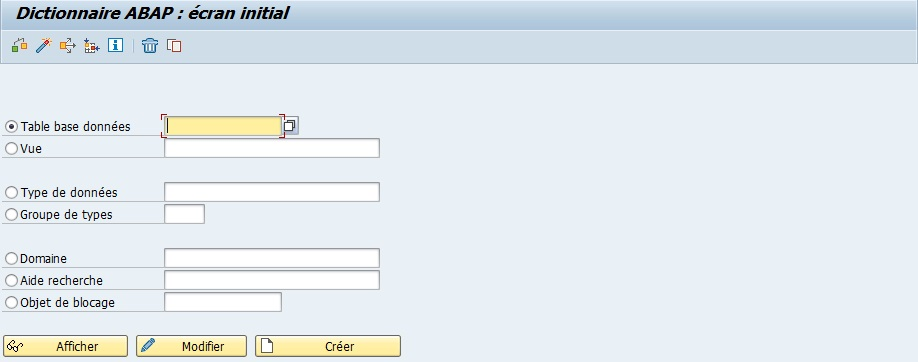
SelectView
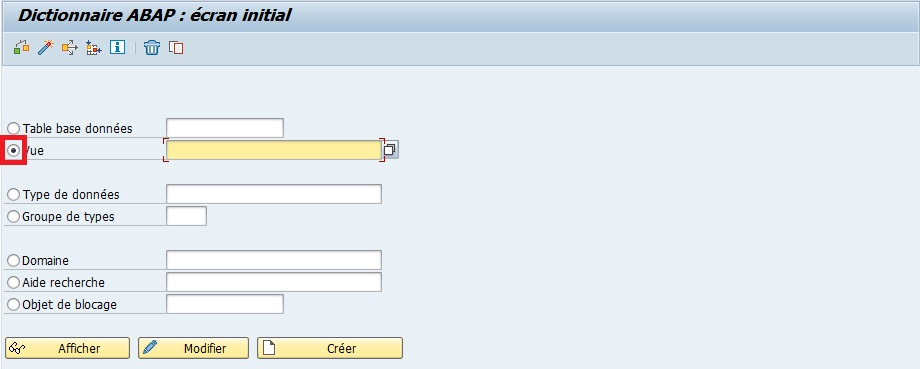
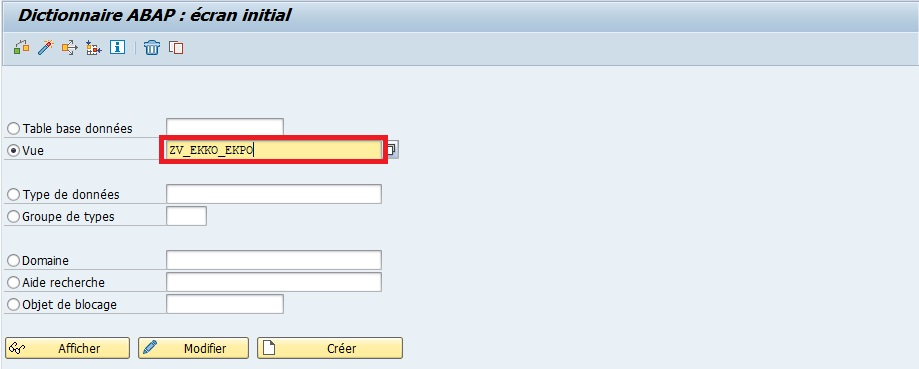
Fill ina view name (for example ZV_EKKO_EKPO)
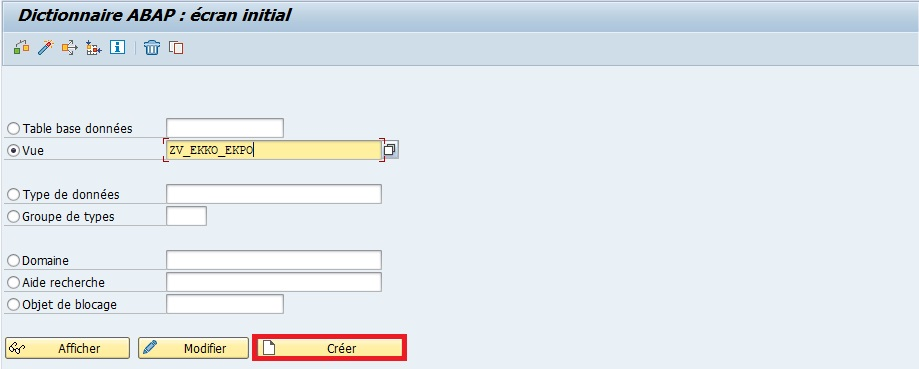
Createor [ F5 ]
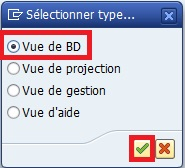
SelectDatabase viewfor a view of data present in the Database
Fill ina description (for example: View for tables EKKO and EKPO)

Tables/Join conditionstab
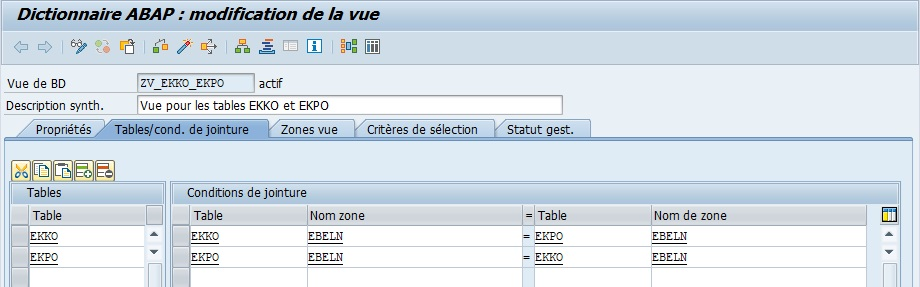
View fieldstab
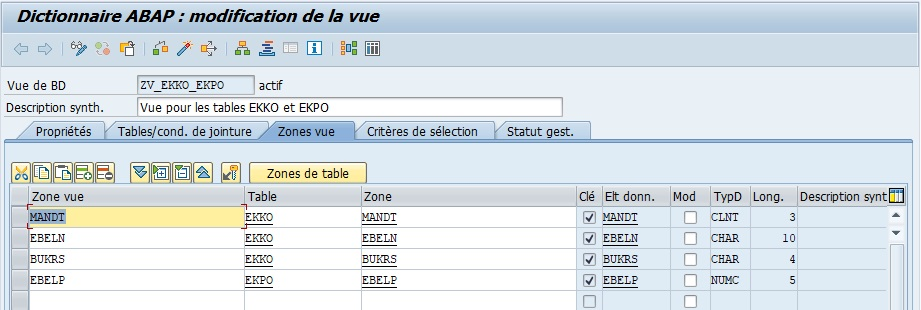
SaveandActivate
A message will appear with the following information:
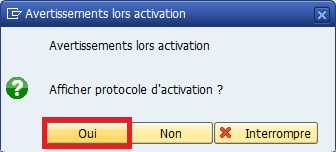
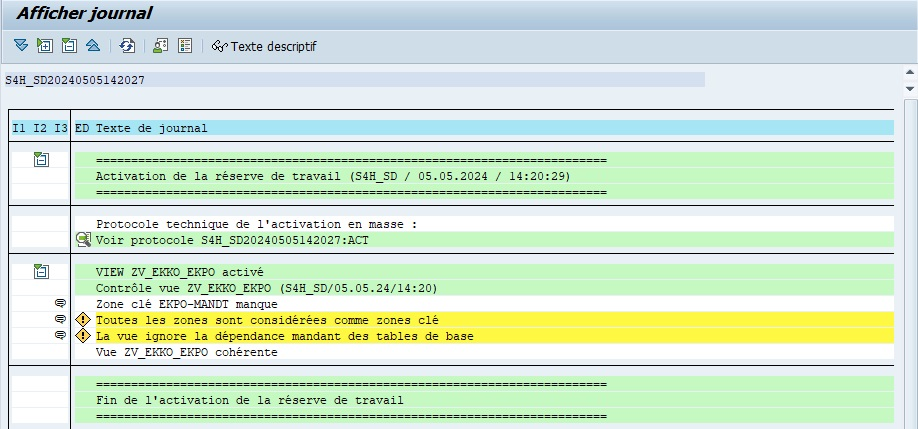
The log reports warnings about “key fields” and client dependency. This is normal since the unique key of the EKKO table (EBELN) will possibly repeat as many times as it has items in the EKPO table.
- Transaction SE16N
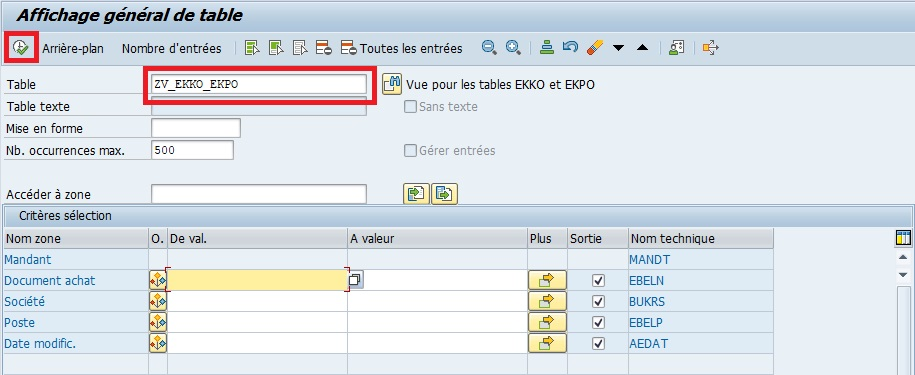
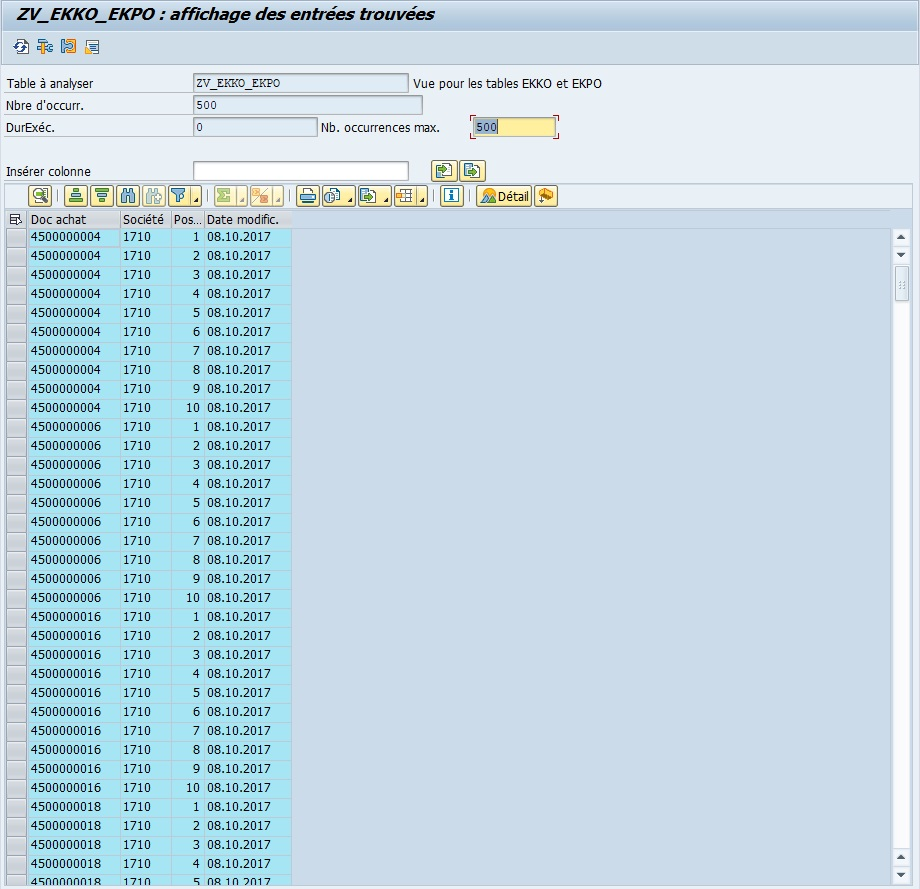
A Database View
ZV_CONSULTANT_INFOcould combine tableZT_CONSULTANTwith tableZT_PROJECTSto display consultant, their city and projects in a singleVIEW.
The
VIEWacts as a logical summary of tables: you can query, filter and display data without touching original tables.
Best practices #
| Best practices | Explanations |
|---|---|
| Limit fields and tables | Optimizes read performance |
| Always define joins | Ensures relationships between tables are correct |
Name VIEWS clearly |
Facilitates understanding and use in programs |
Use VIEWS for logical access |
Avoids directly manipulating physical tables |
For reports and SAP modules, always favor
VIEWSrather than tables to access data, to preserve integrity and consistency.
Don’t confuse Database View and physical table: modifying data via
VIEWalways impacts source table, but someVIEWS(projection/help) can be read-only.
Summary #
- A
VIEWis a logical representation of SAP data- Types of
VIEWS: Database, Projection, Help- Allows accessing selected or combined data without physical storage
- Ideal for reports, analyses and search helps
An SAP
VIEWis like an Excel filter or dashboard: it shows what you need without touching original data.
Search help (F4 Help) #
Objectives #
- Understand what search help is in SAP
- Know how to create search help for a field
- Know available dialog types
Definition #
Search help allows the user to see a list of possible values directly from an SAP field.
It facilitates entry and reduces errors.
Imagine an Excel form with a “City” field. A dropdown list appears to propose all possible cities. Search help works the same way in SAP.
Dialog types #
| Dialog type | Description |
|---|---|
| Immediate value display | The list displays directly after calling help |
| Dialog with restriction | A dialog box allows filtering and choosing values to display |
| Dialog dependent on value set | The system automatically chooses according to number of values |
- Immediate display: short dropdown list
- Complex dialog: advanced filter
- Dependent dialog: system decides best display according to number of values
The chosen dialog type influences help performance and ergonomics. For many values, prefer complex dialog.
Creating search help #
- Transaction SE11
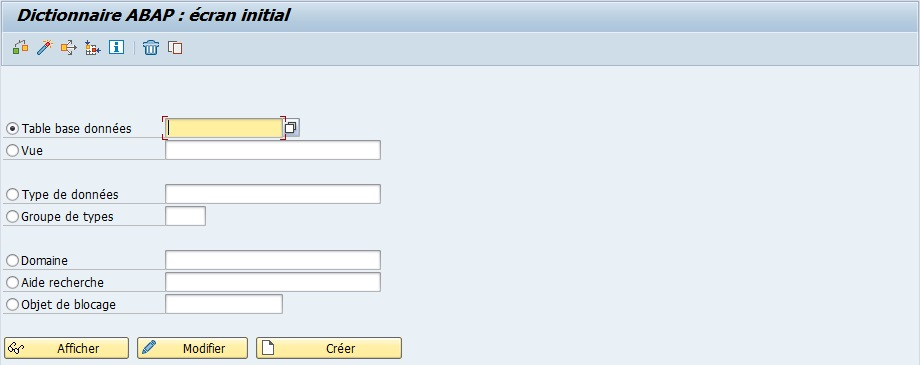
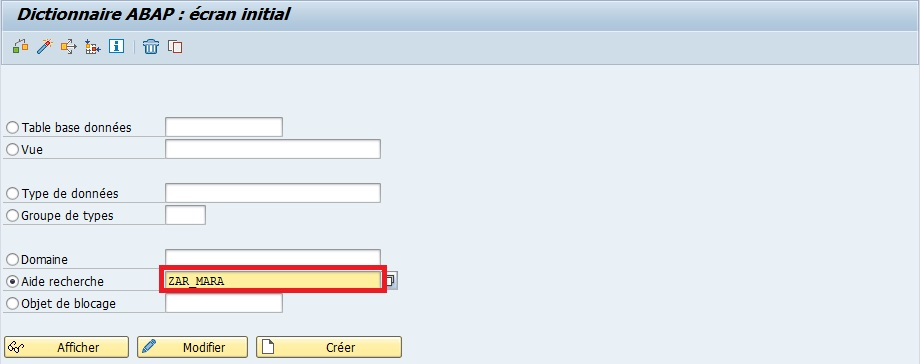
ChecktheSearch helpoption
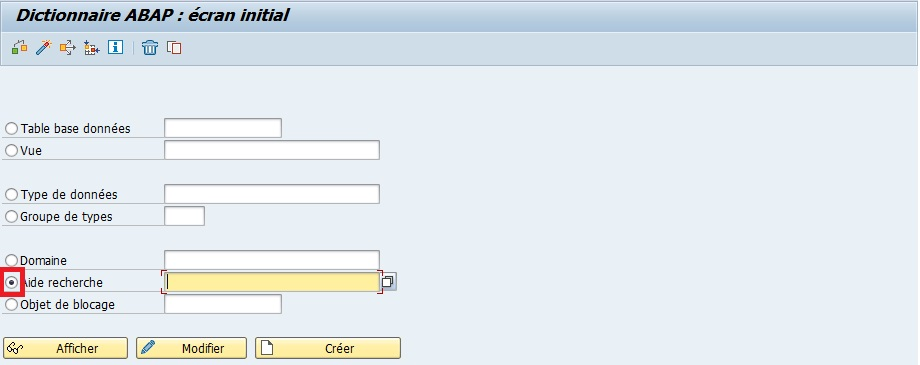
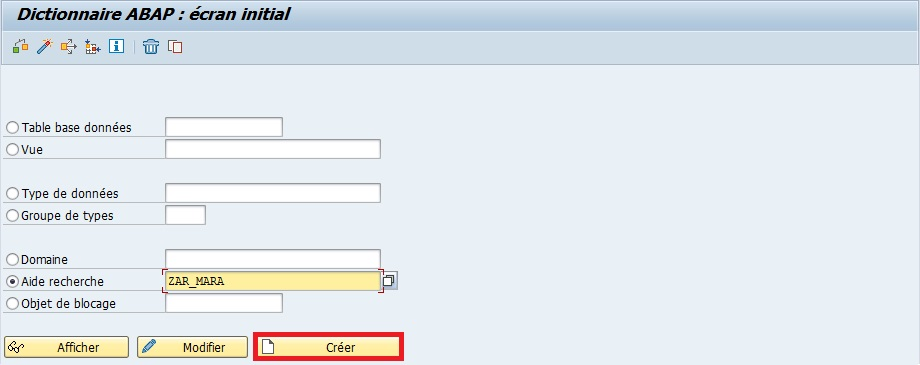
Enterthe nameZAR_MARA(“AR” for Search Help).
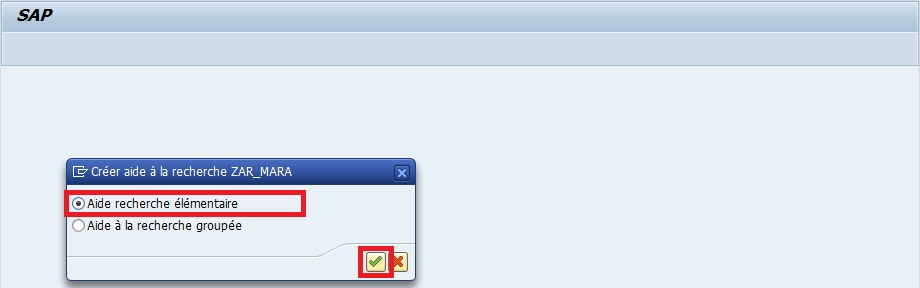
SelecttheElementary search helpoption
Enteradescription(mandatory) (exampleMARA Help).
Fill intheSelection methodandText table
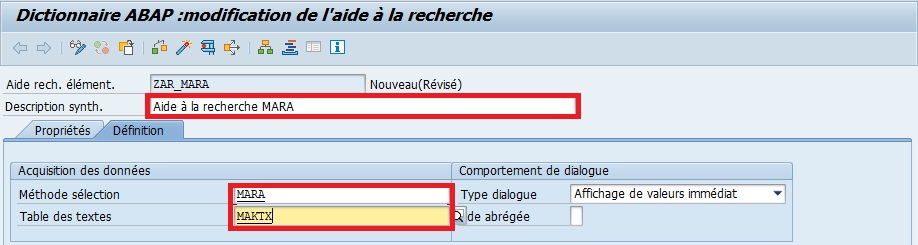
-
Description: MARA search help
-
Selection method: MARA
-
Text table: MAKT
SelecttheImmediate value displayoption (Dialog type).
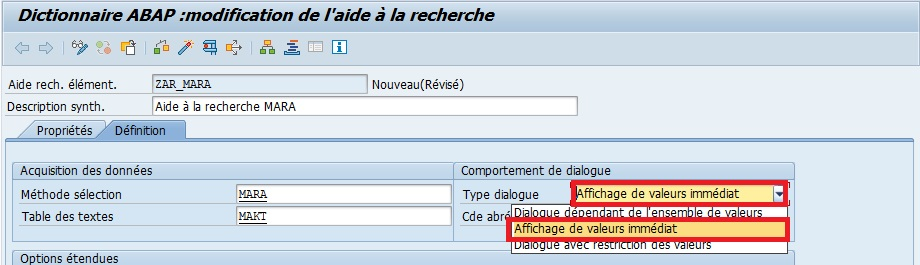
This search help will display the fields:
MATNR(material number) which will be both animportandexportfieldMAKTX(material description)MTART(material type)MATKL(material group)
The parameters will look like this:
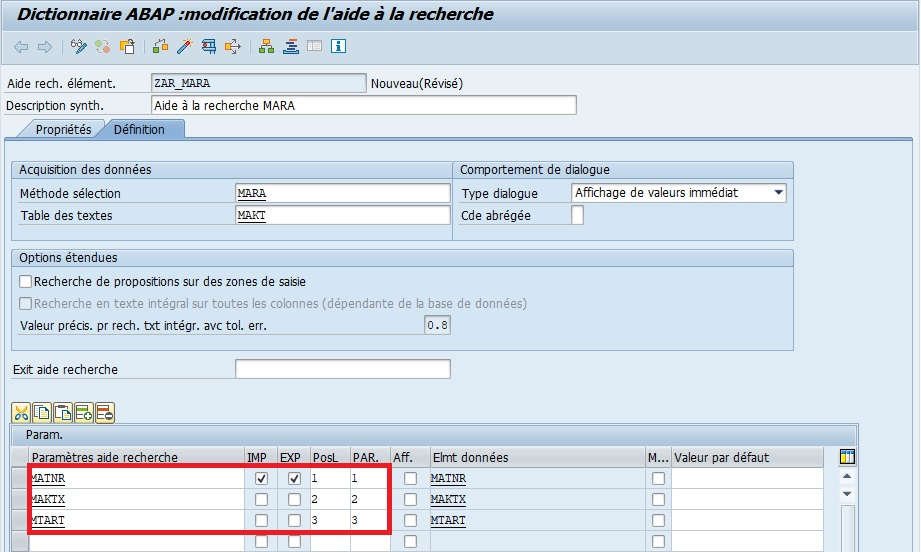
| FIELD | IMP | EXP | PosL | PAR. | Data element |
|---|---|---|---|---|---|
MATNR |
X | X | 1 | 1 | MATNR |
MAKTX |
2 | 2 | MAKTX | ||
MTART |
3 | 3 | MTART | ||
MATKL |
4 | 4 | MATKL |
Save
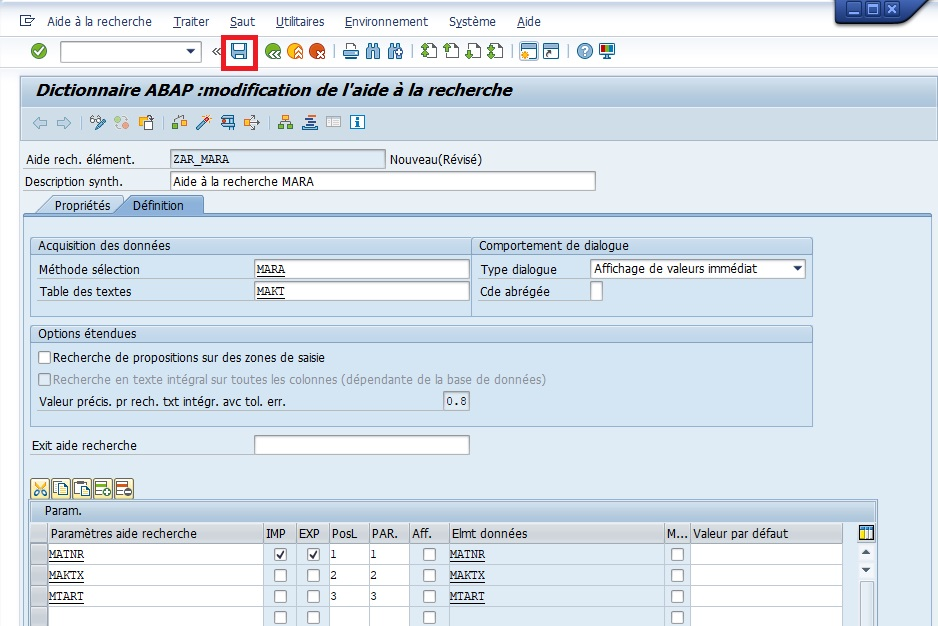
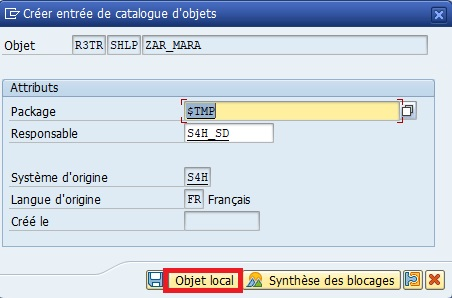
Check


Activate

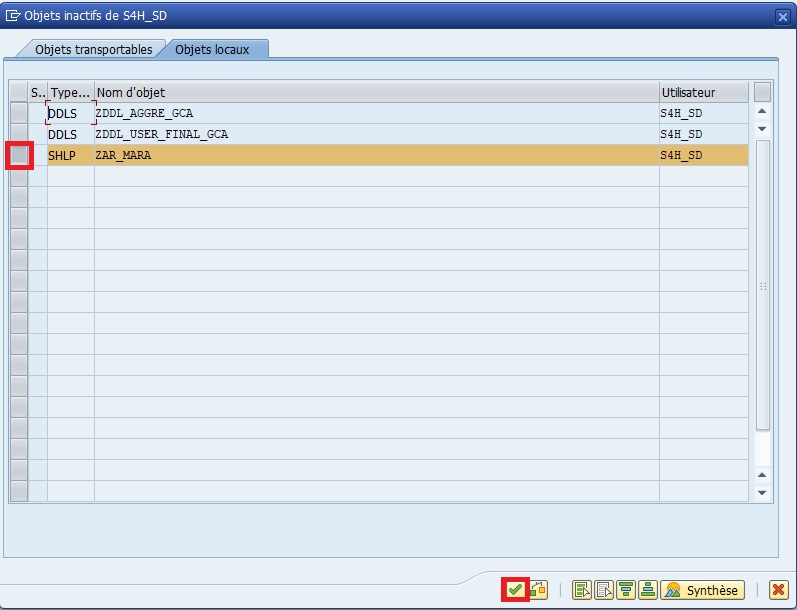
It’s also possible to test it with the Test… button in the toolbar, via the keyboard shortcut [F8] or through the dropdown menu.
Test the help immediately to verify it works correctly and proposes expected values.
Best practices #
| Best practices | Explanations |
|---|---|
| Test help after creation | Verifies values are correct and accessible |
| Use key fields and descriptions | Facilitates value identification |
| Choose adapted dialog type | Avoids lists that are too long or useless |
| Document search help | Allows other users to understand its usage |
Search helps are particularly useful for fields with fixed or standardized values (e.g.: material, customer, postal code).
If the number of values is very high, favor complex dialog or filtered view, otherwise the help will be slow or unusable.
Summary #
- Search help allows proposing possible values for an SAP field
- It can be elementary or collective and is based on a table or view
- Three dialog types allow adapting display according to data quantity
- Always save, check and activate help after creation
Search help is like a smart dropdown menu in Excel: it guides the user to avoid errors and speed up entry.